Canvas Support Resources
Last updated: October 10, 2025
Canvas Support offers users a variety of ways to get help, troubleshoot issues, and learn how to use the Canvas platform effectively. Whether through in-app tools, the Help Center, or direct contact with our support team, we aim to provide clear and responsive assistance.
Our dedicated support team is here to assist you Monday through Friday, 8am–8pm ET. We’re committed to addressing most inquiries within one business day, ensuring you get the help you need as quickly as possible.
User’s Guide
Submitting a Support Ticket
There are a few ways to submit a support ticket:
Support Portal: Log in to your support portal to submit a new request, track past tickets, or respond to open issues.
Email: Send an email to support@canvasmedical.com. You will receive an email notification when the ticket is updated and can log into your support portal to continue the conversation.
If multiple staff members are cc'd to a support email, they will not be able to view the ticket unless they are a Pylon account admin for your organization.
Ticket Forms: Use the appropriate ticket form to create tickets outside of Canvas.
After Hours Critical Incident: Support is available 8AM - 8PM EST. If it's outside of this window and is an urgent matter use this ticket.
Developer SDK Support or Developer API Support: For assistance with developer tools, posting to the Discussions board managed by the Canvas engineering team is the most effective resource. If you feel more comfortable submitting a ticket to our support team, we're always happy to help triage.
New Provider Enrollment: A new provider is being onboarded to the practice and needs to enroll with Surescripts, DrFirst and/or Health Gorilla.A new provider is being onboarded to the practice and needs to enroll with Surescripts, DrFirst and/or Health Gorilla. For Surescripts enrollment, you'll need to provide both an identity proofing certificate and a copy of at least one state license.
Standard Question / Inquiry: All other support inquiries.
Via in-app chat: Create a ticket while chatting with Herbert AI or a support agent from within Canvas
When submitting a ticket, provide as much detail as possible about your question or issue. Screenshots, URLs, and a description of what you expected to happen can help us resolve your request faster.
Canvas In-App Chat
Canvas provides an integrated in-app chat feature powered by Pylon, allowing users to easily access support directly from the platform.
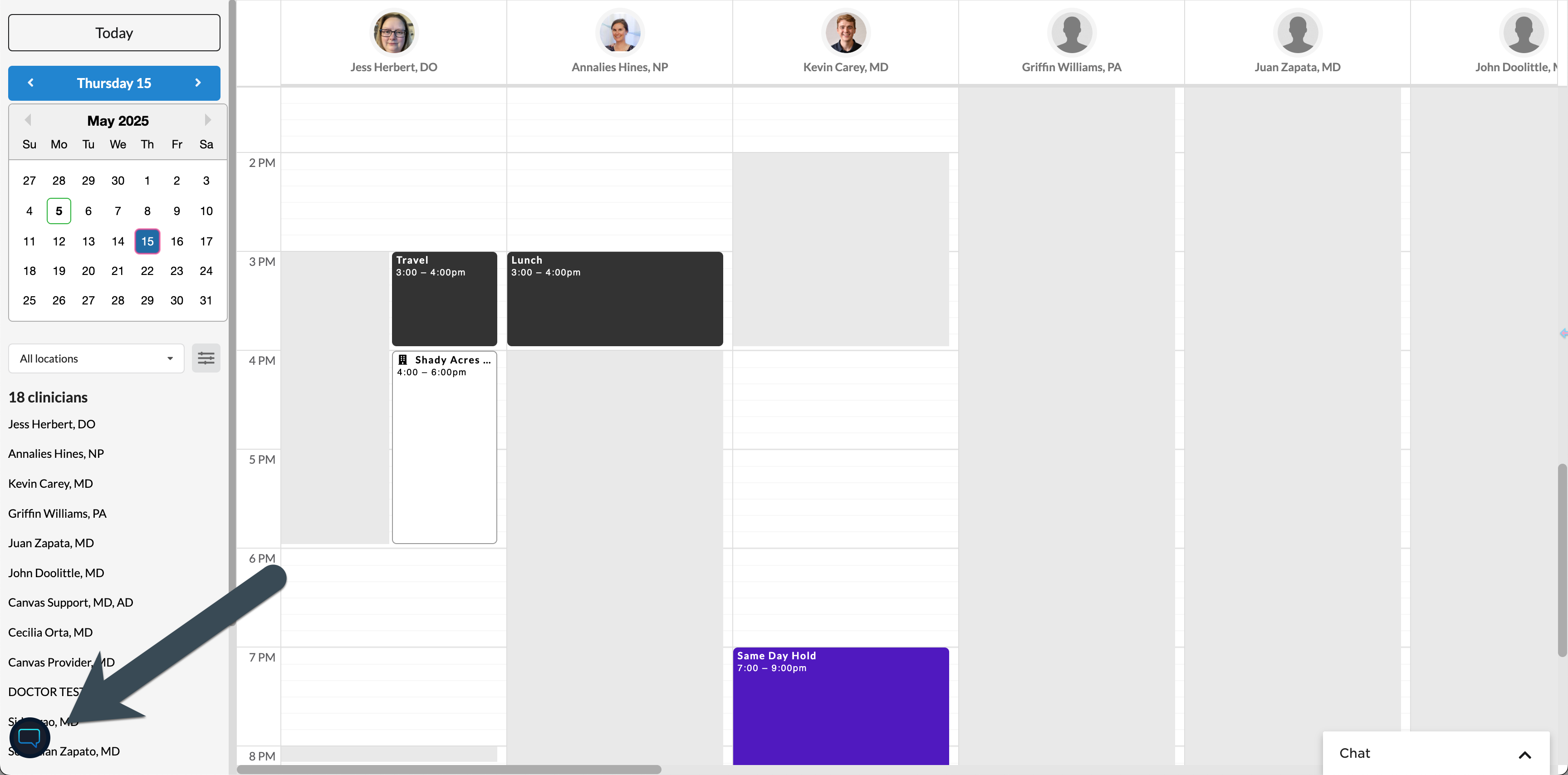
Simply click the chat bubble located at the bottom left corner of the Canvas page to launch the in-app chat.
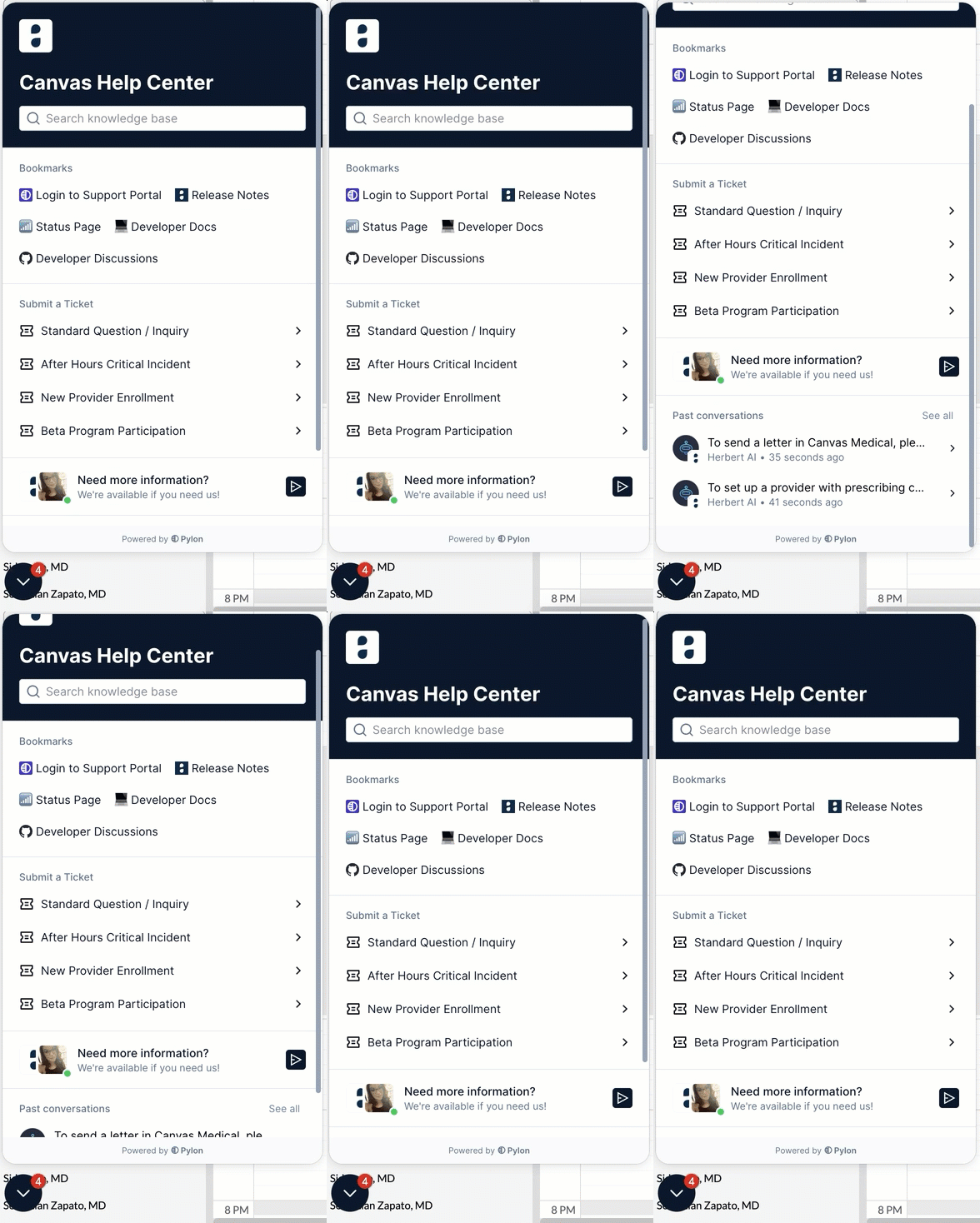
Take advantage of various tools and resources available within the in-app feature:
Search Bar: Search the comprehensive Canvas Help Center for specific topics, FAQs, and guides.
Explore articles categorized by Canvas features and tools.
Use keywords to find solutions to your concerns or questions quickly.
Access advice on workflows, settings, and practical usage tips.
Bookmarks: Quickly access resources you frequently use by saving them as bookmarks.
Submit a ticket: Use the appropriate ticket form to send your request to the Canvas Support team.
Need more information: Chat with Herbert AI, our virtual assistant, to get quick answers and guidance. Using internal support knowledge, Herbert AI can:
Provide solutions to common questions about Canvas features.
Recommend articles from the Help Center.
Assist with basic troubleshooting steps to resolve issues.
If Herbert AI cannot resolve your issue or its responses are inadequate, you can request a transfer to a human support agent. Any unresolved chats will automatically escalate to a support team member for further assistance.
Past Conversations: View a history of all chats you’ve previously submitted while logged in.
Chat Notifications: A red badge on the in-app chat bubble indicates the number of unread responses from Herbert AI or Canvas Support. Click the bubble to review pending messages.
After-Hours Critical Incident Support
Canvas Engineers are available on-call to address and resolve critical incidents that may occur outside of regular business hours.
What Qualifies as a Critical Incident?
A critical incident occurring after hours should be reported if it involves any of the following:
Unexpected downtime disrupting the production environment
System remains consistently unresponsive
API endpoints are inaccessible
Urgent patient safety risk identified
Data privacy violations detected
How to Report a Critical Incident?
To file a critical incident report outside normal support hours, please complete the After Hours Critical Incident form. This form is accessible via the online portal or through the in-app chat feature.
Handling Non-Critical Incidents After Hours
If classified as a non-critical incident by our Engineering team, the requester will receive a notification. The matter will subsequently be reviewed with priority during standard business hours by our Support team.
Configuration & Set Up
To fully utilize Canvas Support, complete either one or both of the following setup steps:
Sign into the Support Portal
If you haven’t already, create or activate your account at the designated portal link.
This will allow you to:
Submit and track your own tickets
Respond to ongoing requests
Access historical ticket information
Designate Admin Users
Organizations can assign admin users who can view all submitted tickets within their domain.
Email support@canvasmedical.com with the name and email address of the individuals you’d like to designate.
We’ll configure their access and confirm once setup is complete.
Following these steps ensures your team has the necessary access and visibility to efficiently manage support.
FAQ & Troubleshooting
Q: I submitted a ticket but haven’t heard back. What should I do?
A: Most tickets receive a response within one business day. If it’s been longer, check your support portal to see the status or provide an update.
Q: I can’t log into the support portal.
A: Make sure you’re using the email associated with your Canvas account. If you’re unsure whether your account is set up, email support@canvasmedical.com for help.
Q: How do I know if I’m an admin user?
A: Admin users can view all support tickets submitted by users at their organization. If you’re not sure whether you’re set up as an admin, submit a support ticket email support@canvasmedical.com.
Q: Can I ask Herbert AI anything?
A: Herbert is great for answering questions related to Canvas features, workflows, and the Help Center. For urgent or complex issues, it’s best to submit a ticket.
Q: Can I use in-app chat after hours?
A: Yes, you can access chat at any time. While live support is only available Monday–Friday, 8am–8pm ET, Herbert AI is available 24/7.
Related Resources
Keywords & Metadata
• Keywords: support, help center, in-app chat, Pylon, Herbert AI, submit a ticket, support portal, Canvas Medical support, admin access, developer docs, GitHub discussions, ticket visibility, support hours, knowledge base, search help
• Categories: Support, Getting Started, Troubleshooting, Developer Resources