Report Jobs
Last updated: August 19, 2025
Report Jobs in Canvas provide valuable insights into a practice's financial and operational performance. These comprehensive reports assist healthcare organizations in monitoring key metrics, identifying trends, and improving workflows through data-driven decision making. Understanding how to generate, analyze, and interpret these reports is essential for effective practice management and revenue optimization.
User's Guide
Available Reports
Canvas offers nine core report types that cover different aspects of practice operations:
Financial Reports
Accounts Receivable: Daily summaries of open accounts receivable, charges, payments, and adjustments. This report provides critical financial insights including:
Current amounts owed to the practice
Outstanding balances organized by provider
Comparative financial standing across different time periods
Daily summaries of charges, payments, and adjustments
Patient Payments: Tracks patient payments including method, deposit date, and responsible staff member. Key insights from this report include:
Total patient collections over specified time periods
Staff performance analysis for payment collection activities
Distribution analysis of payment types (copay vs. balance payments)
Payment method tracking and trends
Reimbursements: Summarizes reimbursements by payer, billing code, and write-offs. This report helps practices:
Assess payer compliance with contracted rates
Measure collection effectiveness for specific billing codes
Evaluate fee schedule performance across different procedures
Identify reimbursement patterns and discrepancies
Cash Reconciliation: Tracks day-to-day deposits from insurance and patient payments. Essential for financial management, this report enables practices to:
Verify alignment between cash deposits and bank statements
Identify proportions of deposits from patients versus insurance
Evaluate individual provider contributions to payment collections
Track daily deposit patterns and trends
Adjustments: Details adjustments made to accounts and highlights deviations from rules. Important for financial oversight, this report reveals:
Volume and reasons for account adjustments
Adjustments that deviate from predefined rules
Common adjustment codes and emerging trends
Pattern analysis for improvement opportunities
Operational Reports
Appointments: Overview of scheduled, checked-in, no-show, and canceled appointments. This operational report provides insights into:
Appointment trends including no-shows and cancellations
Staff involvement in appointment booking and management processes
Same-day booking and cancellation patterns
Overall appointment volume and scheduling efficiency
Production: Tracks procedure charges, units, and RVUs (Relative Value Units). Critical for understanding practice productivity through:
Identification of high-performing CPT codes and procedure categories
Analysis of procedure demand for each provider
Monitoring of total RVUs generated by the practice
Tracking of units and charges across different services
Schedule Utilization: Summarizes appointment times, availability, and booking percentages. This report helps optimize scheduling by showing:
Provider calendar utilization rates and efficiency
Average appointment length by provider
Provider appointment volume within specified timeframes
Schedule optimization opportunities
Audit Report: High-level overview of user views and events within the Canvas platform. This report provides comprehensive oversight capabilities by tracking:
User views and events that occur within the Canvas platform
High-level overview of system activity and user interactions
Access patterns and usage analytics across the practice
Platform engagement metrics for compliance and operational review
Understanding Report Structure
Some reports will include a Data and Dashboard tab
Data Tab - Contains the raw data fields selected during generation, providing access to all underlying information for custom analysis.
Dashboard Tab - Includes a pivot table configured based on the Group By selection (only available when a Group By option was selected during generation).
Generating Reports
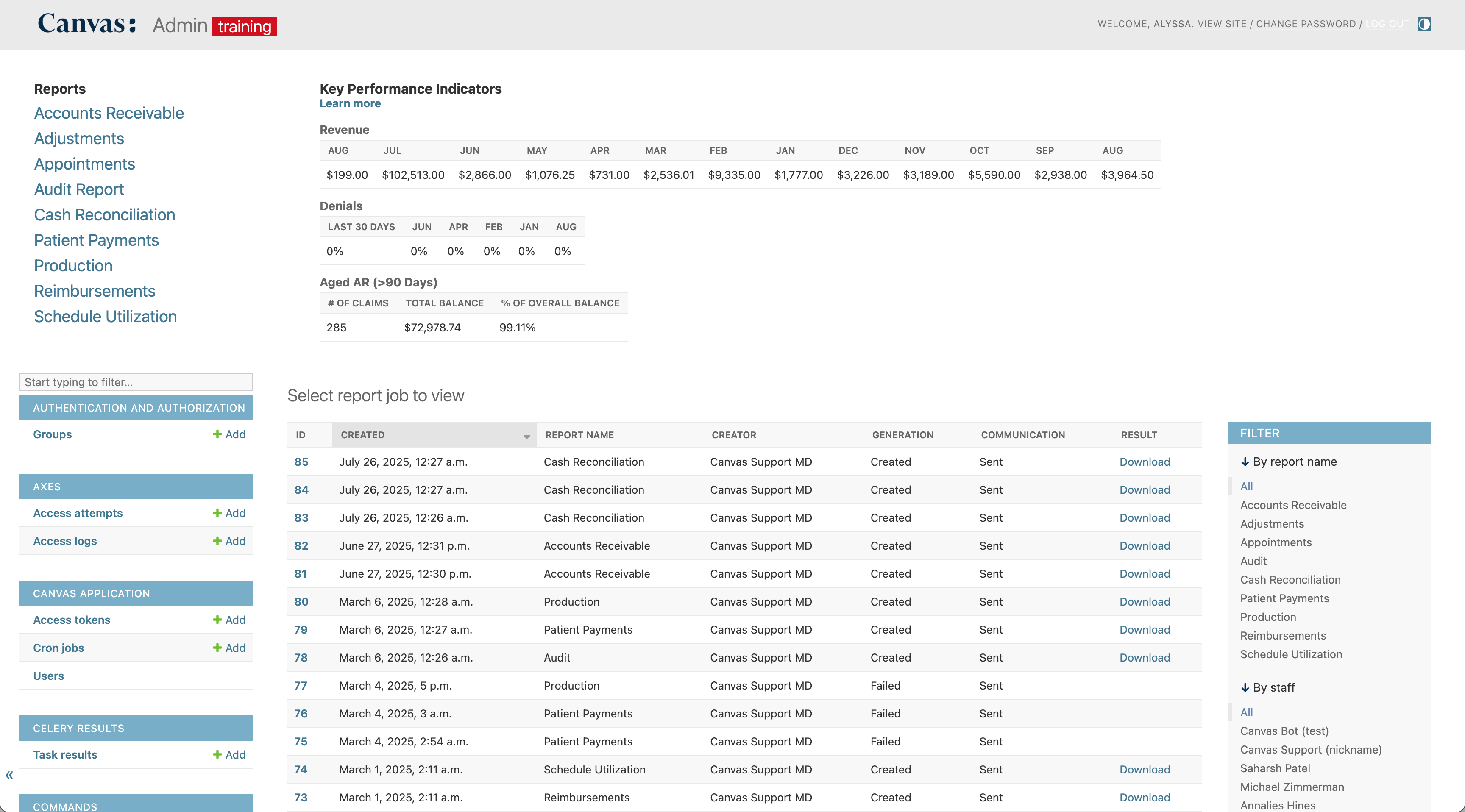
Navigate to Reports: Report Jobs in the Canvas settings.
Choose the desired report from the list on the left
Specify the start and end dates for data capture
Use the Group By dropdown to organize the report by relevant parameters such as:
Provider
CPT code
Payment method
Other applicable categories
Click Generate to create the report
Refresh the Report Modules page to view the latest report job
Select Download to retrieve the completed report
Upload the data into an Excel sheet.
Google Sheets can also be used, but it may distort some of the data.
Viewing Report Parameters
To review the criteria used for any generated report:
Navigate to the Schedule View
Access Settings via the triple-line menu
Open Report Jobs under the Reports heading
Locate the desired report and select its Report Job ID
View the selected criteria under Report Parameters
This feature allows users to verify report settings and understand exactly what data was included in each generated report.
Configuration & Set Up
Permission Requirements
Access to Report Jobs requires specific permissions within Canvas. If users do not have access to Report Jobs, they should contact Canvas Support to update their user permissions.
Email Notifications
The system automatically sends email notifications for report status updates
Completion notifications include a direct download link when reports are ready
Failure notifications alert users if report generation encounters issues
FAQ & Troubleshooting
Q: What impact does the Group By option have on the report?
A: Selecting a Group By option preconfigures a pivot table in the report output file. Without selecting a Group By option, the spreadsheet will only contain raw data without any pre-organized summaries.
Q: How can users customize analysis if the report includes pivot tables?
A: All reports contain a raw data tab that can be used to create custom analyses beyond the pre-configured pivot tables. This allows for flexible data manipulation and specialized reporting needs.
Q: How will users know when a report is ready for download?
A: An email notification is sent when the report generation is complete. The email includes a direct link to download the report, eliminating the need to manually check the system.
Q: What happens if the report generation fails?
A: Users will receive an email notification if a report fails to generate. The notification will include information about the failure and next steps for resolution.
Q: Can reports be scheduled to run automatically?
A: No, reports will need to be manually executed
Q: How long are generated reports stored in the system?
A: Reports typically take 1-5 minutes to generate.
Related Resources
Keywords: Report Jobs, Billing Reports, Financial Summaries, Revenue Management, Data Analysis, Practice Analytics, Canvas Reporting, Healthcare Metrics
Categories: Practice Management, Billing, Operational Analytics, Financial Reporting