Assessing and Updating Conditions
Last updated: October 14, 2026
Introduction
Tracking patient progress over time requires regular updates to conditions. This article explains how to assess a condition, whether it is already on the patient's chart or new at this visit, document changes in patient status, and review comprehensive condition histories in Canvas Medical.
User's Guide
Assessing a Condition
The Assess Condition command documents a condition at today's visit. It works for a condition already on the patient's chart and for a new one.
To assess a condition:
Add the Assess Condition command to a new or existing note through one of the following
Add the Assess Condition command directly to a new or existing note
Hover over the condition in the Patient Summary and click Assess
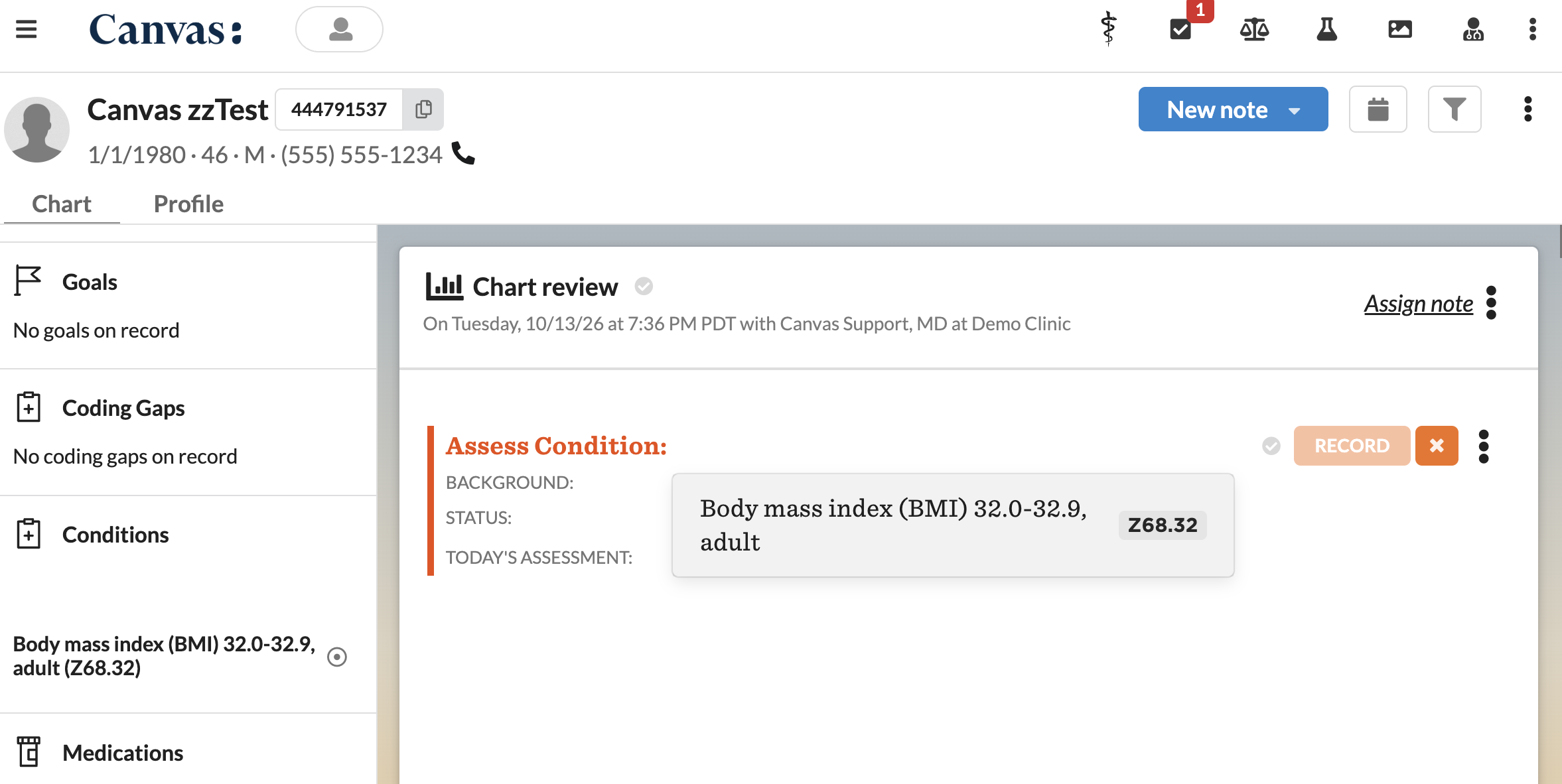
If the cursor is not positioned in a note before clicking Assess, a Chart Review note will be created to store the command.
Complete the fields within the command
Background: Carries forward automatically from the condition's current background. Update if necessary.
Status: Select the current condition status:
Improved
Unchanged
Deteriorated
Approximate Date of Onset: Indicate when the condition began (e.g., "last week," "3 years ago," "2015"). Optional.
For a condition already on the chart, this fills in from the condition and can be updated.
Today's Assessment: Update observations made at the current visit based on condition status
Click Record to update the patient's record.
Selecting a Condition
The condition search lists the patient's charted conditions first, active ones at the top, followed by resolved ones. Typing a name or ICD-10 code narrows the list and then shows matching codes from the full ICD-10 list beneath the patient's conditions. Each charted condition shows its ICD-10 code and its status.
What happens when the command is recorded depends on what was picked:
A condition on the patient's chart: The assessment is recorded against that condition.
A resolved condition: The condition becomes active again and appears on the Conditions list.
A new ICD-10 code: The condition is added to the patient's Conditions list as active.
If an ICD-10 code from the full list matches a condition already on the patient's chart, the search shows the charted condition in its place, so the same condition is never added twice.
An Approximate Date of Onset entered on the command is saved on the condition, and future assessments of that condition start from it.
How a Condition's Background Stays Current
A condition carries a background of its own, and that background follows the most recent assessment of the condition. Recording an assessment with background details updates the condition to match, so the next Assess Condition command starts from what was most recently documented rather than from the original diagnosis.
Key points:
The condition is first given the background entered on the command that recorded it, whether that was Assess Condition, Diagnose, or Add Condition
Each recorded assessment that includes background supersedes it
Entering an assessment in error steps the background back to the assessment before it. Entering the only assessment in error restores the background the condition was recorded with.
Using Carry Forward
To transfer data from a previous Diagnose or Assess Condition command:
Click the triple dot menu on the new Assess Condition command
Select Carry Forward from the dropdown
Matching fields from the previous command will replicate in the new command, including the condition's Approximate Date of Onset
Any new information entered will overwrite existing content, ensuring the record stays current for the next carry forward.
Viewing Condition History
Clicking on a condition in the Patient Summary opens a modal with comprehensive historical information.
To review condition details:
Navigate to the Patient Summary which is the left panel of the patient's chart.
Click any condition to open the modal
The modal displays:
Background: Most recent and historically documented background information
Associated Medications: Medications where this condition is listed as an indication
Labs and Imaging Orders: Orders that reference this condition as an indication
Assessments: Complete history of all assessments in reverse chronological order, including condition changes or resolutions
Each timeline entry links directly to the originating command in the patient's chart.
Understanding Timeline Behavior After Diagnosis Changes
When a diagnosis is changed using the Change Diagnosis command, Canvas creates specific timeline behaviors to maintain accurate historical records.
Original Diagnosis Timeline:
Change Diagnosis automatically resolves the original condition and the modal will display "Change of diagnosis to [new diagnosis and ICD-10]"
Clicking the resolved condition in the modal timeline will link to the Change Diagnosis command
The modal timeline displays all assessment history up until the diagnosis change
Lab and imaging orders appear only if their ICD indication code matches the original diagnosis
The modal timeline will not include assessments made after the diagnosis was changed
New Condition Timeline:
The modal timeline shows complete assessment history from both the original and new conditions
First assessment entry displays: "Change of diagnosis from [original diagnosis and ICD-10]"
Clicking the first assessment entry links to the Change Diagnosis command
Lab and imaging orders appear only if their ICD indication code matches the new diagnosis
The modal timeline does not display the resolve event that occurred for the original diagnosis
Configuration & Set Up
No special configuration is required. The Assess Condition command and condition history modals are available by default in all patient charts.
FAQ & Troubleshooting
Q: How do I access the condition timeline?
A: Click on any condition in the Patient Summary to open a modal that displays the comprehensive timeline, background information, associated medications, and all historical assessments.
Q: Why doesn't my new assessment show the previous background information?
A: Background carries forward from the condition's current background, which follows the most recent assessment of it. If nothing appears, neither the command that recorded the condition nor any assessment since included background details.
Q: What happens to the background if I enter an assessment in error?
A: The condition's background steps back to the assessment before the one entered in error. If it was the only assessment, the background returns to what the condition was recorded with.
Q: What happens when I change a diagnosis?
A: The Change Diagnosis command creates a new condition with the updated diagnosis while preserving historical data from the original condition. The original condition is resolved with a note indicating the change, and the new condition includes the full assessment history from both diagnoses.
Q: Should I use Assess Condition or Diagnose for a new condition?
A: Use Assess Condition. It records the new condition and checks the patient's chart first, so a condition that is already charted is reused.
Q: What happens if I enter an Assess Condition command in error?
A: The assessment is removed from the condition's history. If recording that command added the condition to the patient's chart, the condition is removed as well, unless another recorded assessment also uses it. A condition that was already on the chart stays on the Conditions list.
Q: I assessed a resolved condition by mistake and it became active. How do I resolve it again?
A: Use the Resolve Condition command on the condition. Entering the Assess Condition command in error removes the assessment and leaves the condition active.
Q: Why doesn't a resolved condition appear in the search?
A: When the patient has an active condition with the same ICD-10 code, the search shows only the active one, so assessing it never creates a second active copy. Surgical history entries and conditions without an ICD-10 code are also left out of the search.
Related Resources
Keywords: assess condition, new condition, new diagnosis, ICD-10, approximate date of onset, duplicate conditions, resolved condition, condition history, patient progress, condition status, clinical documentation, timeline, carry forward, assessment history, background
Categories: Clinical Documentation, Condition Management