Appointment Reminders
Last updated: September 30, 2025
Appointment reminders help ensure patients don't miss their scheduled visits by automatically sending notifications via text and email. This feature improves patient attendance rates and reduces no-shows by providing timely notifications for both regular and telehealth appointments. When properly configured, the system sends reminders at optimal times and includes all necessary information for patients to attend their appointments successfully.
User's Guide
Understanding Verified Contacts
When a patient is enrolled to receive emails and/or texts, they are considered a verified contact. Verified contacts are eligible to receive appointment reminders for both in person and Telehealth appointments.
A verified contact method can only be linked to one patient for appointment reminders. To share contacts between patients, verify the phone number for one patient and the email address for the other.
Understanding Appointment Reminders
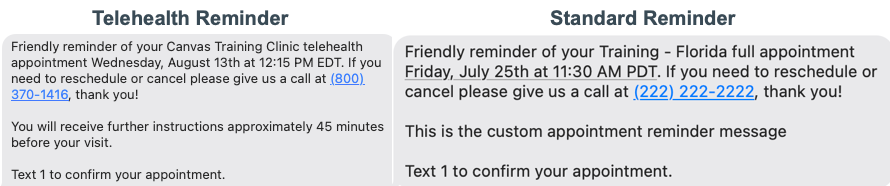
First Reminder
The system sends a reminder a set number of days before the appointment (configurable in Practice: Organization settings)
For Non-Telehealth appointments, reminders are sent via text if text is verified, unless email is the only verified method
For Telehealth appointments, reminders are sent to both text and email if both contact methods are verified
Patients can confirm appointments directly from reminders but must call the office to cancel or reschedule
Telehealth 45-Minute Reminder
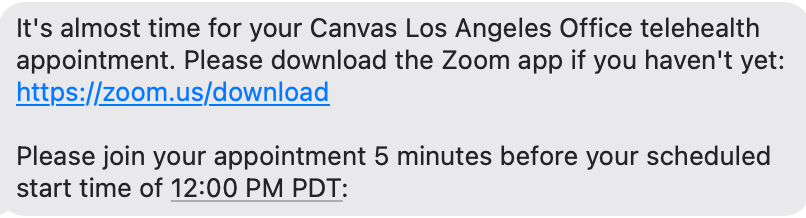
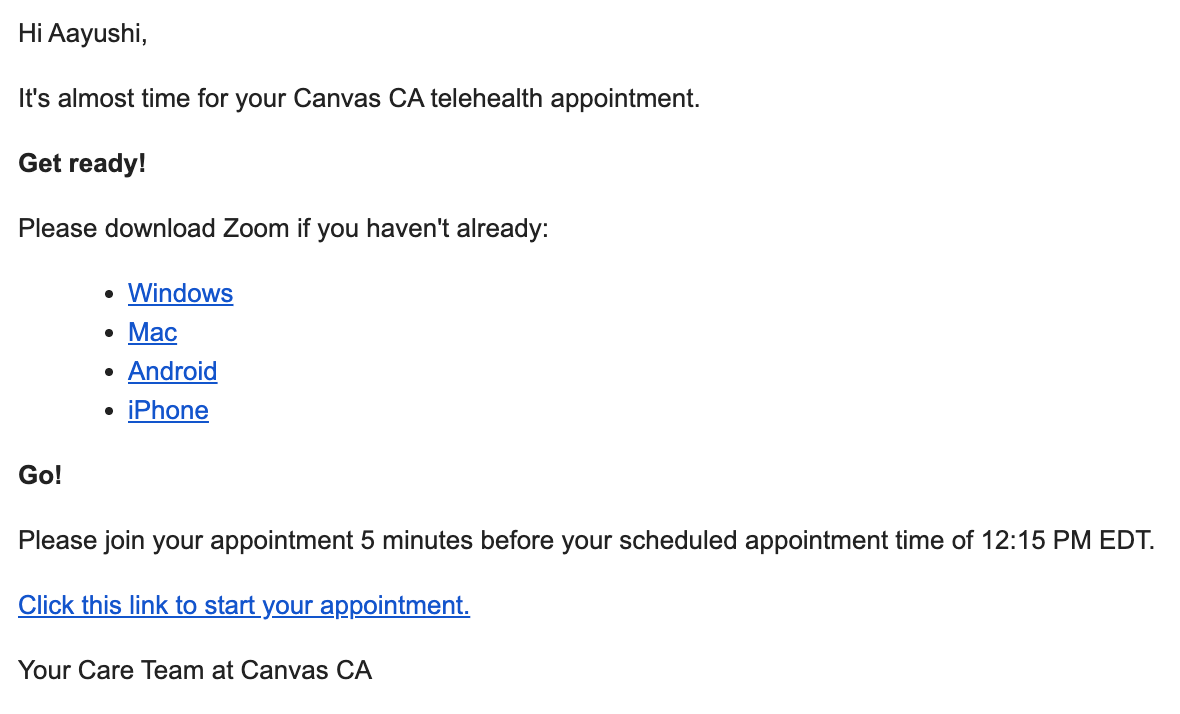
For telehealth appointments, an additional reminder is sent 45 minutes before the appointment, including:
A link to join the appointment
A link to download the Telehealth application, if applicable
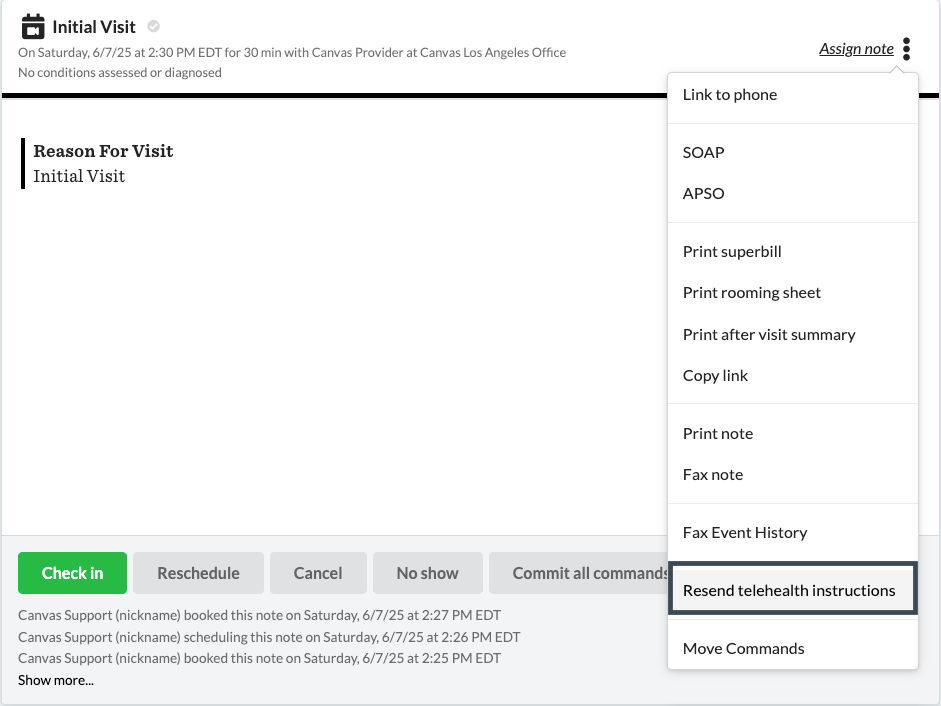
Resending Telehealth Instructions
If a patient needs telehealth instructions resent:
Go to the telehealth appointment in the patient chart
Click the triple dot in the heading of the appointment note
Click Resend Telehealth Instructions from the dropdown
Instructions will resend to the verified contact
Configuration & Set Up
Configuring Appointment Reminders
To configure the timing of reminders:
Go to Practice: Organizations under Settings
Click the organization's name to open the Change Organization form
Under the Organization Settings section, click Add another Organization setting.
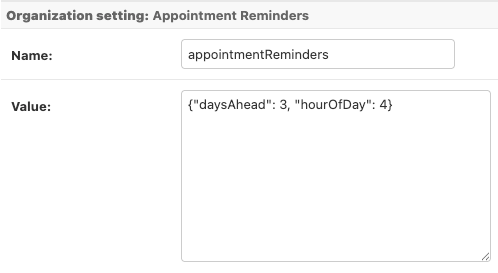
Add the Name and Value for the setting. Ensure the format adheres to the guidelines below to enable the appointment reminders to start sending.
Name:
appointmentRemindersValue:
{"daysAhead": X, "hourOfDay": X}"daysAhead": Specify the number of days before the appointment to send the reminder.
"hourOfDay": Indicate the hour of the day the reminder is sent, using a 24-hour format.
Reminders are sent based on the instance timezone. If the instance is in Pacific time and the hourOfDay is set to 10, the reminder will be sent at 10AM PT, regardless of the patient's timezone.
Click Save once the setting is complete.
Customizing Appointment Reminders
Practices can add a custom message beneath the standard appointment reminder to provide additional instructions or information to patients.
This setting is not applicable to telehealth appointment reminders.
The custom text will be replaced with: You will receive detailed instructions approximately 45 minutes before your visit.
To add a custom message:
Go to Settings
Select the Practice: Organizations setting
Click the organization's name to open the Change Organization form
Under the Organization Settings section, click + Add another Organization setting
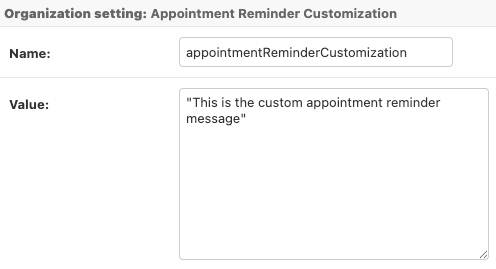
Set the Name field to appointmentReminderCustomization
Enter your custom message in the Value field, enclosed in quotes (e.g.,
"Please arrive 10 minutes early")Click Save
Customizing the 45 Minute Telehealth Instruction Message
To modify the default Telehealth appointment instructions:
Go to Constance: Config under Settings
Locate the Communication settings
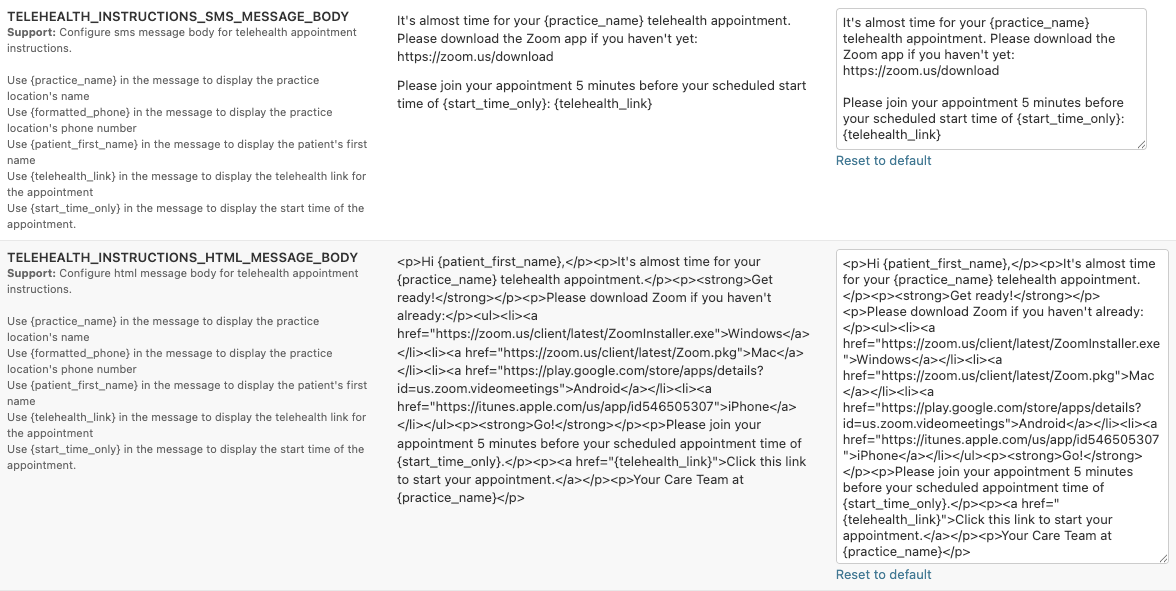
Make necessary modifications to the telehealth instructions:
TELEHEALTH_INSTRUCTIONS_SMS_MESSAGE_BODY for text (SMS) reminders
TELEHEALTH_INSTRUCTIONS_HTML_MESSAGE_BODY for email reminders
Click Save
Email instructions are required to be written in HTML. If you do not have a resource that can write in HTML, there are many free text to HTML converters available online.
Dynamic Keywords for Personalizing Telehealth Reminder Messages
Personalize reminder messages using dynamic keywords that automatically populate with appointment and practice details
{practice_name}: Name of the practice location
{formatted_phone}: Practice phone number
{patient_first_name}: Patient's first name
{telehealth_link}: Provider's personal meeting room link
{start_time_only}: Start time of the appointment
Testing Appointment Reminders
Testing Standard Appointment Reminders
To verify appointment reminders are working correctly:
Go to a test patient's profile
If it is not already, update the test patient's phone and/or email to the user's personal contact
Schedule a test visit using the test patient at least one hour in the future but no greater than the defined reminder window.
Appointment reminder should be sent to the user roughly 10 minutes after the appointment is scheduled.
A cron job runs every 10 minutes to check for newly scheduled visits with an unconfirmed appointment status within defined appointment reminder window.
Review the message to confirm message came through as expected.
Make any modifications, if needed
Testing 45 Minute Telehealth Instruction Message
Go to a test patient's profile
If it is not already, update the test patient's phone and/or email to the user's personal contact
Schedule a test visit using the test patient at least one hour in the future but no greater than the defined reminder window.
Wait until 45 minutes before the appointment to receive and review the message
Make any modifications, if needed
SMS Example
Email Example
FAQ & Troubleshooting
Q: Why didn't my patient receive an appointment reminder?
A: Check that the patient has a verified contact method (email or phone number) and that the reminder settings are properly configured in Practice: Organizations.
Q: Can patients reschedule appointments from the reminder message?
A: Patients can confirm appointments directly from reminders but must call the office to cancel or reschedule.
Q: What happens if a patient has both email and text verified for telehealth appointments?
A: Telehealth reminders are sent via both text and email if both contact methods are verified.
Q: How do I change when reminders are sent?
A: Modify the appointmentReminders setting in Practice: Organizations using the {"daysAhead": X, "hourOfDay": Y} where X is days ahead and Y is the hour it will be sent in 24-hour format. Reminders are sent based on the instance timezone, not the patients' timezone.
Related Resources
Keywords: appointment reminders, telehealth notifications, patient communication, verified contacts, SMS reminders, email reminders, custom reminders
Categories: Patient Communication, Appointment Management, Telehealth