Multi-factor Authentication (MFA)
Last updated: October 25, 2025
Multi-factor Authentication (MFA) is a secure method requiring users to provide two or more verification factors to access Canvas. This enhances security by combining something users know (password) with something they have (e.g., a one-time password). This article outlines how to configure MFA, its capabilities for administrators and users, and how to log in securely using established methods.
User's Guide
MFA adds a second layer of security, requiring additional verification. OTPs can be received via email, SMS, or authentication apps such as Google Auth or 1Password based on what the practice has enabled.
Logging in with MFA
Enter Canvas username and password.
Provide the verification code sent to the selected authentication method.
First-time setup: Log in with credentials and email. A verification code will be sent to the chosen authentication method, which must be entered.
Code validity: Verification codes expire after 10 minutes for email and SMS.
Failed attempts: If authentication fails after 5 attempts, contact the organization’s admin for assistance.
If Remember this device is enabled, re-authentication may not be required for the set duration.
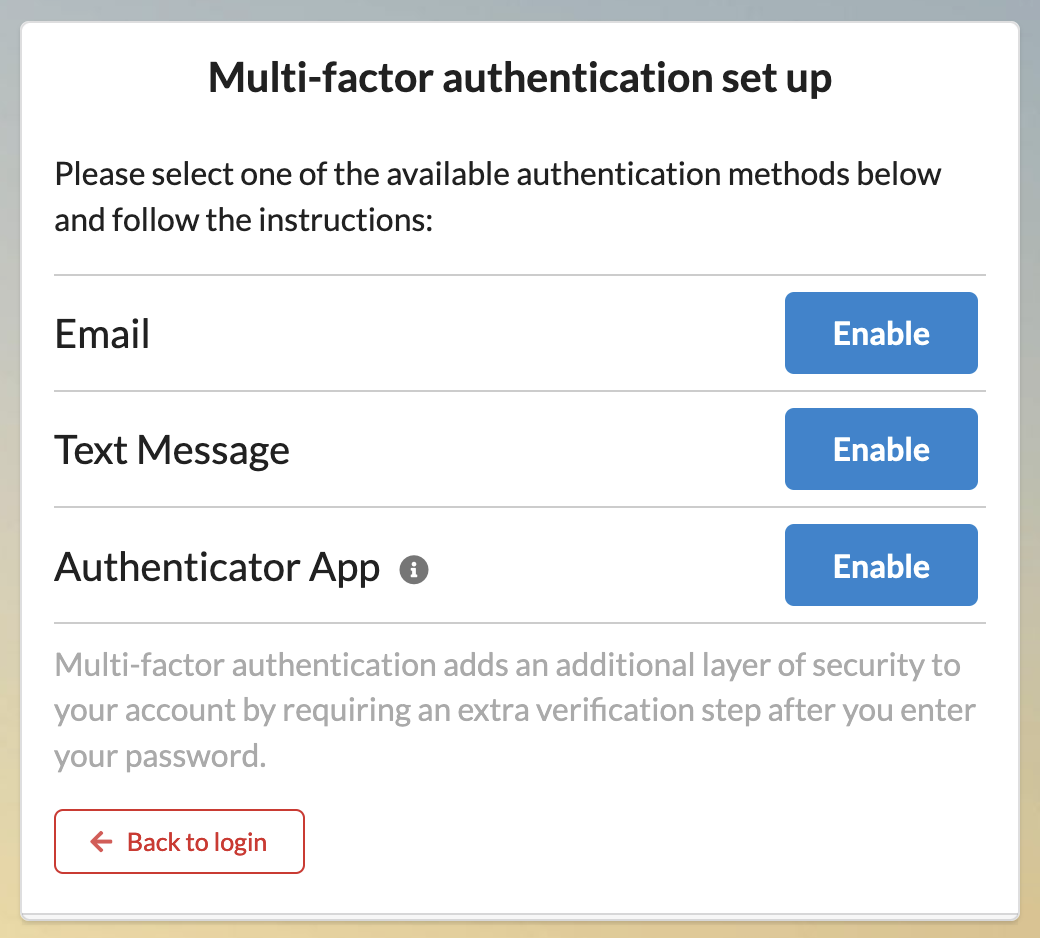
Remove Authentication Method
An authentication method can be removed by a user if MFA is not required by following these steps:
Click on the triple line menu and select Multi-Factor Authentication.
Locate the specific authentication method
Click the trash icon to remove it.
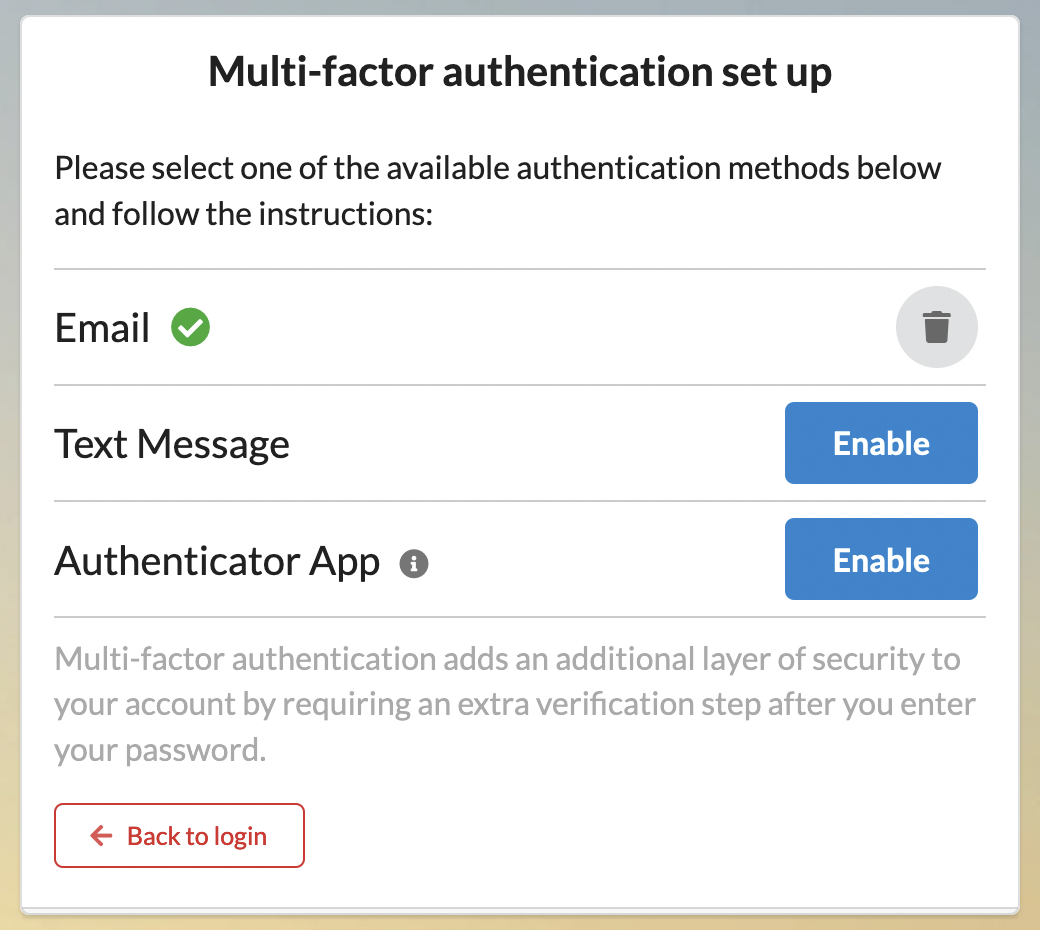
Configuration & Set Up
Setting Up Authentication Methods
Canvas allows organizations to configure MFA methods through administrative settings. Available methods include:
Email: Primary email address linked to the staff profile.
Alternative Email: A secondary email address.
SMS: The mobile phone number associated with the staff profile.
Alternative SMS: A secondary mobile phone number.
Authenticator App: Third-party applications (e.g., Google Authenticator, 1Password) that generate time-based OTPs.
MFA Remember Days: The number of days the MFA token is remembered before re-authentication is required.
Enabling MFA for the Organization
Navigate to Settings > Constance: Config
Enable the MFA_REQUIRED flag to enforce MFA for all users.
Select login methods available for MFA.
Configure device remembrance duration using MFA_REMEMBER_DAYS.
For MFA to be required at every login, set the value to 0.
Tokens expire every 24 hours based on the configured number of days from the last login. For example:
If MFA_REMEMBER_DAYS is set to 2 days and a user logs in on Monday at 10 AM PT, the device will remain remembered until Wednesday at 10 AM PT.
It is best to enable MFA during off hours to prevent disruption.
The Remember this device functionality relies upon your web browser’s saved cookies. If switching to a new browser, the remembered device will not carry over.
If selecting "Remember this device" when logging in using MFA is not working and repeated authentication is required at each login, there could be a few reasons why:
Browser-Specific Issues:
Private Browsing: Incognito mode or private browsing prevents cookies from being stored. Avoid using these modes when enabling "Remember this device."
Cookie Settings: Ensure cookies are enabled in the browser:
Check Chrome settings at
chrome://settings/cookies.Add Canvas to Sites that can always use cookies.
Clear the browser’s cache and cookies if previous settings interfere with MFA functionality.
Extensions and Anti-Virus Software:
Certain browser extensions or anti-virus tools may block cookies required for MFA. Temporarily disable all extensions to identify the cause.
Known extensions that interfere with MFA:
Security blockers (e.g., Bit-Defender).
VisualPing or similar tools.
Ensure these tools allow cookies to save properly.
IP Address Changes:
The Remember this device feature may not function if the IP address changes. Consistent network access is recommended for reliable MFA performance.
Resetting Authentication Methods
If a user no longer has access to the device, administrators can delete authentication methods via the following settings
For individual user MFA reset, follow these steps:
Locate the MFA settings section within their profile.
Remove or reset their specific authentication methods.
Notify the user that they can now log in and reconfigure MFA.
Use the following options for adjustments:
OTP_EMAIL: Verification through email.
OTP_TOTP: Authenticator apps.
OTP_TWILIO: Verification through SMS.
Common scenarios for user-level reset include:
User lost access to their registered device.
Authentication app was deleted or reset.
Phone number or email address changed.
User exceeded the 5 failed authentication attempts limit.