Admin | Campaigns Module
Last updated: December 30, 2024
Canvas offers three powerful modules—Campaigns, Populations, and Patients—to streamline patient outreach, protocol management, and care coordination. These modules allow users to manage targeted campaigns, explore patient populations, and view individual patient details. Each module complements the others to enhance workflows and optimize healthcare delivery.
Campaigns Module
The Campaigns module enables users to manage patient outreach campaigns for specific protocols, such as Annual Wellness Exams. It allows for tracking campaign progress, viewing patient-level data, and initiating new outreach efforts.
Starting a Campaign
From the triple line menu, select Campaigns
Click the Start Campaign button
Select a protocol from the dropdown menu
Complete the campaign details:
Description (optional)
Outreach message template (or create/edit templates in settings)
Number of patients in the cohort
Choose a send option:
Send Now
Send Later:
Default: 9 AM the next day
Custom: Set a specific date and time
Managing Campaigns
Locate and select a campaign card in the Campaigns menu
Click Manage Campaign to view:
Protocol name, description, and status bar
Current and new intervention tabs
Use available actions:
View/edit outreach messages or progress
Start a new intervention (follow steps above)
Close the campaign
Viewing Closed Campaigns
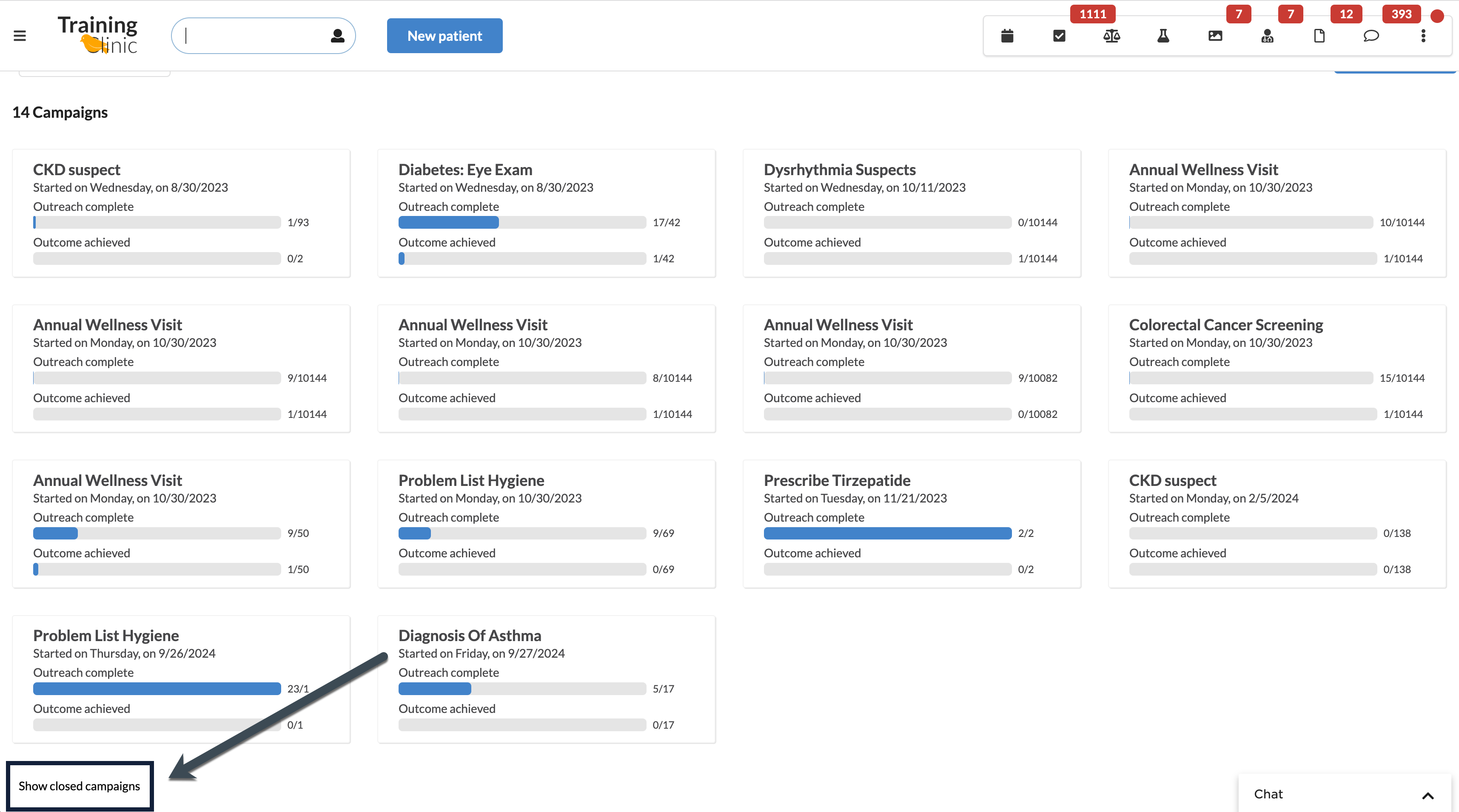
Enable the Show Closed Campaigns link in the Campaigns menu.
View closed campaigns as cards with details like start date and completion status.
Populations Module
The Populations module provides insights into patient groups based on protocols, enabling users to manage and monitor healthcare delivery across specific populations.
Accessing the Populations Module
From the triple line menu and select Populations
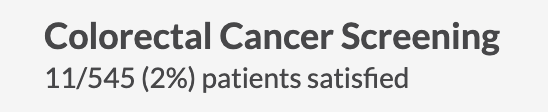
The left-hand menu allows populations to be searched or they can be selected directly from the menu. The count and percentage of patients that have satisfied the protocol will also be displayed.
Using Populations for Protocol Management
Click on a protocol to view:
Number of patients due
Protocol description and related details.
Patient list including:
Name, age, sex at birth, phone number (linked to chart)
Care Team, Date last seen and next visit.
Use the Start Campaign button to initiate an outreach campaign for the protocol.
Patients Module
The Patients module offers a comprehensive, sortable list of all patients, filtered by care team, facility, or name.
Accessing the Patients Module
From the triple line menu, select Patients
Viewing and Filtering Patients
Filter the patient list by:
Name (includes age, sex at birth, DOB)
Care team (displayed as Name and Role)
Facility (if applicable)
Protocol
Click the Edit ✏ icon in the table heading next to "Protocols" to begin editing.
Select up to 6 protocols from the dropdown menus.
Use the 6-dot handle to rearrange the order of the protocols as needed.
Remove any protocol by clicking the Trashcan 🗑 icon next to it.
Click Done to save the updated protocol setup.
The patient list will automatically filter based on the selected protocols. Hover over the status dots to see the protocol details:
🔴 Red: Protocol is due.
🟢 Green: Protocol is satisfied.
⚪ White: Protocol is not applicable.
Sort columns alphabetically for:
Patient name
Facilities
Last seen (date reflects most recent visit note)
Navigating to Patient Charts
Click on any patient identifier to open the patient's chart for additional details.
FAQ
Q: Can all three modules—Campaigns, Populations, and Patients—be used simultaneously?
A: Yes, all three modules are available and can be used in tandem to enhance workflow and patient management.
Q: How can specific populations be filtered?
A: Use the search bar in the Populations module to find specific protocols or patient groups.
Q: Why is filtering by protocol unavailable in the Patients module?
A: Filtering by protocol is a feature exclusive to the Populations module. Use Populations for protocol-based worklists.
Keywords & Metadata
Keywords: Campaigns module, Populations module, Patients module, protocol management, patient outreach, Canvas Medical, healthcare workflows, population management, patient campaigns, care coordination
Categories: Patient Management, Population Management, Campaign Management, Healthcare Administration, Workflow Optimization