Continuity of Care (CCD) and Referral Note Documents
Last updated: October 4, 2026
Introduction
Consolidated Clinical Document Architecture (C-CDA) files help healthcare providers share important information about patients. These XML-based files securely transfer details like medical conditions, allergies, and medications between systems. This guide explains how to use C-CDA files for sharing and updating patient data, as well as tips for exporting them to support ongoing care.
User's Guide
Importing C-CDA Files
Manual Import Process
Within Settings, locate CCDAs
In the upper right corner select import
Attach your CCDA xml file
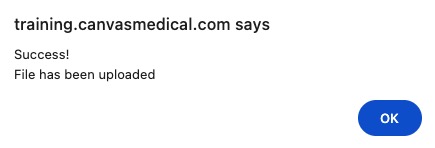
You will get a pop-up notification confirming success
You can then review the CCDA and status in Ccda imports
Import Status Tracking
Canvas tracks all C-CDA import attempts with the following status indicators:
Accepted: Import succeeded and data was processed
Ingesting Error: Import failed (click record for error details)
You can monitor import progress and troubleshoot issues through the admin interface, which allows filtering by:
Import status
Document type (CCD, Referral Note)
Whether patient matching was successful
Import date
Import Note Processing
When a C-CDA is imported, Canvas creates a special note type (C-CDA Import) with unique state management:
Confirm Import: Commits all commands and locks the note
Discard: Deletes the note entirely
Standard commit button is hidden; only remove buttons appear in command headers
Understanding C-CDA Import Processing
Patient Matching
When C-CDA files are imported, Canvas attempts to match the patient information in the document to existing patients in the system. The matching process uses patient demographics such as:
First, middle, and last name
Date of birth
Other identifying information
If a patient match is found, the C-CDA data will be imported and associated with that patient's record. If no match is found, the import will show "Patient not matched" status, and the clinical data cannot be processed until a patient match is established.
When a CCDA document is imported, each clinical object (conditions, medications, allergies) can contain multiple codings. Each coding includes:
System (e.g., SNOMED, ICD-10, RxNorm)
Code (e.g., 12395820315)
Display (e.g., "Pneumonia")
Canvas saves all usable codings for each clinical object. A coding is considered unusable only when it has neither a system/code nor a display value.
Display Priority for Multiple Codings
When multiple codings exist for a single object, Canvas prioritizes display based on preferred coding systems:
Conditions: ICD-10
Medications: FDB MEDID
Allergies: FDB DAM
Medication Enrichment
For medications only, Canvas performs coding enrichment:
RxNorm codes are automatically mapped to FDB MEDID using internal services
Both original RxNorm and new FDB codings are retained
This enables native Canvas medication features like drug-drug interaction checking
Allergy and Condition Limitations
Currently, Canvas does not perform mapping for:
Allergies: SNOMED or RxNorm to FDB
Conditions: SNOMED to ICD-10
Important: Imported allergies will NOT be considered in drug-allergy interaction checking unless users manually search for the relevant FDB allergy concept in the generated Allergy command.
Coding System Recognition
For recognized coding systems:
Canvas saves the coding with its original system
Display names use the
<display>value from the CCDA if availableFor allergies without display names, Canvas generates:
<n> system=<s> code=<code>orUNKNOWN system=<s> code=<code>
For unrecognized coding systems:
Canvas creates an "unstructured" coding
Display format:
system=<s> code=<code> display=<display>when display is availableFor allergies without display:
<n> system=<s> code=<code>orUNKNOWN system=<s> code=<code>
Generating C-CDA Exports
C-CDA files can be generated as either Continuity of Care Documents (CCD) or Referral Notes. These XML files can be created by end-users from Canvas Settings or requested by patients through the patient app.
Creating C-CDA Files
Within Settings > CDA, select GENERATE button
Complete the C-CDA export form:
Search for patient by DOB (YYYY-MM-DD), name, or MRN
Select document type: CCD or Referral Note
Enter start date and end date for records
Select GENERATE
Transmission limitation: C-CDA exports, including date-range exports, cannot be sent by fax. Send them only by secure email or Direct message. Do not download a C-CDA export and fax it from Data Integration; this limitation is specific to C-CDA exports and does not change other Canvas fax workflows.
Export Status Tracking
Canvas tracks all C-CDA export attempts with detailed status monitoring:
Export Status Progression:
Started: Export request has been initiated
Processing: Document generation is in progress
Ready: Export completed successfully, available for download
Failed: Export encountered an error (click record for details)
Viewing C-CDA Files
Within Settings > CDA > C-CDAs, select View under C-CDA Actions column
Review user-friendly version of C-CDA data
Use Collapse All button to minimize sections
Use Table of Contents for easy navigation
C-CDA Section Management
Default sections included in C-CDA exports vary by document type:
CCD Sections:
Allergies and intolerances
Assessment
Care team
Notes
Encounters
Referral Note Sections:
Assessment
Care team
Functional status
Goals
Health concerns
Immunizations
Medical equipment
Medications
Mental status
Plan of treatment
Problems
Procedures
Reason for referral
Results
Social history
Vital signs
History of immunizations
Customizing Section Order
Within Settings > CDA > C-CDA Sections:
Click and drag the gray bar
::::::::icon to reorder sectionsCheck/uncheck Visible column to show/hide sections
Select Save to apply changes
Verify changes in the updated C-CDA Sections view
Patient App Access
Patients can independently request, view, download, and transmit their CCD and Referral Notes through the patient app when the PATIENT_APP_RECORDS setting is enabled.
[PLACEHOLDER: Link to Patient App Instructions for Patients article]
Configuration & Set Up
Required Feature Switches
ccdaFeature: Enables C-CDA functionality in Canvas SettingsPATIENT_APP_RECORDS: Allows patient app access to Health Records section
Permission Setup
Users must have C-CDA specific group permissions added to their Canvas profile to access C-CDA features once the feature switch is enabled.
Contact Canvas Support for adjustments if your permissions are not set correctly.
API Access
C-CDA files are available via API endpoints. See the Canvas API documentation for implementation details.
FAQ & Troubleshooting
Q: What should I do if my C-CDA import shows "Patient not matched"?
A: Verify that the patient demographics in the C-CDA file (name, date of birth) match an existing patient record in your system. You may need to create a patient record or update existing patient information to establish a successful match.
Q: Can I customize which sections appear in my C-CDA exports?
A: Yes, navigate to Settings > CDA > C-CDA Sections to show/hide sections and reorder them using the drag-and-drop interface.
Q: Are there API endpoints available for C-CDA files?
A: Yes, C-CDA files can be retrieved via API. See the Canvas API documentation for complete endpoint details.
Related Resources
Keywords: C-CDA, CCDA, CCD, Continuity of Care Document, Referral Notes, import, export, coding systems, ICD-10, SNOMED, RxNorm, FDB, allergies, medications, conditions, DataMotion, HISP, Direct Message, secure transmission
Categories: Data Management, Interoperability, Clinical Documentation, API, Patient App, Security