Managing Authorizations for Claims
Last updated: July 31, 2025
Authorization and claim management is a critical component of revenue cycle management in Canvas Medical. This feature allows healthcare providers to create, link, and manage authorizations with claims to ensure proper billing and reimbursement tracking. Understanding how to effectively manage these linkages helps maintain accurate financial records and streamlines the billing process.
User's Guide
Getting Started
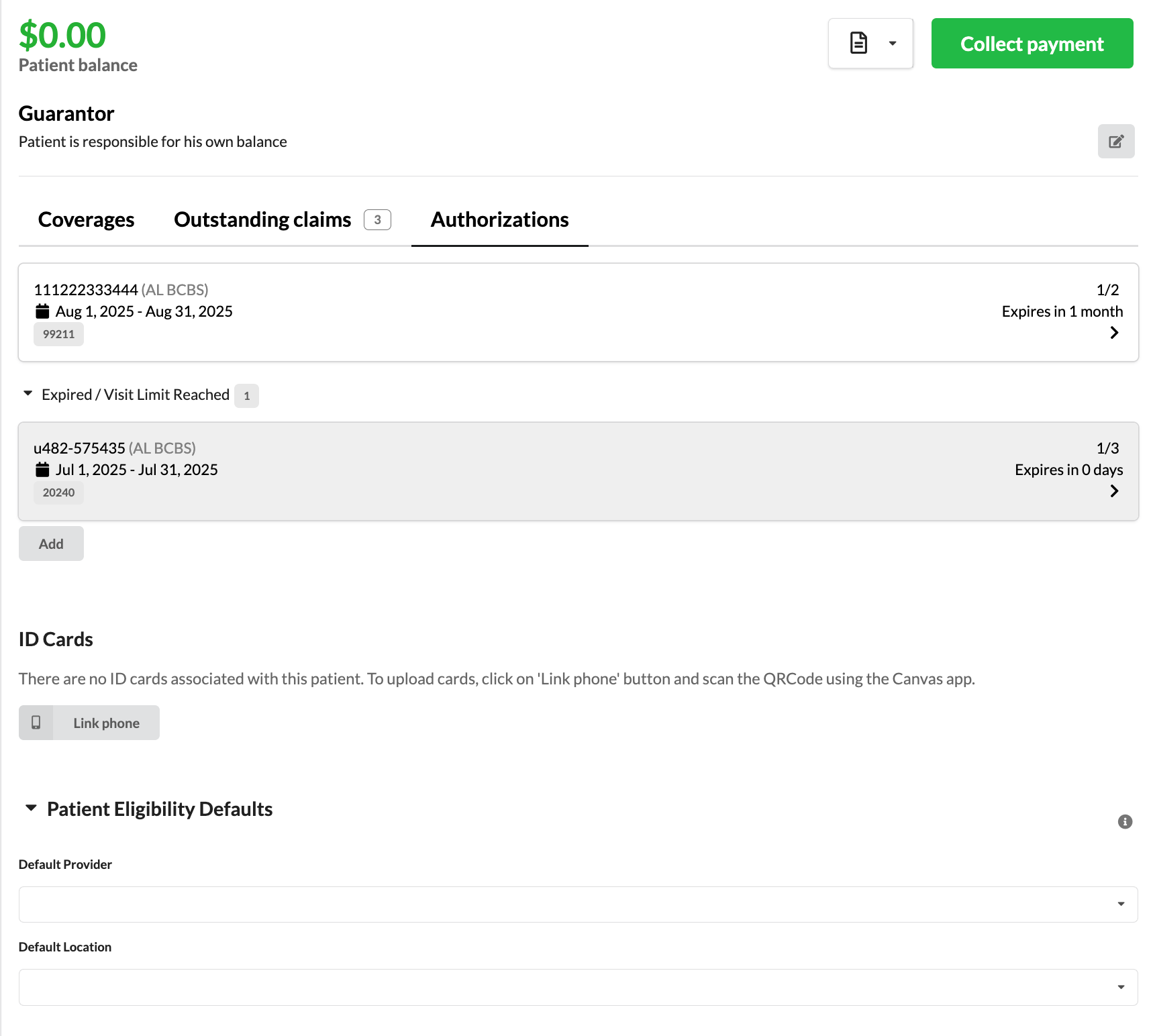
The Authorizations tab is located on the patient's Profile page, positioned above the patient's active coverages. This tab contains all authorization information for the patient, organized into sections:
Active Authorizations: Current authorizations that are within their effective date range and have available visits
Expired / Visit Limit Reached: Authorizations that have either passed their expiration date or exhausted all approved visits
Creating a New Authorization
Navigate to the patient's Profile page
Click the Authorizations tab above the patient's active coverages
Click Add to create a new authorization
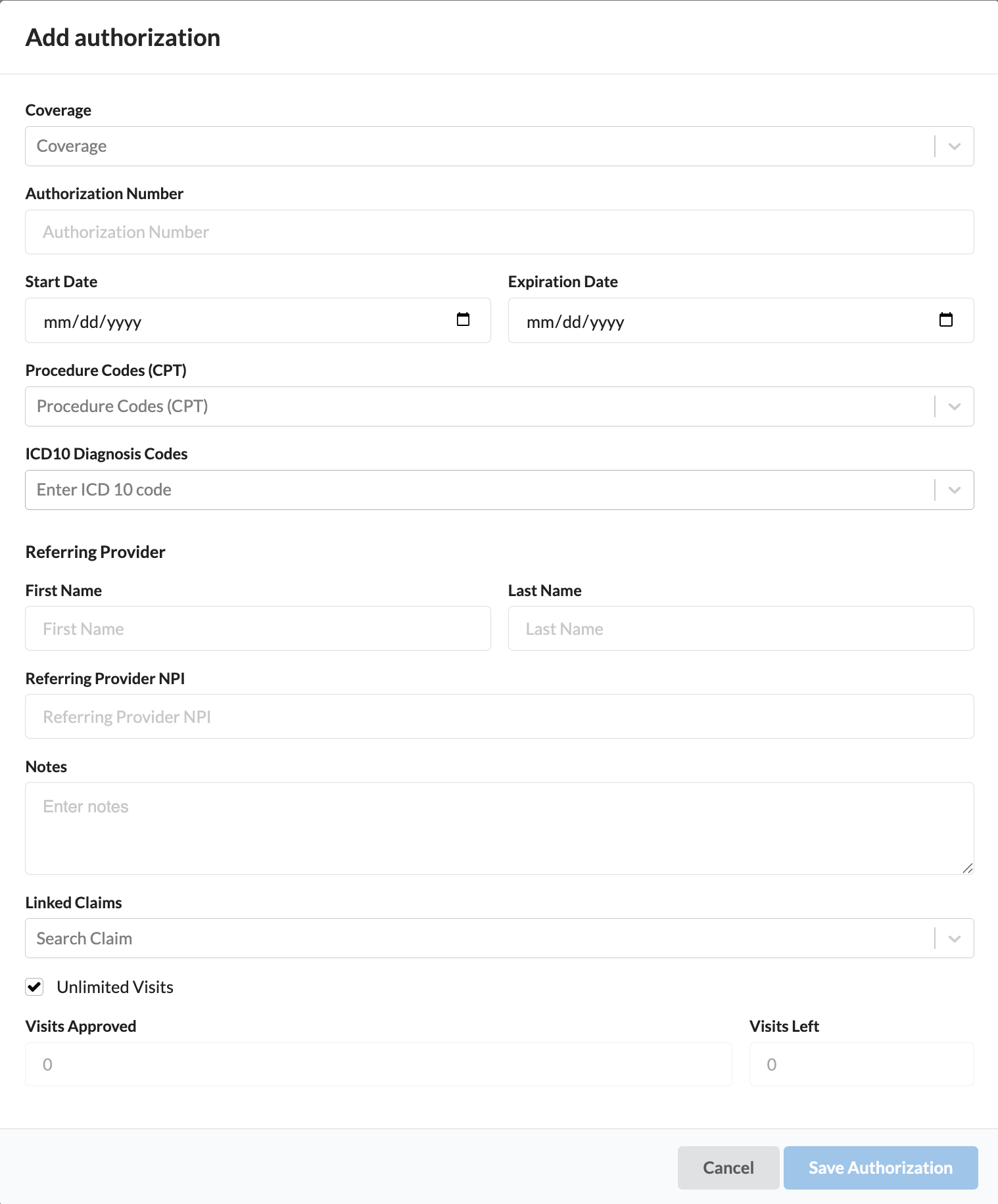
Complete the authorization fields
Coverage: The insurance plan associated with the authorization
Authorization Number: The unique identifier provided by the insurance company
Start Date: When the authorization becomes effective
Expiration Date: When the authorization expires
Procedure Codes (CPT): Specific medical procedures covered by the authorization
ICD10 Diagnosis Codes: Medical diagnosis codes that justify the authorized services
Referring Provider: The healthcare provider who referred the patient
First Name: Referring provider's first name
Last Name: Referring provider's last name
Referring Provider NPI: National Provider Identifier for the referring provider
Notes: Additional comments or special instructions
Linked Claims: Claims that are associated with the authorization
Visits Approved: Total number of visits authorized by the insurance
Visits Left: Remaining visits available under the authorization
Unlimited Visits: Check this option for authorizations with no visit limits
Click Save Authorization
Removing an Authorization from a Claim
To disconnect an authorization from a claim, users can choose from two approaches:
From Patient Claim
Navigate to the patient's claim
Click the triple dot in the claim header
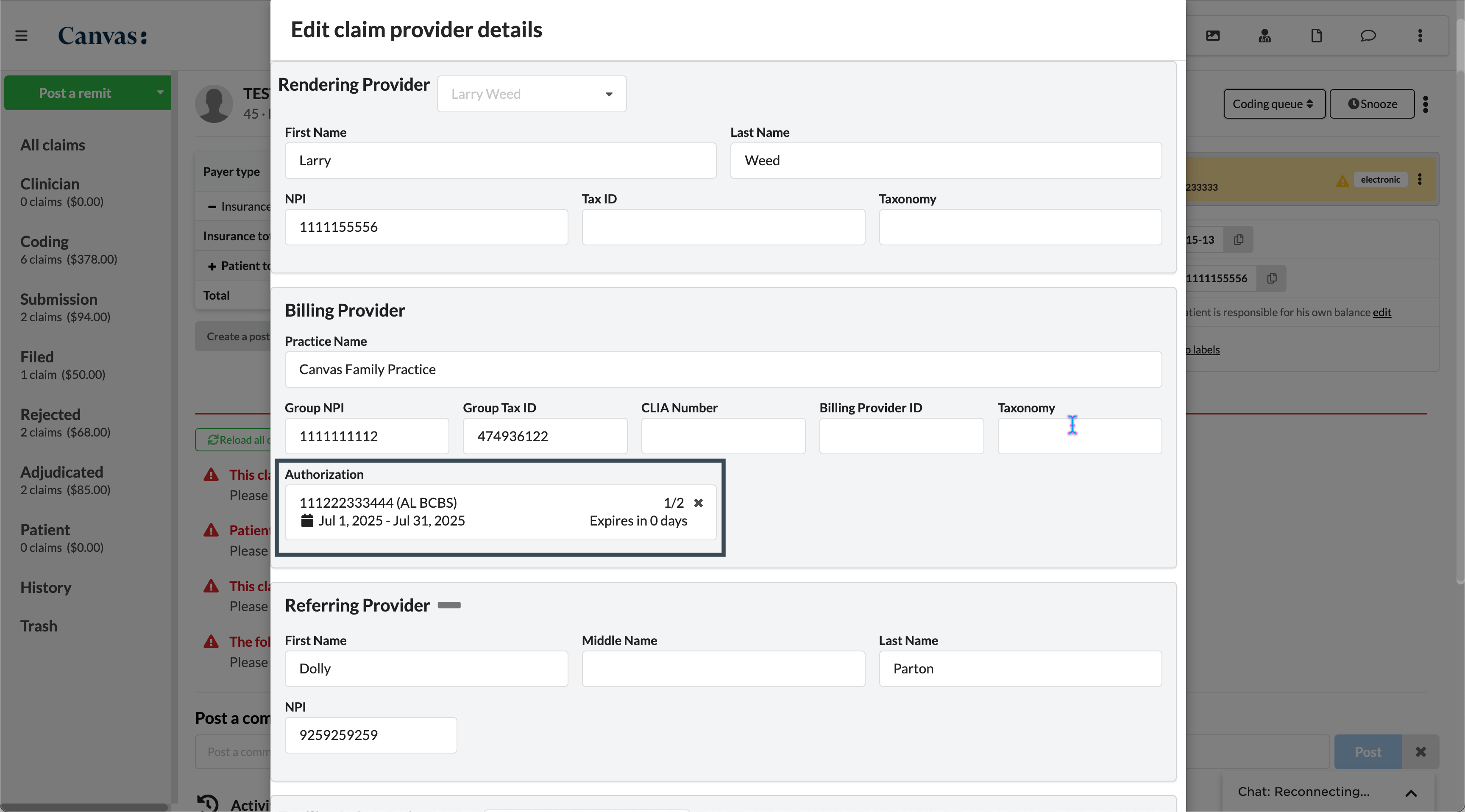
Click Edit provider details
Click the X on the linked authorization under the Authorization heading
Click Update to save changes
From the Authorizations Tab
Navigate to the patient's Profile page
Click the Authorizations tab above the patient's active coverages
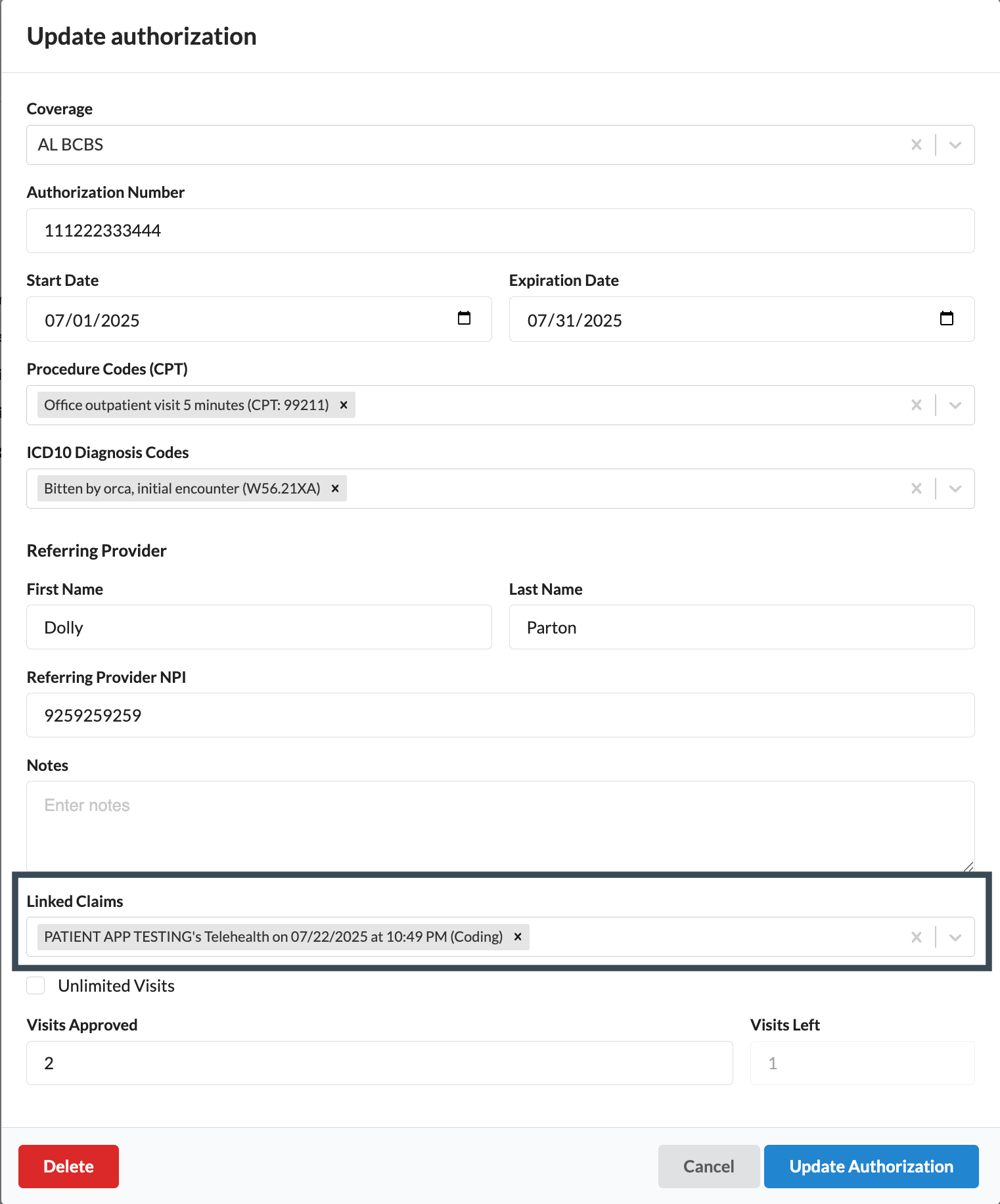
Open the authorization form for the relevant authorization
Click the X next to the linked claim that needs to be removed
Click Update Authorization to save changes
Linking Authorizations to Claims
To link an authorization to a claim, users can choose from two approaches:
From the Patient Claim
Navigate to the patient claim
Click the triple dot in the claim header
Click Edit provider details
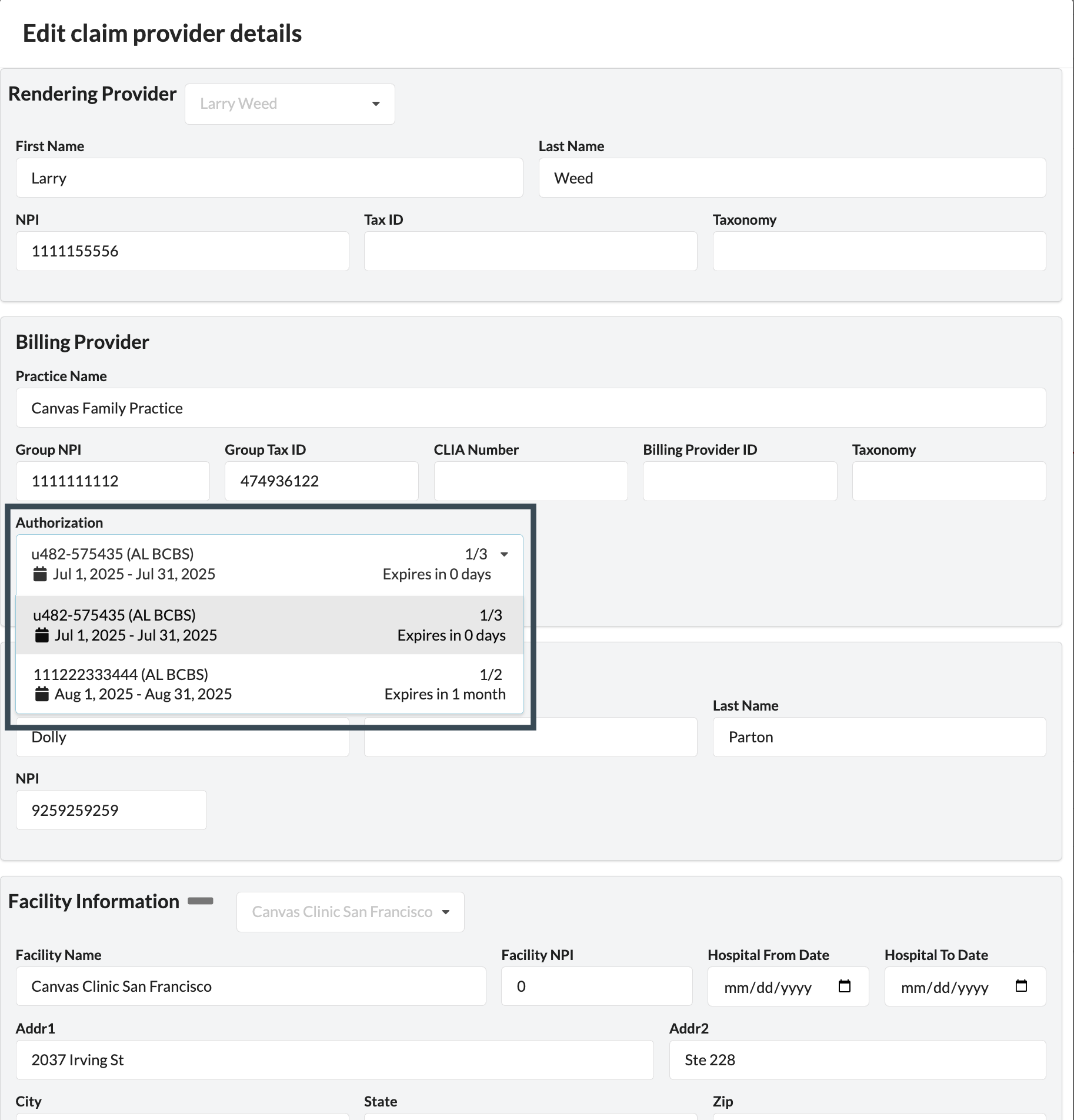
Select an authorization from the Authorization dropdown to link to the claim
Expired authorizations will be highlighted gray in the dropdown
The system will automatically populate the referring provider's first name, last name, and NPI fields listed on the authorization form if the fields are empty in the modal
Click Update to save the linked claim
When returning to the patient profile directly after linking or unlinking claims, the authorization count will only update once the profile page is refreshed.
From the Authorizations Tab
Navigate to the patient's Profile page
Click the Authorizations tab above the patient's active coverages
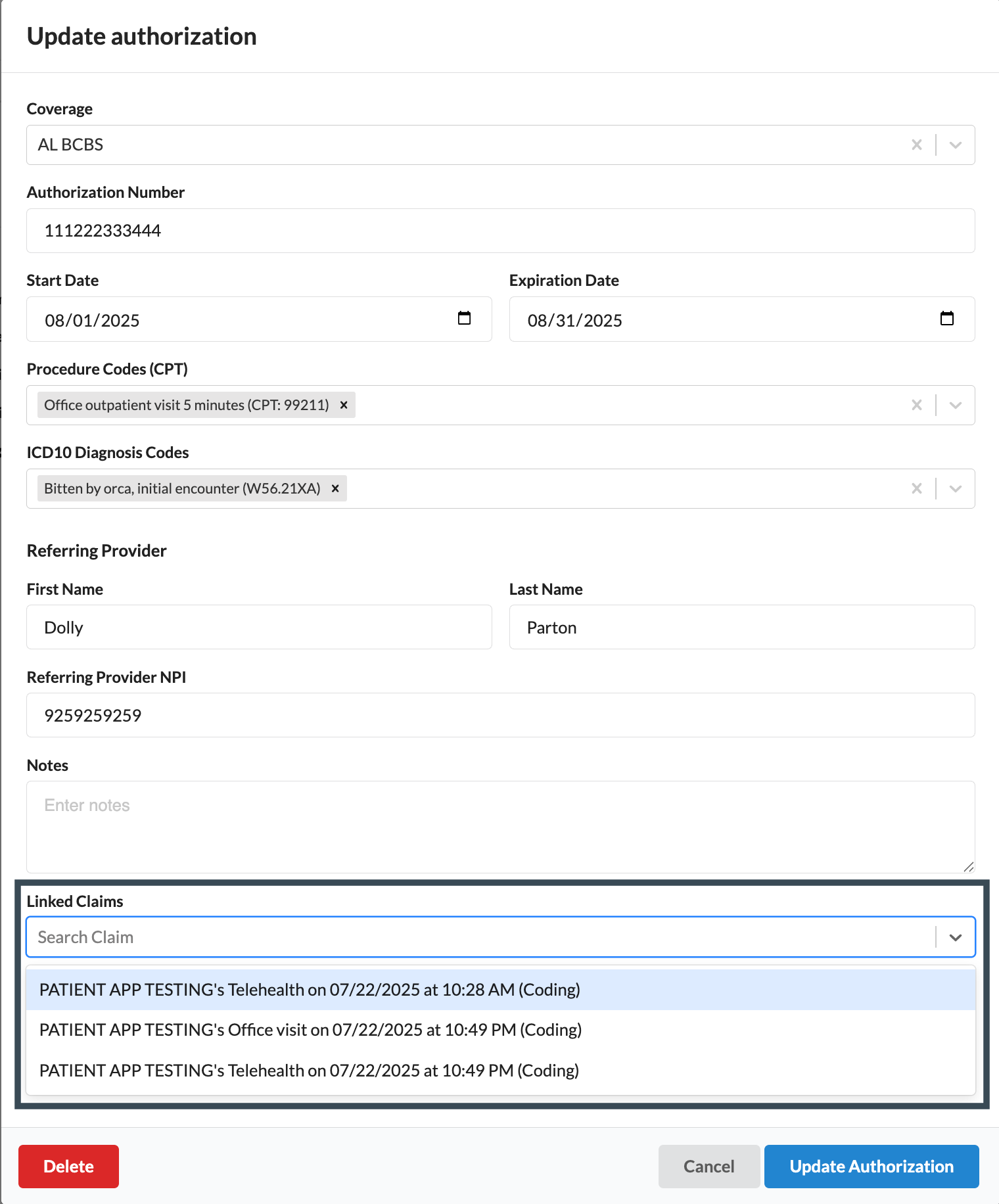
Open the authorization form for the relevant authorization
Add the associated claim to the Linked Claim field
Click Update Authorization to save changes
Updating an Authorization
To modify authorization details:
Navigate to the patient's Profile page
Click the Authorizations tab above the patient's active coverages
Open the authorization form for the relevant authorization
Update the desired fields as needed
Click Update Authorization to save changes
Configuration & Set Up
Prerequisites
To access and manage authorizations, users must have Revenue Access permission. Administrators can grant this permission through staff permissions in the settings. For detailed information about user permissions, see the User Permissions article.
FAQ & Troubleshooting
Q: Why don't I see the authorization changes immediately after updating?
A: The system requires a page refresh to display updated authorization information. Always refresh the Authorization page after making changes to see the current status.
Q: What happens if I remove an authorization number from a claim?
A: Removing the authorization number from a claim will unlink the authorization from that claim. The authorization will still exist in the system but will no longer be associated with the specific claim.
Q: Will the system automatically populate provider details when I select an authorization?
A: Yes, if the first name, last name, and NPI fields are empty, selecting an authorization from the dropdown will automatically populate these fields with the correct information from the authorization record.
Q: Can I link multiple claims to a single authorization?
A: Yes, multiple claims can be linked to an authorization as long as the authorization is valid and there are remaining visits
Related Resources
Keywords: authorization management, claim linkage, billing, revenue cycle, provider details, outstanding claims, authorization number
Categories: Revenue Cycle Management, Billing, Claims Processing, Patient Management