Assign Reviewed Documents to a Team
Last updated: June 11, 2025
Previously, only Tasks could be assigned to a team or individual user. Canvas has expanded it's functionality to allow imaging results, lab results, consult reports and uncategorized clinical documents to be assigned to a team or an individual user.
While the images in this documentation are directed towards the imaging results, the same rules apply for all documents
Assigning Results to a Team
Click the associated icon in the patient or user panel to open the result cards

Click the team link on the card to open the dropdown. It will either say No Team Assigned or state the name of the team currently assigned to a team
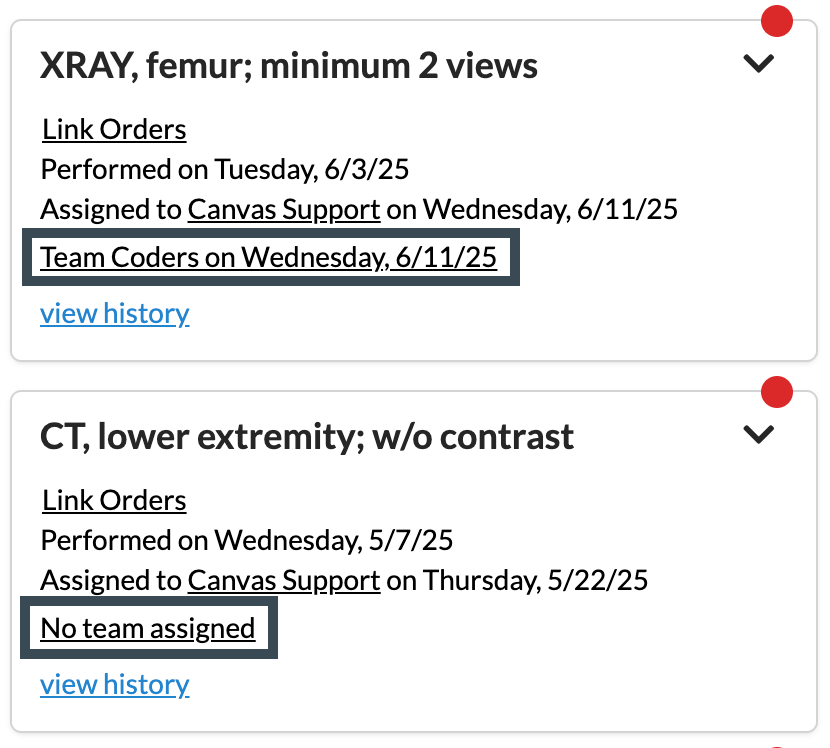
Select the team name from the dropdown
The documents will then show in the Me or My Teams list for the associated document to anyone assigned to the team.
Currently, a team can be unassigned from a document; however, the primary assignee cannot be removed. The assignee role can be transferred to another user, but an unassigned option for this role is not yet available. This functionality will be introduced in an upcoming update.