Managing Consents
Last updated: September 2, 2025
Patient consents are essential for ensuring legal compliance and protecting patient rights in medical practices. This article reviews how to configure, manage, and inactivate patient consents within Canvas Medical. It also explains how to set up rejection codings and integrate consents into workflows while maintaining regulatory compliance.
User's Guide
Understanding Patient Consent Codings
Definition: Patient consent codings define the types of consents your practice collects, with options for customization to meet specific requirements.
Key Features:
Customizable consent codings for specific workflows.
Configurable rules such as expiration timelines and mandatory status.
Rejection codings for tracking reasons consents were declined.
Configuration & Set Up
Managing Patient Consent Codings
Patient consent codings define the types of consents your practice collects, with customization options to meet specific requirements
Creating a Patient Consent Coding
Navigate to Practice: Patient Consent Codings setting
Click ADD PATIENT CONSENT CODING +.
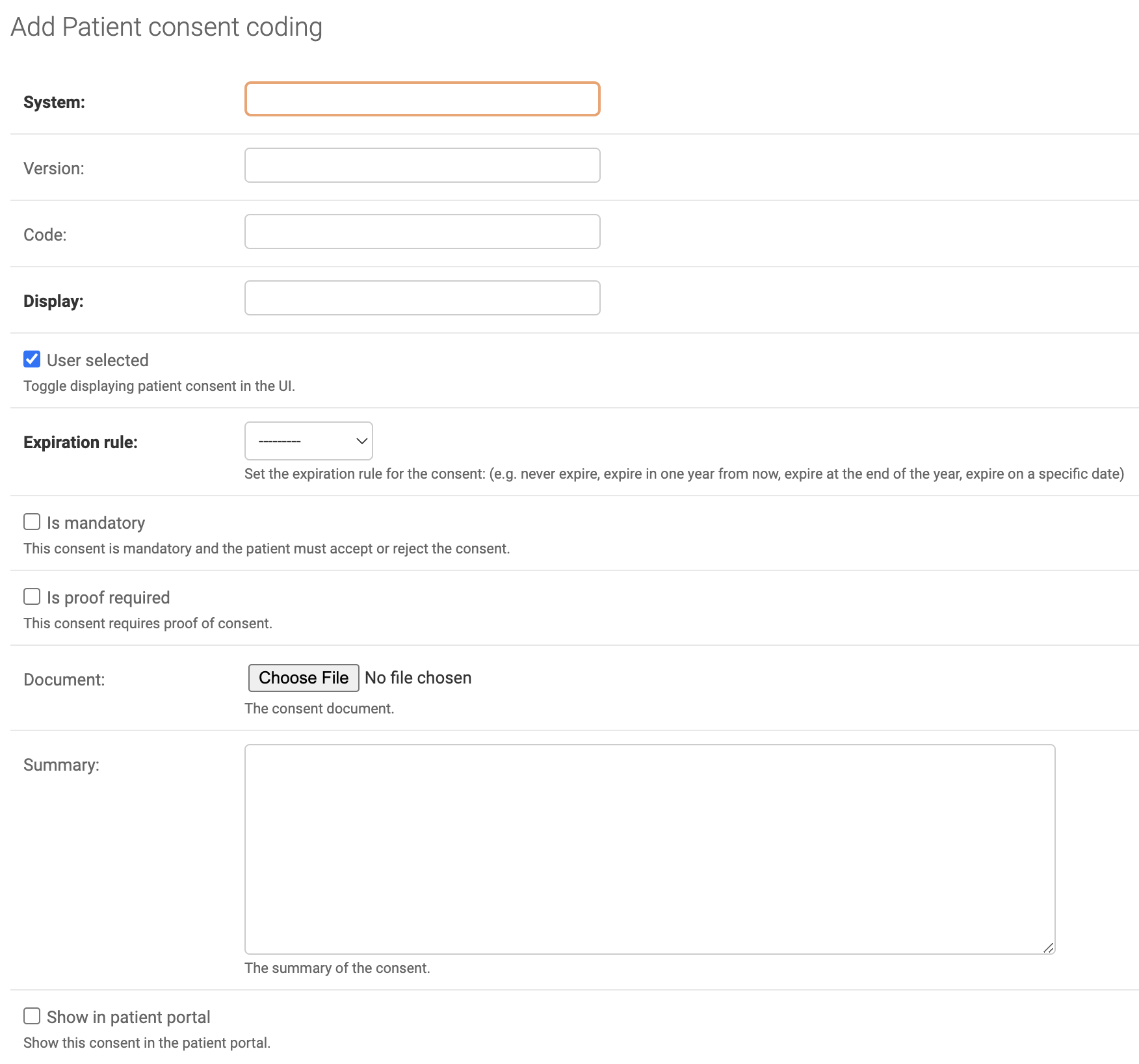
Complete the following fields - bolded fields in Canvas are required:
System: Enter a system name (LOINC, SNOMED, INTERNAL)
Version: Allows the ability to track which version of the consent a patient has on file.
Code: Needs to be unique. Cannot be updated once saved. Make sure to coordinate with the developers to ensure they are set up in a way that supports any external workflows.
Display: What will show in the dropdown (e.g., "HIPAA Consent")
User Selected: Inactivate an older version of a consent, or one that is no longer necessary, by unchecking this box.
Expiration Rule: Default rule based on consent policies. Can be overwritten in the patient profile
Never
In one year
End of year
Is Mandatory: Check if the consent is mandatory. This will apply in the patient portal as well.
Is Proof Required: Check if document upload is mandatory
Document: Document shared to the patient portal for patient completion
Summary: Description of consent to display in the patient portal. New lines or line breaks in the summary are not respected.
Show in Patient Portal: Consent will display in patient portal for the patient to complete.
Updating a Patient Consent Coding
Navigate to Practice: Patient Consent Codings setting
Select an existing consent coding and make necessary changes.
Only certain fields can be updated.
User Selected
Is Mandatory
Is Proof Required
Document
Summary
Show in Patient Portal
If updates are required for unavailable fields, the consent must be marked as inactive and then recreated.
Inactivating a Patient Consent
Navigate to Practice: Patient Consent Codings setting.
Select the consent to inactivate and uncheck the User Selected box.
Verify the consent is no longer listed in the patient profile.
Managing Patient Consent Rejection Codings
Patient rejection codings are used in the event a patient declines to complete a consent.
Creating a Patient Consent Rejection Coding
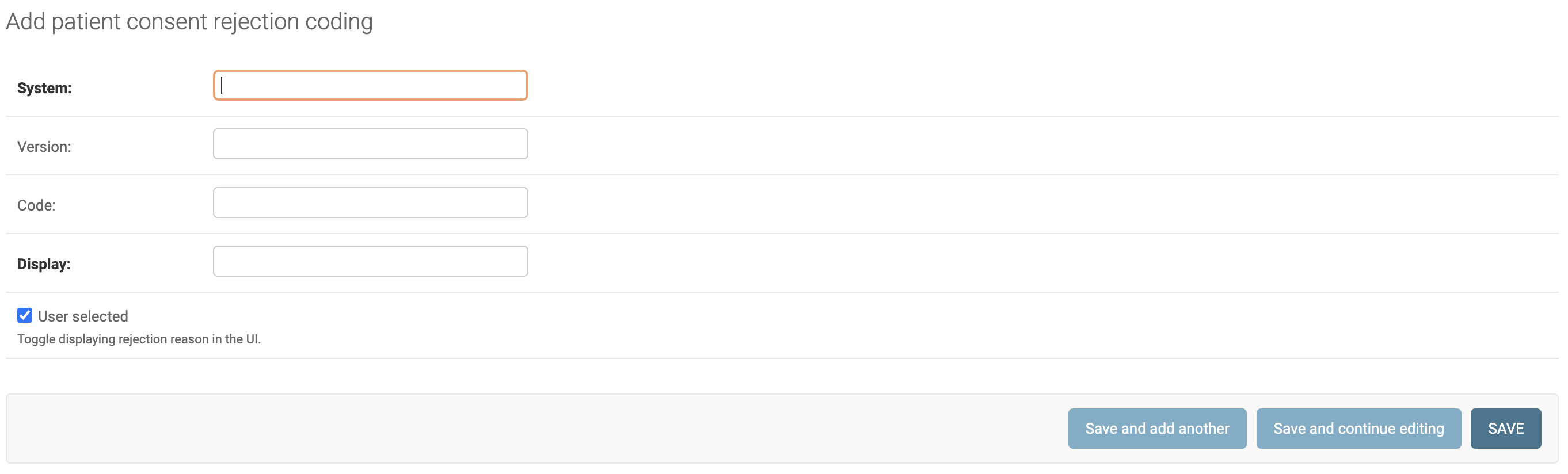
Within the Practice: Patient Consent Rejection Coding setting, customized rejections can be added by clicking ADD REJECTION CODING + and completing the fields. Rejection codings are the reasons the consents was not completed
System: Enter a system name (LOINC, SNOMED, INTERNAL)
Display: Enter the reason for rejection to show in the dropdown (e.g., Declined).
Updating a Rejection Coding
Select an existing coding and make necessary changes
For bulk deletions, check multiple codings and use the Delete option from the Action dropdown.
Inactivating a Reason for Rejection
Navigate to Practice: Patient Consent Rejection Coding setting.
Select the consent to inactivate and Uncheck the User Selected box.
Verify the consent is no longer listed in the patient profile.
Adding Consents to a Patient Profile
Consents can be added for a patient in one of two ways. Through the patient profile or through data integration. Click the links below for further details on adding consents.
FAQs
Q: Why can't I edit all fields of the consent?
A: Due to patient security reasons, certain fields are not editable. This prevents the purpose of the consent being altered post patient signature. If an un-editable field needs to be changed, the consent must be inactivated and recreated.
Q: Can consents be displayed in the patient portal?
A: Yes, ensure the Show in Patient Portal option is checked during setup.
Q: What happens if a consent expires?
A: Expired consents will no longer be active, but you can override expiration settings in the patient profile.
Keywords & Metadata
Keywords: patient consents, rejection codings, patient profile, Canvas Medical, consent workflows, compliance, HIPAA
Categories: Configuration, Patient Management, Compliance