Using the Provider Enrollment Dashboard
Last updated: February 18, 2026
The Provider Enrollment Dashboard is your home base for managing provider enrollments. It validates prerequisites in real-time, shows you exactly what's missing, and lets you submit enrollment requests in just a few clicks
Need to set up the provider's profile first? See Preparing Provider Profiles for Enrollment for the complete checklist.
What you'll learn
What each enrollment type enables
Validation requirements for each enrollment type
How to navigate the dashboard
How to fix validation errors
How to submit enrollment requests
Enrollment Types
The dashboard supports three enrollment types.
Lab Ordering: Electronic lab orders through the Health Gorilla network including Quest, LabCorp, and others
eRx: Electronic prescribing for non-controlled medications like antibiotics, blood pressure medications, and antacids
EPCS: Electronic prescribing for Schedule II-V controlled substances
Validation Requirements
The dashboard automatically validates requirements based on what's in the provider's staff profile. Here's what each enrollment type needs.
Requirement | Lab Ordering | ERx | EPCS |
Valid NPI | ✅ | ✅ | ✅ |
Work Email | ✅ | ✅ | ✅ |
Work Phone | ✅ | ✅ | ✅ |
Work Fax | ✅ | ✅ | ✅ |
Work Address | ✅ | ✅ | ✅ |
State License | — | ✅ | ✅ |
DEA License | — | — | ✅ |
SPI | — | — | ✅ |
Using the Dashboard
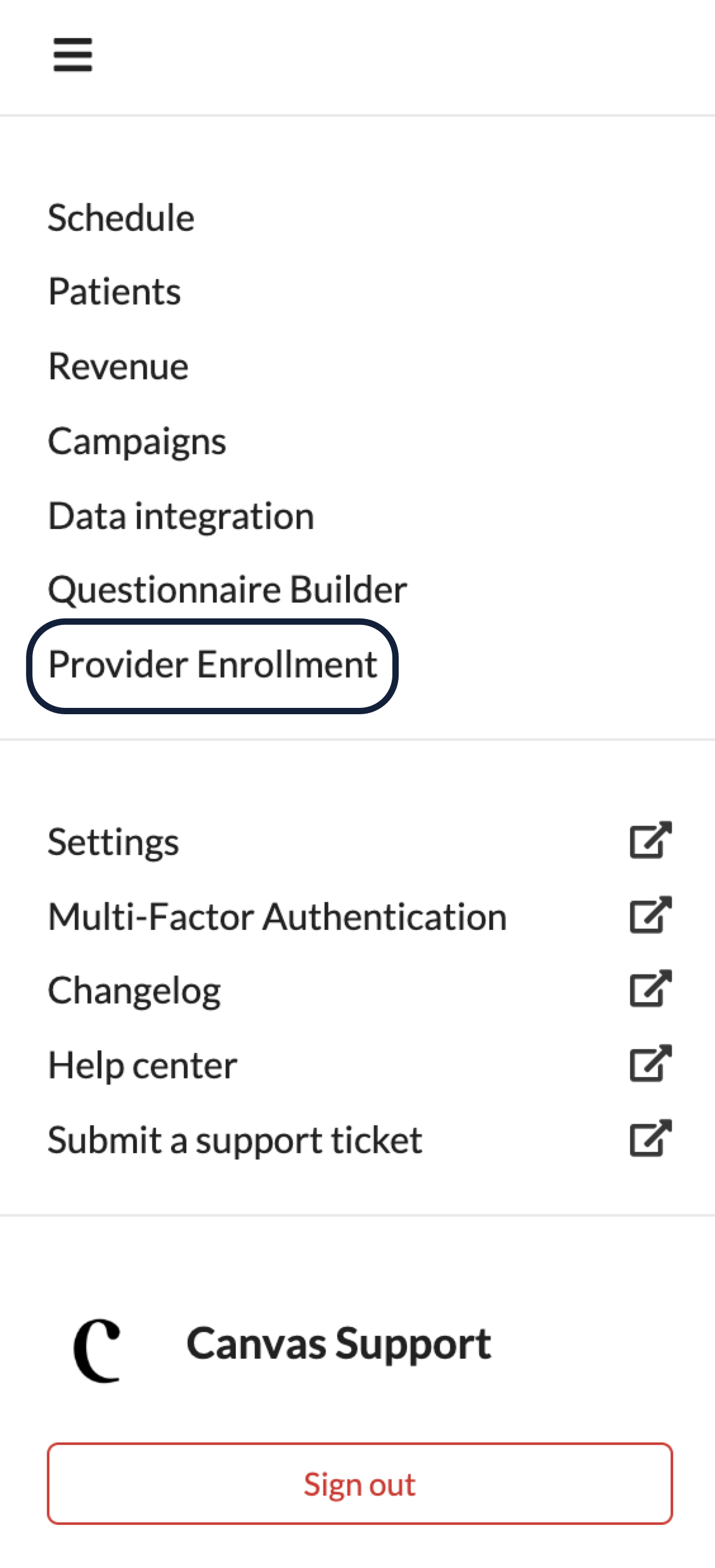
Go to the Triple Line Menu > Provider Enrollment
Use the Filter by status dropdown to narrow your view
All: Everyone
Pending Validation: All validation checks failed
Ready for Action: At least one enrollment available
Fully Enrolled: All validations passed and provider has SPI
Search by provider name, NPI, or role to find who you're looking for in the search bar

Adjust pagination at the bottom of the modal if needed — 10, 20, 50, 100, or all. The default is 20.

Review Provider Information
Find the provider you want to enroll in the dashboard list
Verify their details are accurate — provider name, role, and NPI number
Review validation status for each enrollment type — ✅ Pass or ❌ Fail
Fix Validation Errors
Don't worry—the dashboard shows you exactly what's missing.
Click the provider's row to expand it and read the specific error messages
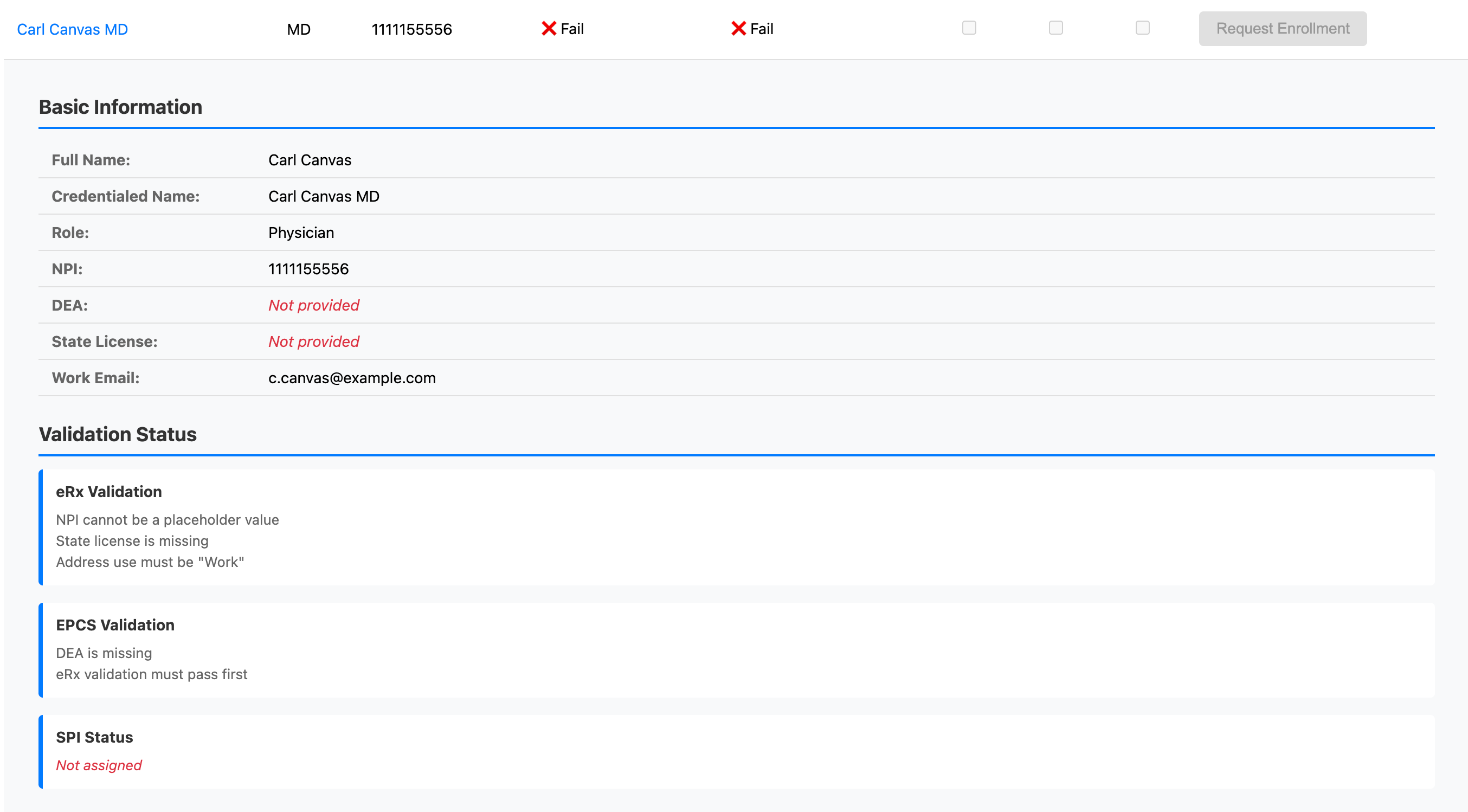
Click the provider's name to go directly to their staff profile
Correct the validation issues in the provider's staff profile under Settings > Staff
Refresh the dashboard to make sure validation status updates
Need help with specific fields? See Provider Profile Setup Requirements for detailed guidance on what each field requires.
Common validation issues
Use field for contact points and/or address is not listed as Work
Placeholder NPI is still listed — 1111155556
Placeholder fax number is still listed — 8443364026
Using @canvasmedical.com email instead of your practice email
Phone/fax has formatting characters — needs exactly 10 digits with no special characters
Address use is not listed as "Work"
Submit Your Request
Once all required information is validated
Check the boxes for the appropriate enrollment type
Click the Request Enrollment button — it will be highlighted blue once validation passes
A pre-filled form opens in a new tab
Review the information
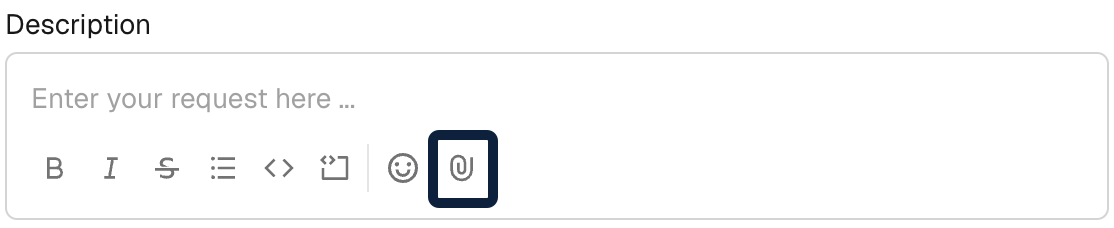
Attach required documents by clicking the paperclip icon in the description box at the bottom of the form
Submit
That's it! Canvas Support receives your request and starts processing. You'll get updates as enrollment progresses.
Next Steps
After submitting, Canvas Support takes it from here. You'll receive updates as enrollment progresses, and they'll notify you when enrollment is complete.
For details on what happens after submission, see the article for your enrollment type.
Frequently Asked Questions
Understanding the dashboard
Q: Who can access this dashboard?
A: Any Canvas user can view it. It's typically used by practice managers or whoever handles provider onboarding.
Q: Which providers appear?
A: Only active staff with prescribing roles. You can configure prescribing roles under Settings > Organizations — the defaults are MD, DO, NP, and PA. Inactive staff and non-prescribing roles won't show up.
Q: How long does validation status take to update?
A: It updates in real-time when you open the dashboard. Just refresh the page after making changes to staff profiles.
Enrollment checkboxes
Q: Why can't I check the eRx box?
A: The provider may already be enrolled for ePrescribing. Click the provider's name to expand their details—if they have an SPI, they're already enrolled and can prescribe in Canvas.
Q: Why can't I check the EPCS box?
A: Two possible reasons. Either eRx validation is failing and needs to be completed first, or the DEA number is missing from the provider's staff profile.
Q: Can I enroll someone who already has an SPI?
A: For EPCS and Lab Ordering, yes—having an SPI doesn't affect those enrollments. For eRx, no—having an SPI means they're already enrolled.
Validation issues
Q: Why does validation fail when the profile looks complete?
A: Good eye! Double-check that the Use field for contact points and addresses is set to Work, and make sure there are no placeholder values or special characters in phone and fax numbers.
Q: Does phone/fax formatting matter?
A: Yes, phone and fax must be 10 digits only with no special characters or spaces — 5551234567
Q: Why can't I use @canvasmedical.com emails?
A: External systems like Surescripts and Health Gorilla need your practice's actual work email. It's how they verify the provider works at your organization.
Q: What if the provider doesn't have a DEA?
A: No problem—DEA numbers are only needed for EPCS. Providers can prescribe non-controlled medications without one, and you can add the DEA later when they need it.
Submitting requests
Q: Can I submit an enrollment request before identity proofing is done?
A: No. You'll need a copy of the PersonaTrust certificate to submit the enrollment form. Both Surescripts and DrFirst require completed identity proofing before they'll process enrollment.
Q: What if I submit the wrong enrollment type?
A: Reply to the enrollment ticket you just created to let Canvas Support know which enrollment types need to be completed.
Q: Will I be notified when enrollment is complete?
A: Yes, Canvas Support will always notify you once enrollment is complete.
Related Articles
Keywords: Provider Enrollment Dashboard, enrollment validation, eRx, EPCS, lab ordering, submit enrollment, provider onboarding
Categories: Provider Enrollment, Getting Started, Administrator Tools
Roles: Practice Manager, Administrator