Activating EPCS Grants with DrFirst
Last updated: September 6, 2026
After a provider completes their DrFirst EPCS enrollment, you'll need to activate their grant before they can prescribe controlled substances. This process requires both you and the provider to be available at the same time.
Different from the Provider Enrollment Dashboard? Yes—this article covers the DrFirst EPCS Dashboard where you activate grants. For submitting enrollment requests, see Using the Provider Enrollment Dashboard.
What you'll learn
Prerequisites before activating a grant
How to access the DrFirst EPCS Dashboard
Step-by-step grant activation process
Provider status meanings
When to notify Canvas Support
Prerequisites
Before you can activate a provider's grant
Provider has completed all DrFirst enrollment steps
Provider's status shows NO_ACTIVE_GRANT in the EPCS Dashboard
You have the EPCS Administrator role assigned in your staff profile
Provider is available to complete two-factor authentication with you
Need EPCS Administrator access? Contact your practice administrator to have the role assigned to your staff profile.
Accessing the EPCS Dashboard
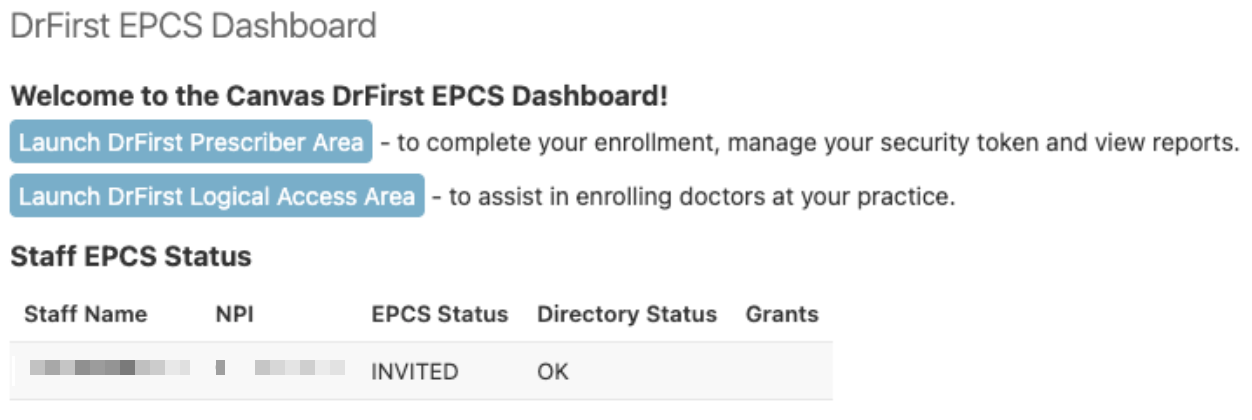
Go to Settings > EPCS Dashboard
Click Launch DrFirst Logical Access Area
Click Launch Logical Access Area again

Activating Provider Grants
You'll need to coordinate with the provider for this process since they'll enter their passphrase and token during activation.
Use the search field to find the provider by name or NPI number
Select the Active radio button to authorize the provider for EPCS
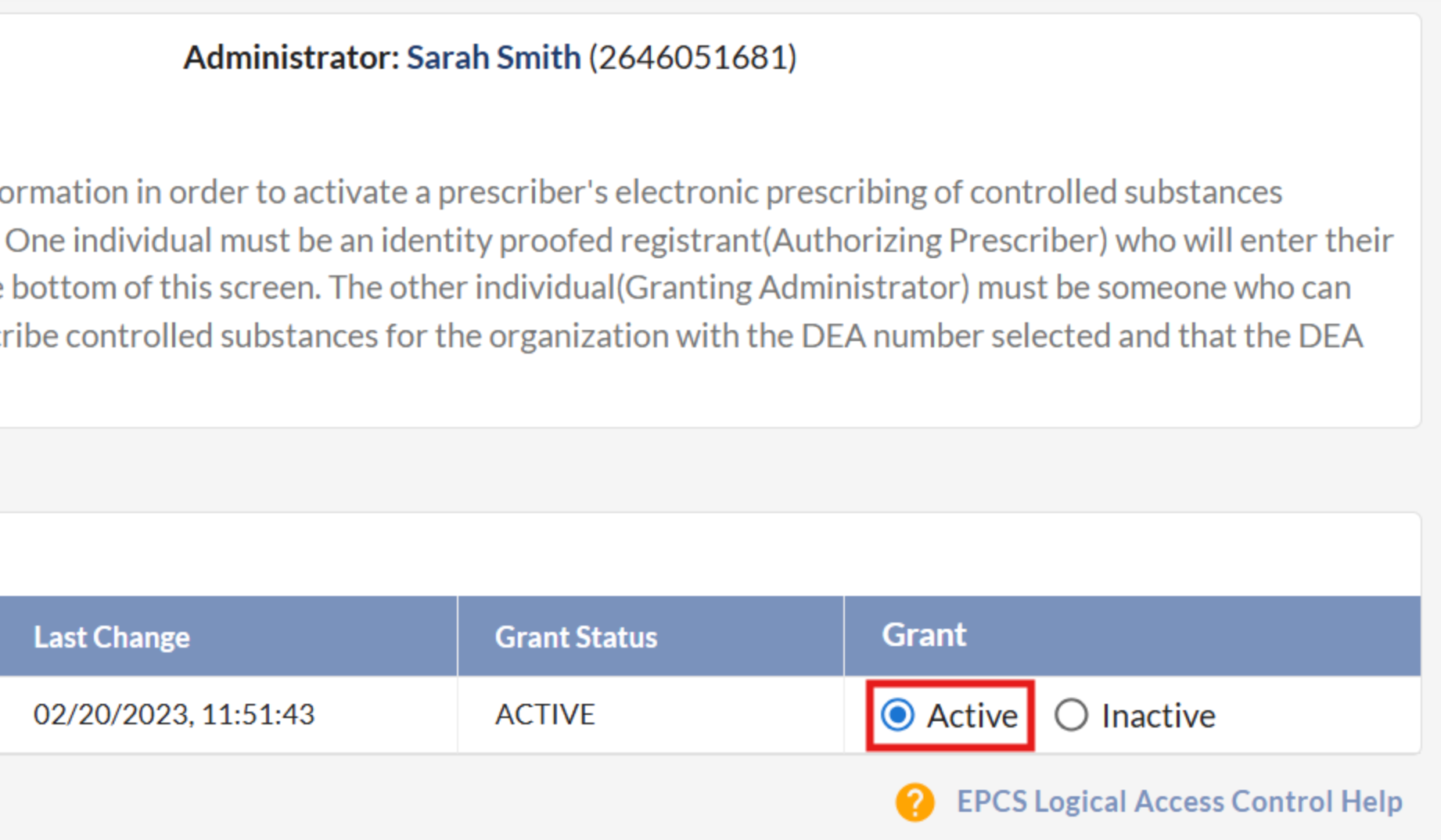
Enter your name as shown at the top of the screen — this serves as your electronic signature and will be included in DEA auditable event records

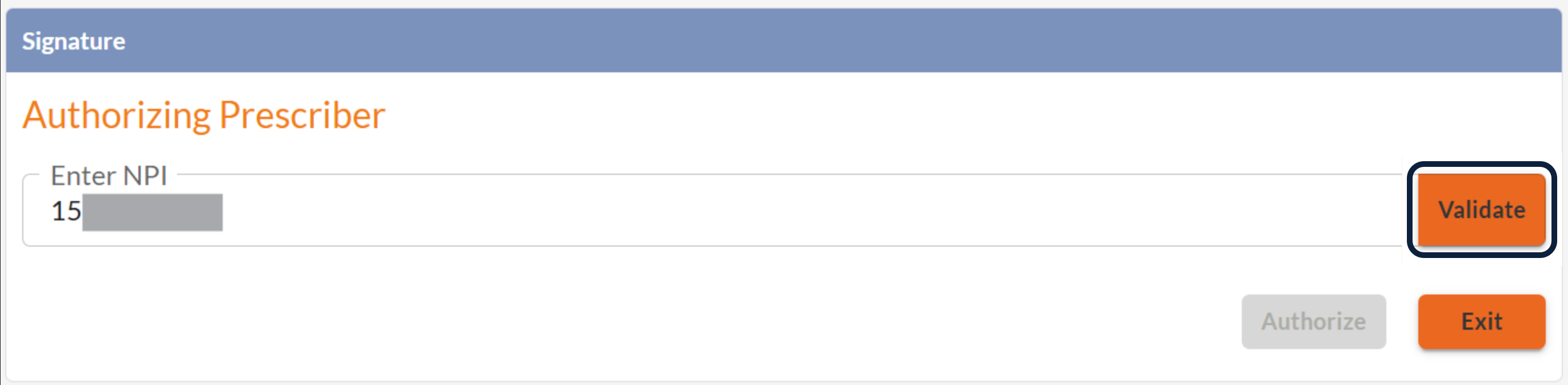
Enter the provider's NPI number in the Authorizing Prescriber field
Click Validate
Additional authentication fields will appear
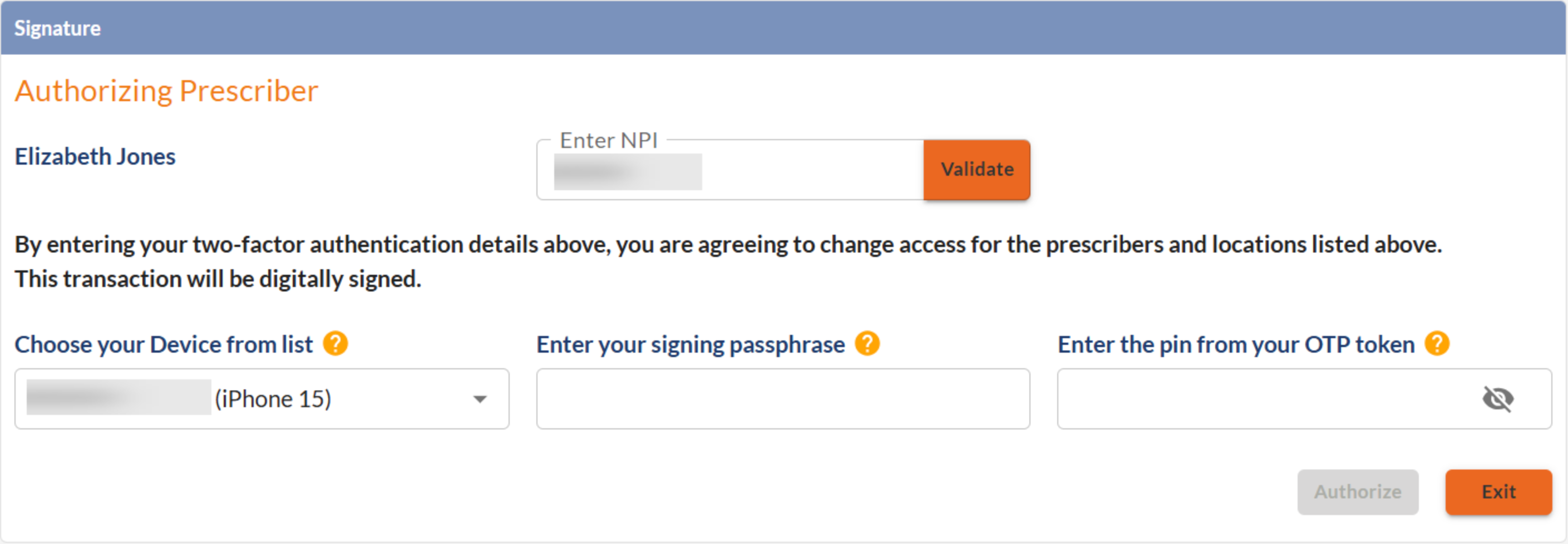
Have the provider enter their passphrase and OTP token into the appropriate fields
Click Authorize immediately after the passphrase and token are entered — the token expires every 30 seconds
After Activation
Once activation is successful:
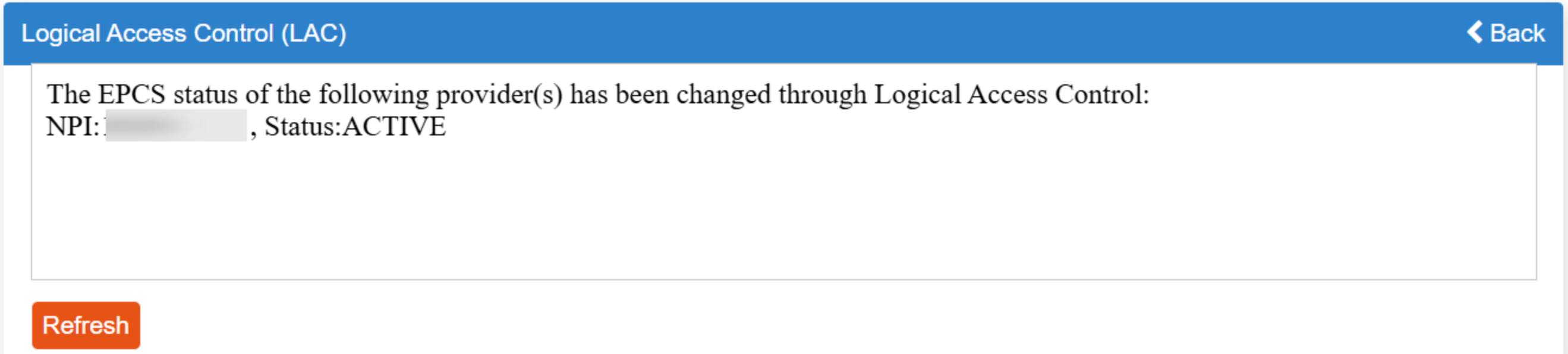
The LAC will show the provider was updated to Active
Click Refresh in the LAC utility to confirm the status changed to ENROLLED
Notify Canvas Support in the enrollment ticket that the grant has been activated. It can 24 hours for the status to update with DrFirst
Canvas Support finalizes enrollment once status updates and provides an update once complete.
The provider can prescribe controlled substances once Canvas Support confirms enrollment is finalized.
Provider Status Reference
You can find these statuses under Settings > EPCS Dashboard in the provider table under EPCS Status.
INVITED: Canvas sent the DrFirst invite. Provider needs to start enrollment.
IDPVERIFIED: Identity proofing is done, but the provider didn't click Check Status. If within 24 hours, provider needs to return to DrFirst and click it. After 24 hours, they need a new invite.
IDPFAILED: Provider did not pass identity proofing with Experian. They have 3 attempts to pass identity proofing. If not, you will need to request we send a new invite to the provider.
TOKENBOUND: Verification code was sent via postal mail. Can take up to 2 weeks to arrive.
NO_ACTIVE_GRANT: Provider completed all steps. Ready for you to activate their grant.
ENROLLED: Grant is active. Notify Canvas Support to finalize.
DISABLED: EPCS access has been turned off. Provider must re-enroll from scratch.
Frequently Asked Questions
Grant activation process
Q: How long does grant activation take?
A: The activation process itself takes 5-10 minutes if all information is ready. However, it can take up to 24 hours after activation to update in DrFirst. Canvas can't finalize enrollment until the grant shows as Active.
Q: Can I activate multiple providers at once?
A: No. Each provider requires individual grant activation with separate two-factor authentication.
Q: What if the provider being activated isn't available?
A: Another EPCS-enabled provider with a valid passphrase and token can complete the two-factor authentication step on their behalf.
Q: How long is the one-time pin valid?
A: The OTP token expires every 30 seconds. You must click Authorize before the pin expires.
Administrator access
Q: Who can be an EPCS Administrator?
A: An EPCS Administrator can be an administrative staff member and does not need to be a prescribing provider. The key restriction is that the EPCS Administrator cannot be someone who is actively prescribing medications.
More than one staff member can have the EPCS Administrator role, but we recommend limiting the number of staff with this access.
Q: Can any staff member activate grants?
A: No. Only users with EPCS Administrator permissions can access the EPCS Dashboard and activate grants.
Provider status
Q: What does IDPVERIFIED status mean?
A: The provider completed identity proofing but didn't return to DrFirst to click Check Status. If it's been more than 24 hours, they need a new invite to restart.
Q: Provider status shows TOKENBOUND for 3 weeks. What should I do?
A: The verification code was sent via postal mail and can take up to 2 weeks to arrive. If it's been more than 3 weeks and no letter has arrived, contact DrFirst support.
Q: Can I deactivate a provider's EPCS access temporarily?
A: Yes. Follow the deactivation process. To reactivate, you'll need to complete the full activation process again.
Related Articles
Keywords: EPCS grant activation, DrFirst EPCS Dashboard, administrator, grant management, provider status, signing passphrase, OTP token
Categories: Provider Enrollment, EPCS, Administrator Tools
Roles: EPCS Administrator, Provider