Electronic Prescribing of Controlled Substances (EPCS) Enrollment
Last updated: September 6, 2026
After your practice submits an EPCS enrollment request through the Provider Enrollment Dashboard, you'll receive a DrFirst invite at your work email. You'll need to complete a multi-step enrollment process including identity verification, token setup, and passphrase creation before you can prescribe controlled substances.
What you'll learn
What EPCS enables
Prerequisites before enrollment begins
How to complete the DrFirst enrollment process
What happens after you finish
What EPCS Enables
Once enrolled, you can electronically prescribe Schedule II-V controlled substances directly to pharmacies.
Haven't completed ePrescribing yet? You'll need an SPI first before EPCS enrollment can begin. Check with your practice administrator on the status.
DrFirst Enrollment Process
You'll complete all steps below to enroll in EPCS. This includes identity verification, security token setup, and passphrase creation.
Step 1: Open your DrFirst invite
Open the invite email from DO-NOT-REPLY-EPCS@drfirst.com
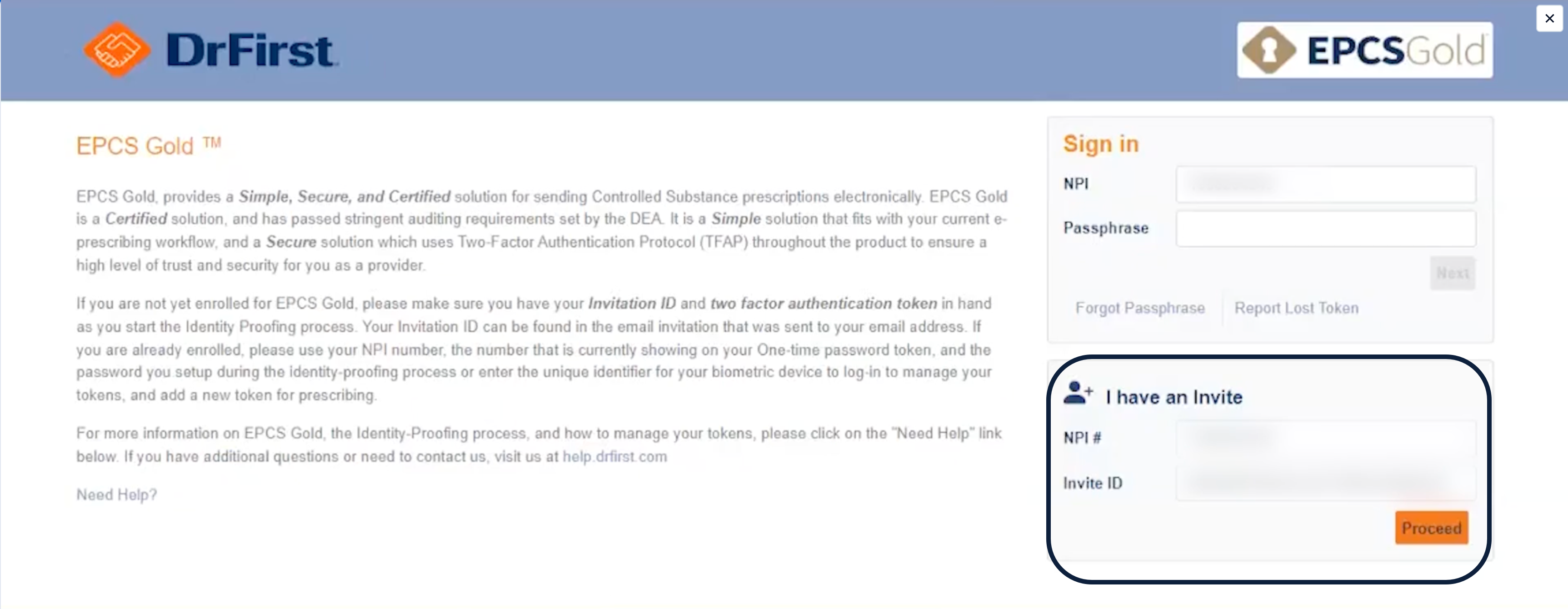
Click Enroll now
Find the I have an Invite section on the DrFirst website
Enter your NPI number and Invite ID from the email
Click Proceed
Step 2: Download VIP Access app
You'll need the VIP Access app to generate time-based security codes for prescribing controlled substances.
Install VIP Access on your phone
iOS — Download from App Store
Android — Download from Google Play
After installing, click Continue on the DrFirst website
Step 3: Evidence collection
Experian uses this information to confirm your identity. Passing identity proofing depends on an exact match between what you enter and what's in your credit report.
Before you begin — Check your credit report at annualcreditreport.com so you know exactly what Experian has on file.
Complete all fields for identification
Click Continue to submit your information to Experian
If Experian can't match your demographic information, you'll get 3-5 security questions based on your credit report.
Tips for entering your information
Name: Remove any periods. If your name has a period in it, you may need to temporarily update your NPI Registry to pass.
Address: Remove special characters and periods. For example, "1 E. Main St. Apt. # 204" should be entered as "1 E Main St Apt 204"
Address type: If your credit history is associated with a P.O. Box, use that instead of your residential address
Location: You must have a U.S. address associated with your credit history
Mobile number: Enter a personal mobile number where you can receive text messages
If identity proofing fails
Your EPCS Admin will see the IDPFAILED status on the EPCS dashboard. If that happens, you can make 3 more attempts that day to pass. After 3 attempts, your account locks for 24 hours—this is an Experian security measure and can't be unlocked early.
Still can't pass? Contact DrFirst Support for next steps. Have your NPI and invite ID handy.
Step 4: Identity document
You'll use Experian's documentation capture workflow to verify your identity.
Follow the prompts in Experian to upload documentation and submit a photo
Upload your government-issued ID — driver's license or passport
Take a photo of yourself
Return to the DrFirst page and click Check Status
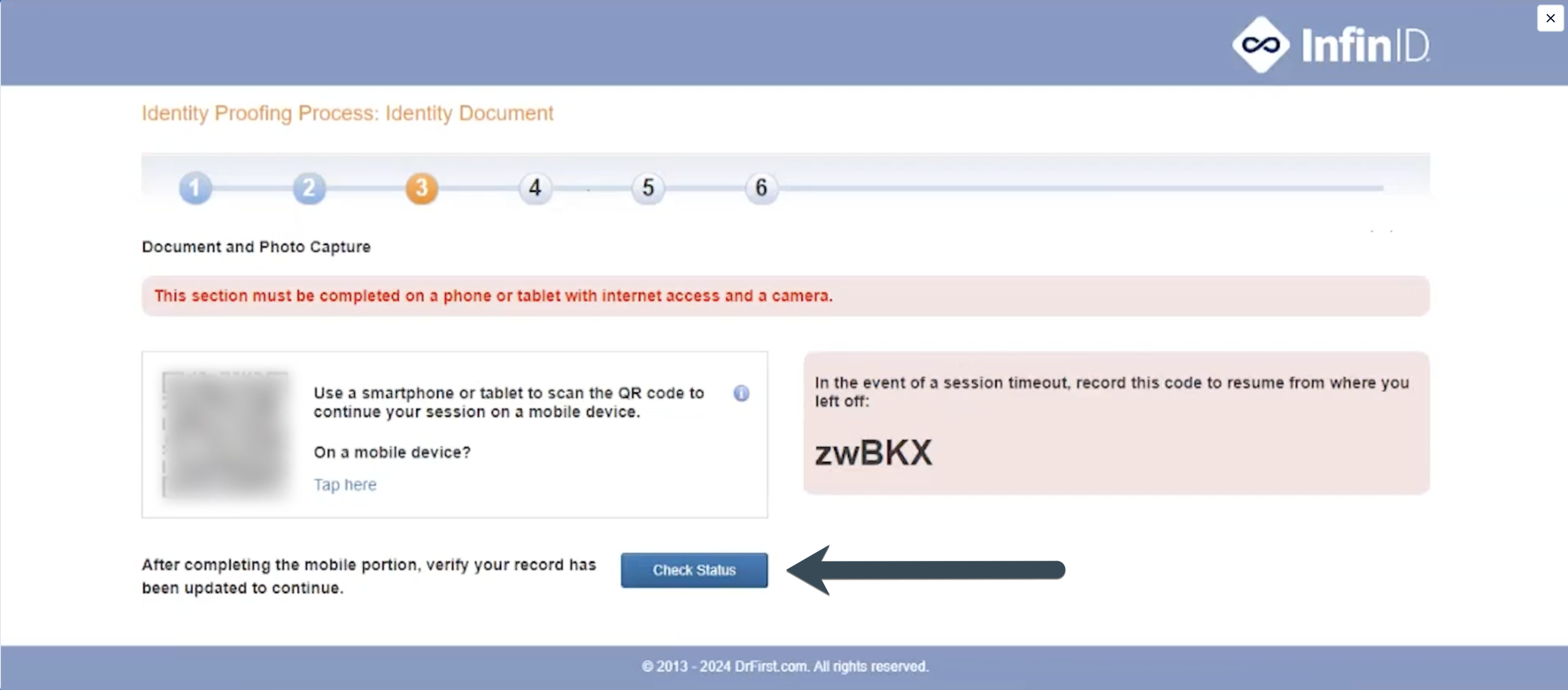
DON'T FORGET TO CLICK! This is a commonly missed step. If you don't click Check Status within 24 hours, your enrollment gets stuck and you'll need a new invite. Write down the session key too—if you get disconnected, you can use it to get back in without starting over.
Tips for capturing your ID
Use your phone or tablet camera
Center your ID on a darker background
If the image won't focus, try moving your device closer or farther from your ID
Allow camera access when prompted
Step 5: Token registration
Register your VIP Access token with DrFirst.
Click Add New Token
Click Add under Code Generator
Do NOT select IPrescribe Push Notification — Canvas is not set up for IPrescribe. Click Code Generator to register your VIP Access token
Open the VIP Access app on your phone
Locate the Credential ID in the app
Enter the Credential ID in DrFirst
Create a nickname for your token so you can identify it later — don't use underscores
Return to the VIP Access app to view the current OTP Code — a 6-digit code that changes every 30 seconds
Enter the OTP Code in DrFirst before it expires
Submit the token registration
Register for backup — DrFirst recommend registering at least 2 tokens. If you lose access to your only token, you'll have to repeat the entire enrollment process. DEA regulations also require your token to be on a different device than the one you use to prescribe.
Step 6: Verification code
Enter the verification code to confirm your contact information.
Check your phone for a text message with the verification code
Enter the verification code in DrFirst
Submit
Can't receive texts? No worries — DrFirst will mail you a physical verification code. It can take up to 2 weeks, so sit tight.
Step 7: Create passphrase
Create a passphrase you'll use to sign controlled substance prescriptions.
Open the email from Experian with your Transaction Number
Navigate to the passphrase setup page using the link provided
Enter the Transaction Number
Create a passphrase meeting the requirements below
Confirm your passphrase
Submit
Passphrase requirements
8-20 characters
At least 1 uppercase letter
At least 1 number
No special characters
No more than 2 of the same letter or number in a row
Worried about forgetting? There's no password recovery option. Store your passphrase somewhere safe like a password manager.
Step 8: Grant activation
You're almost there! The final step requires your EPCS Administrator to activate your grant.
Let your practice administrator know you've completed the steps above.
Pair with the EPCS admin to activate your grant with DrFirst
After Enrollment is Complete
Once your grant is activated and Canvas Support finalizes enrollment, you can start prescribing controlled substances in Canvas. Your practice administrator will let you know when everything is ready.
Frequently Asked Questions
Timeline and process
Q: How long does EPCS enrollment take?
A: Timelines vary, but it is typically 3-5 days if there are no delays such as the provider and EPCS admin setting time to activate the grant
Q: After final authorization is complete, when should controlled-substance prescribing start working?
A: After the EPCS admin completes final authorization and Canvas applies the final service level, successful prescriptions may still take up to 24 hours depending on when the pharmacy updates its directory.
Q: Why is EPCS enrollment so complicated?
A: Federal regulations for controlled substances require extra security to prevent abuse and diversion. All the steps—identity proofing, OTP tokens, passphrases—are legally mandated.
Q: Can I complete identity proofing before ePrescribing is done?
A: No. You'll only receive the DrFirst invite after ePrescribing enrollment is complete. The systems work in a specific order that can't be changed.
Identity proofing
Q: Do I need to turn off fraud alerts before identity proofing?
A: No. Fraud alerts don't need to be turned off.
Q: Why am I getting security questions after entering my information?
A: If Experian can't match your demographic information to your credit report, you'll get 3-5 security questions based on your credit history. Having your credit report handy helps you answer them correctly.
24-hour window
Q: What if I forget to click Check Status after uploading documents?
A: You have 24 hours to complete this step. After that, your enrollment gets stuck and you'll need a new invite from Canvas Support.
Q: What if I get disconnected during the 24-hour window?
A: If you saved the session key, you can use it to resume. Otherwise, contact your practice administrator to request a new invite from Canvas Support.
Technical issues
Q: What if I can't scan the QR code?
A: Open your phone's camera and hold it so the QR code appears in the viewfinder. Try moving your device closer or farther until it focuses. Once recognized, tap the website banner that appears. You may need to try a few times.
Q: Why isn't my OTP token working?
A: Check that your phone's time and date are set to automatic—tokens are time-synchronized. Also make sure you're using the current code, as it expires every 30 seconds.
Q: What do I do if I clicked iPrescribe Push Notification?
A: This will depend on how far you got in the IPrescribe set up.
If you registered a token and made a payment for IPrescribe, you will need to contact Canvas Support and request a new invite to redo your enrollment. You will also need to contact DrFirst Support and request a refund for the purchase you made for IPrescribe
If you did not register your token and make a payment for IPrescribe, you can route yourself back to the token registration page and correct your selection. Follow the steps below to get back on track.
Return to your DrFirst invite email
Click Enroll Now
Enter your temporary session code if you wrote it down. If not, repeat the identity verification process.
On the token page, click Add new token
Click Add under Code Generator
Q: What if I forget my passphrase?
A: You can reset it through DrFirst's website. See Resetting Your EPCS Passphrase for step-by-step instructions.
Q: Stuck at "IDP Verified"?
A: If your EPCS status shows IDP Verified, identity proofing is complete but enrollment is not finished. In current support cases, this status means the provider still needs to return to the original DrFirst browser session and click Check Status. If that step is completed within 24 hours, enrollment can continue. After 24 hours, Canvas Support needs to send a new invite.
Getting help
Q: Where do I get help with DrFirst issues?
A: For VIP Access app issues, passphrase resets, token problems, or account lockouts, contact DrFirst Support. Have your NPI and invite ID handy.
Related Articles
Keywords: EPCS, DrFirst, controlled substances, identity proofing, VIP Access app, OTP token, passphrase, grant activation, Experian, EPCS enrollment
Categories: Provider Enrollment, EPCS, DrFirst
Roles: Providers