Resetting Your DrFirst Passphrase
Last updated: July 22, 2026
Forgot your DrFirst passphrase or need to change it? You can reset or update your passphrase anytime through the EPCS Gold Prescriber Dashboard.
What you'll learn
How to reset a forgotten passphrase
How to change your existing passphrase
Passphrase requirements
Passphrase Requirements
Your passphrase must be 8-20 characters with at least 1 uppercase letter and 1 number. Don't use special characters, and don't use more than 2 of the same letter or number in a row.
Resetting a Forgotten Passphrase
Go to the EPCS Gold Prescriber Dashboard
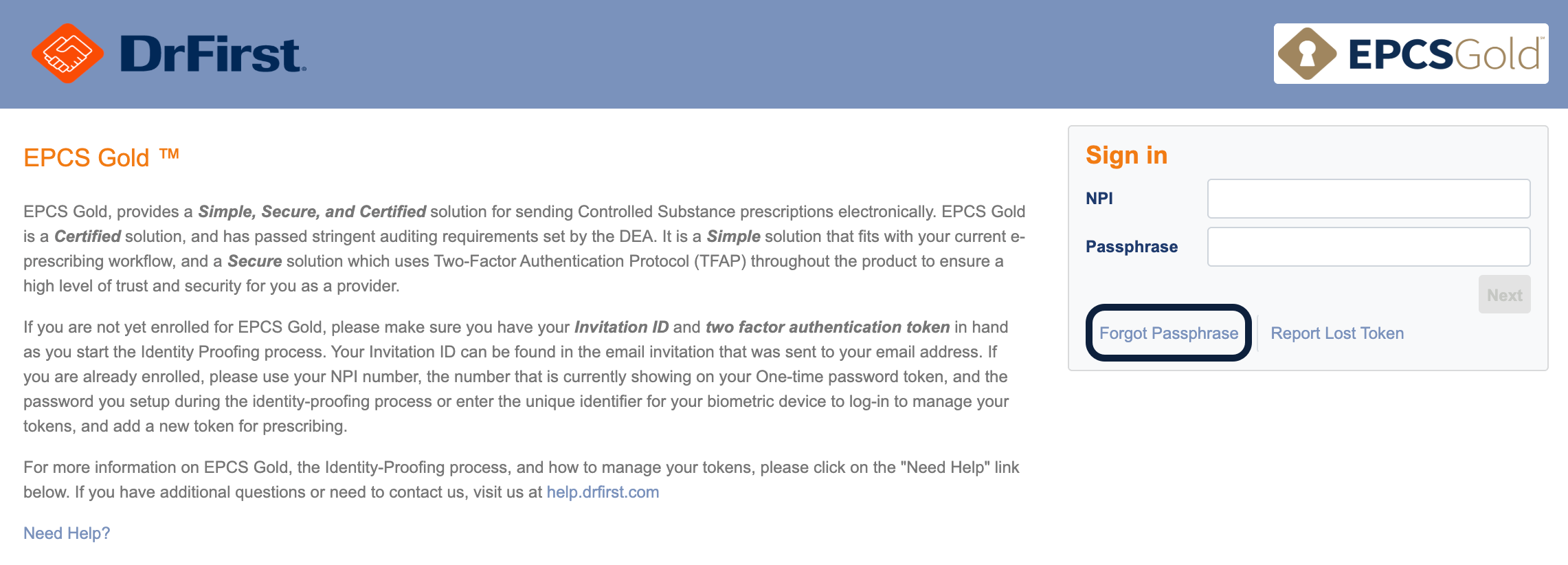
Click Forgot Passphrase
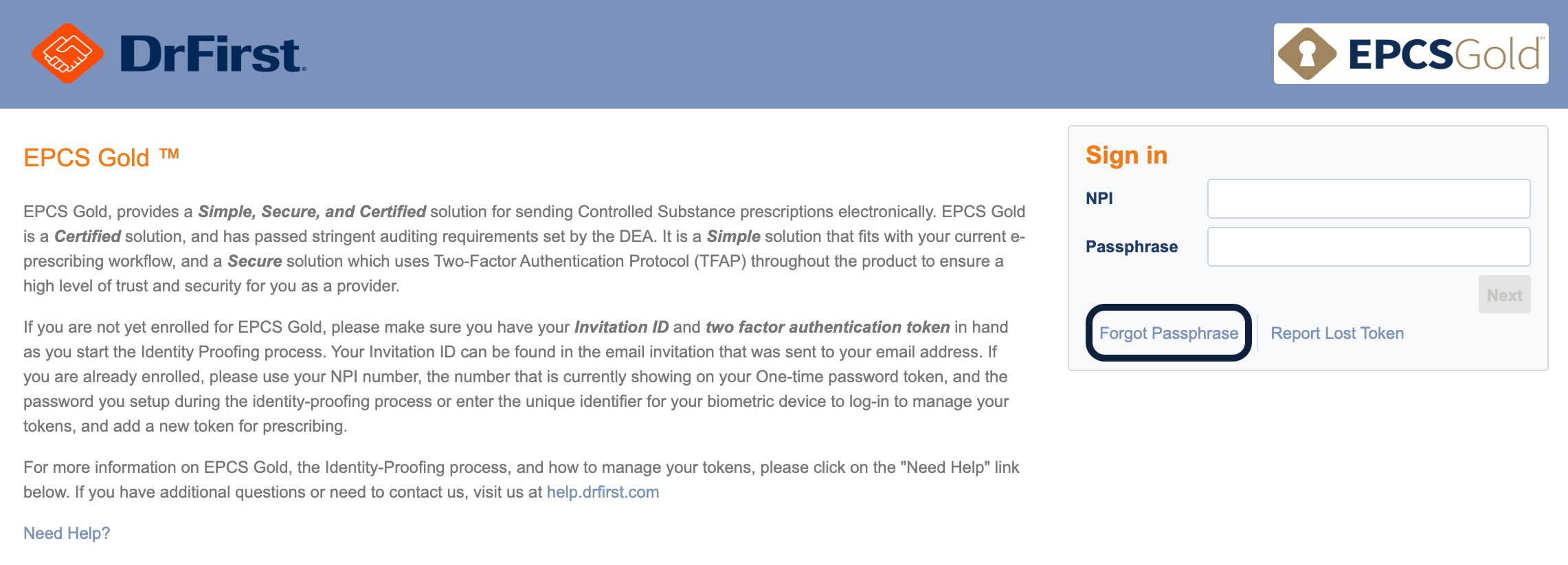
Enter your NPI number and your token's Credential ID — format is SYMC########### with no spaces
Click Next Step
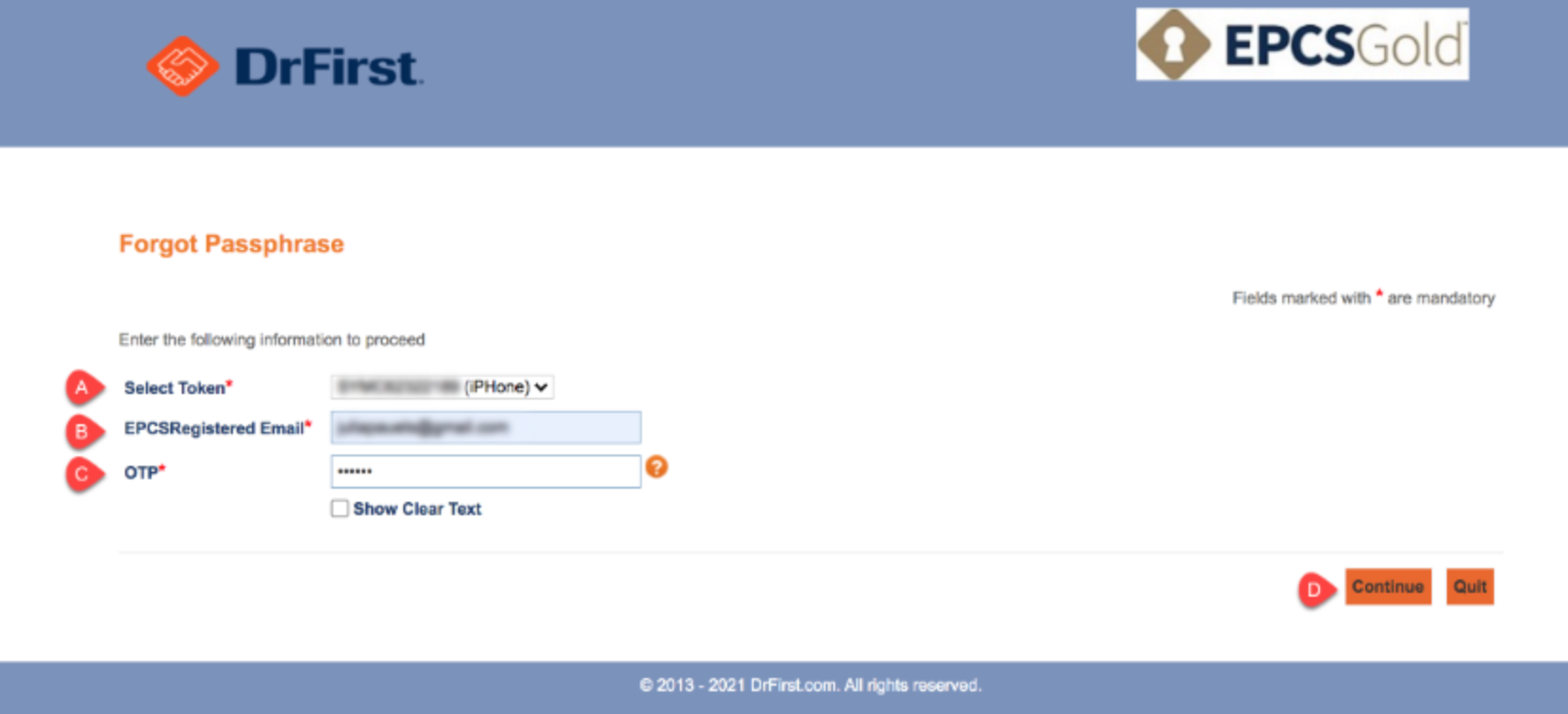
Complete the fields to validate your identity
Select Token: Authenticator associated to your account
EPCS Registered Email: Email you used during your identity proofing
OTP: One-time pin from your selected token
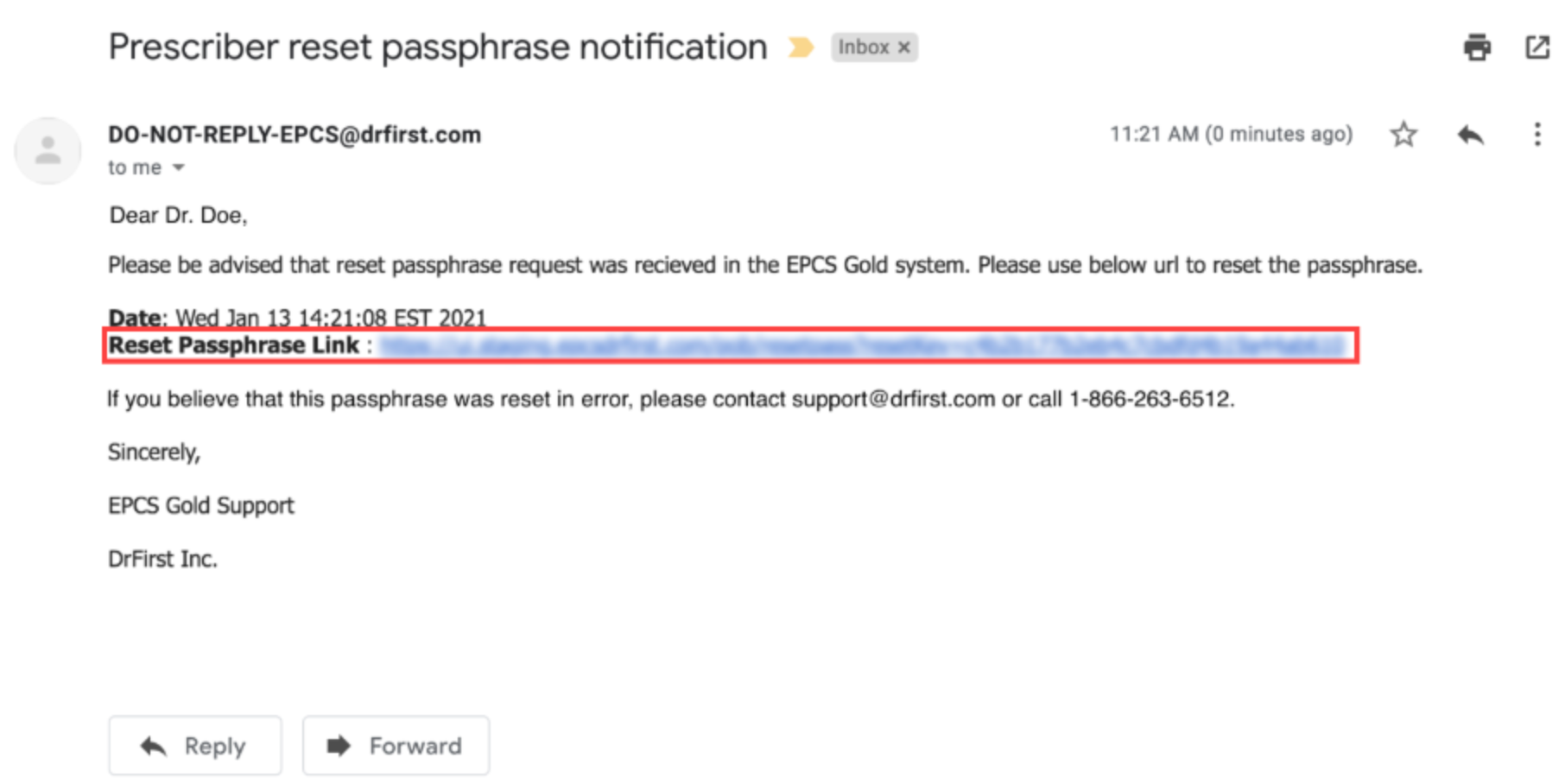
Check your email for a message with the subject Prescriber reset passphrase notification
Click the Reset Passphrase Link in that email
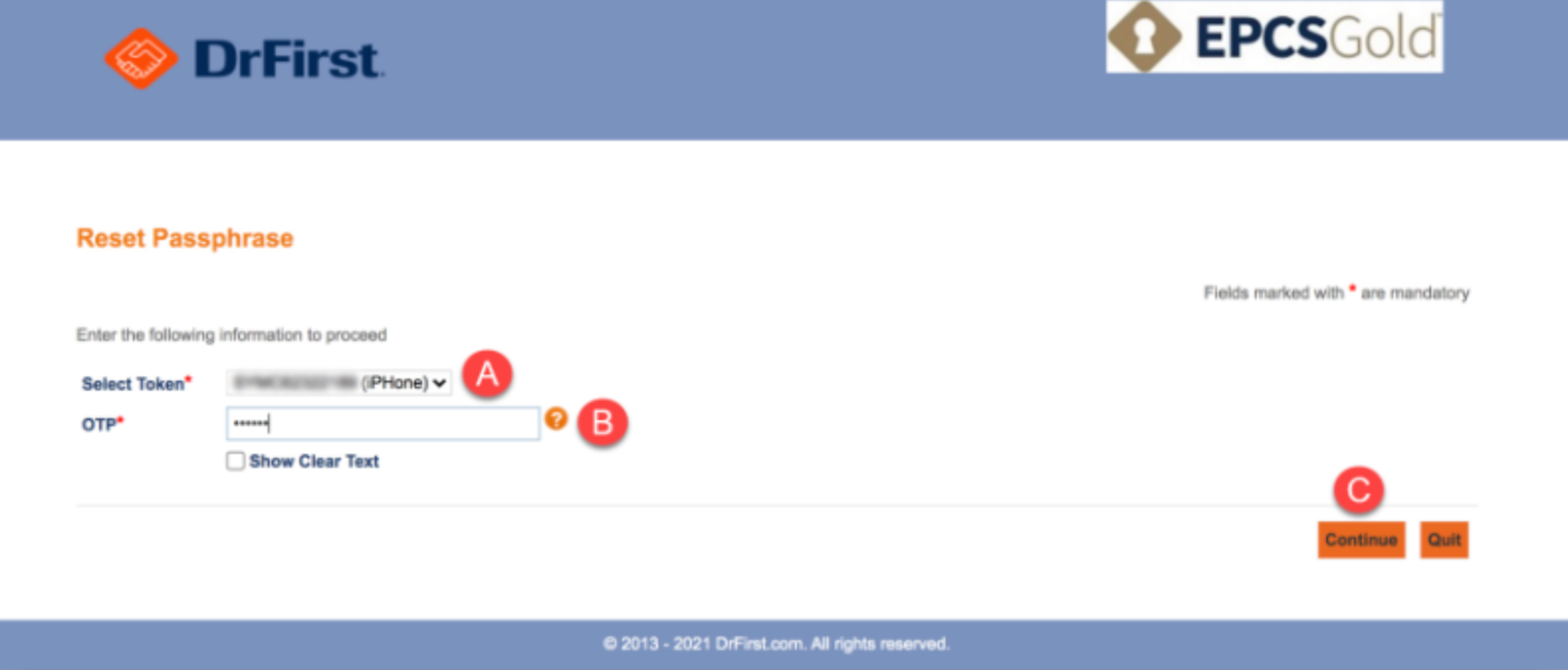
Re-enter your NPI number and token Credential ID
Click Continue
Select your token and enter a fresh OTP
Click Continue before the pin expires
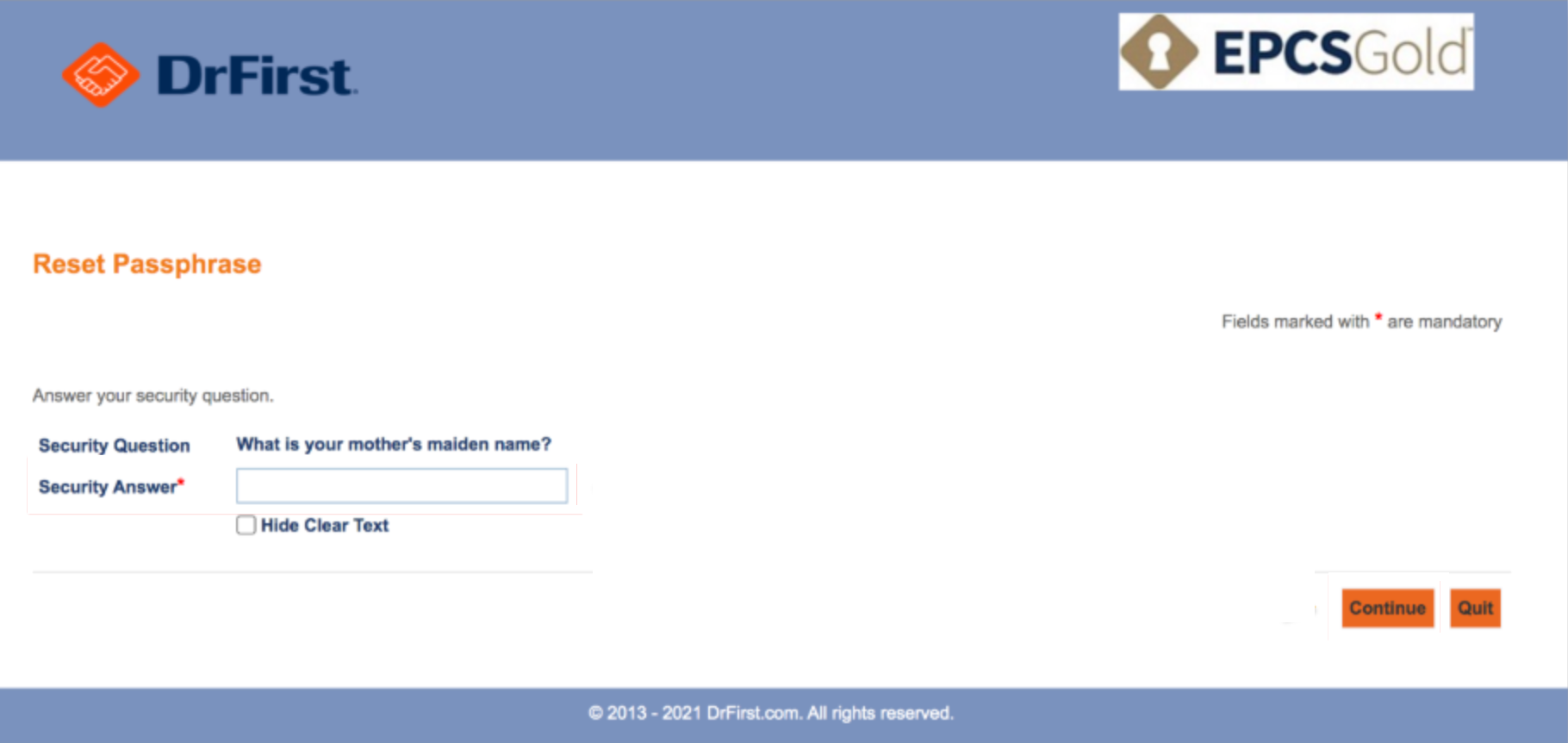
Enter your security answer — this is case sensitive
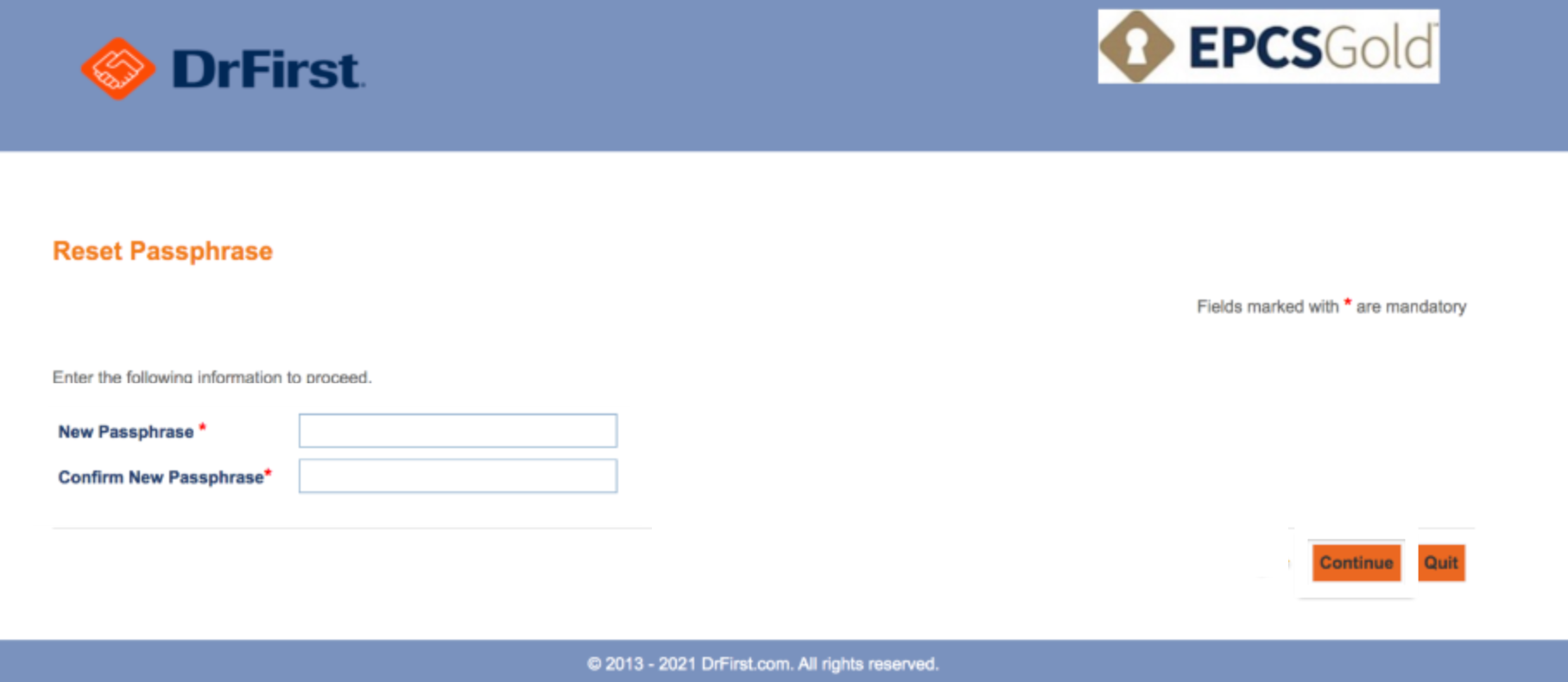
Create and confirm your new passphrase
Click Continue
Don't remember your security answer? Contact DrFirst Support for help.
Changing Your Existing Passphrase
If you know your current passphrase and want to change it
Go to the EPCS Gold Prescriber Dashboard
Log in with your NPI and current passphrase
Select your token and enter the one-time pin
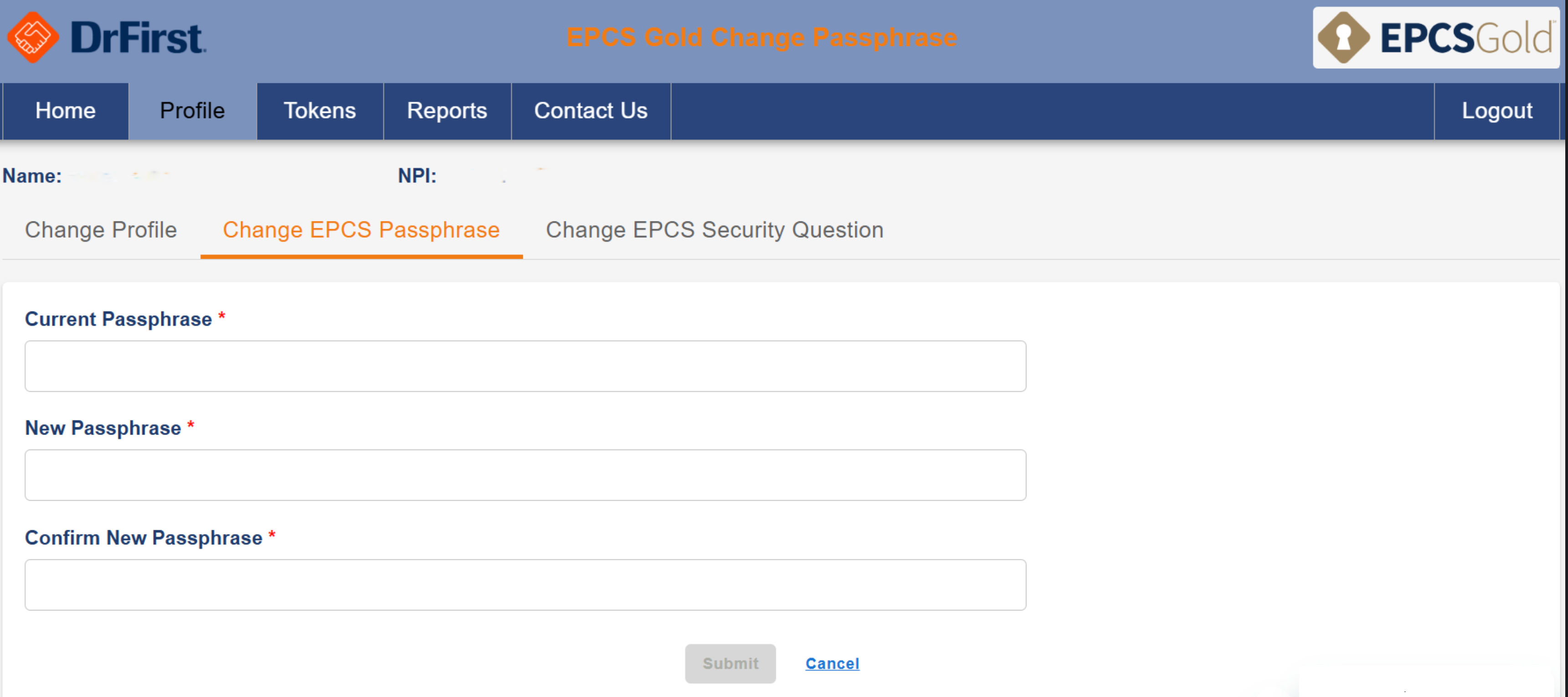
Go to the Profile tab
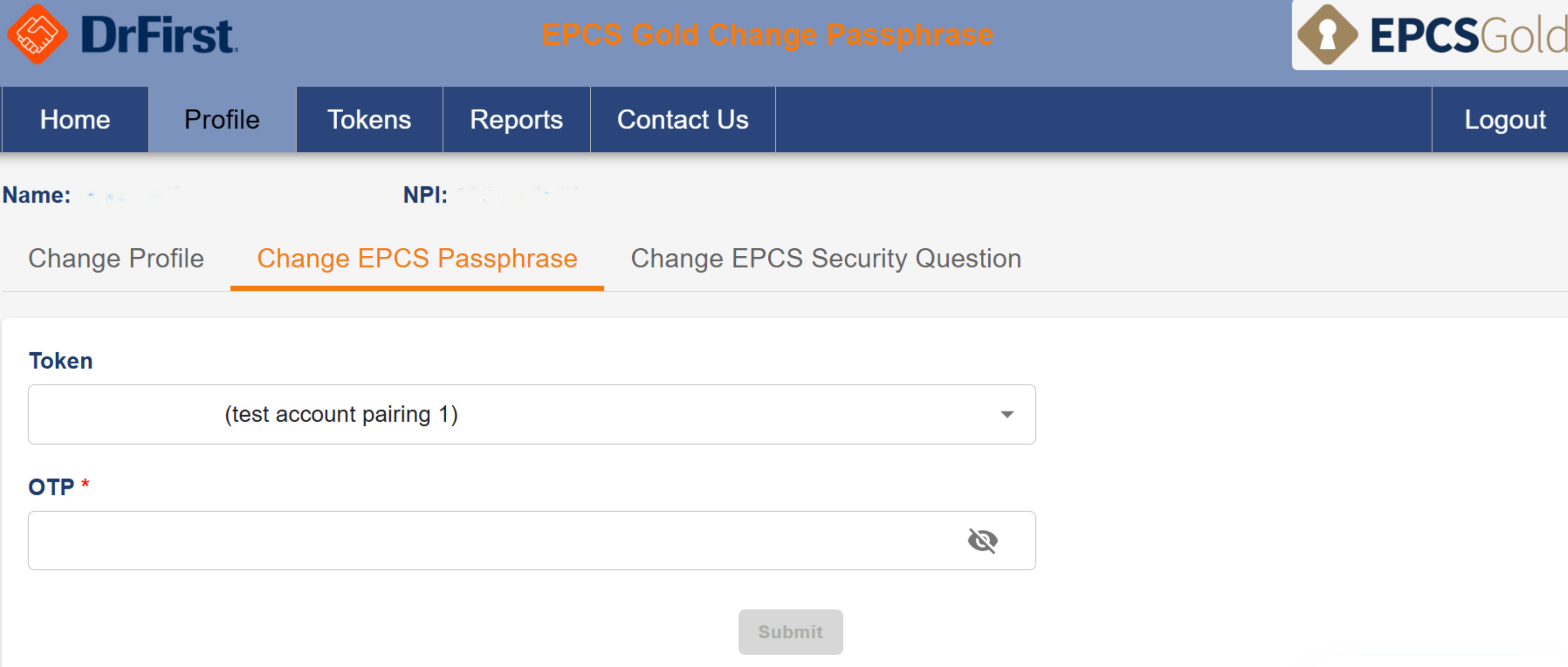
Select Change EPCS Passphrase
Select your token and enter a one-time pin
Click Submit
Enter your current passphrase
Create and confirm your new passphrase
Click Continue
Next Steps
Once you've reset or changed your passphrase, you can continue prescribing controlled substances. Store your new passphrase somewhere safe like a password manager—there's no recovery option if you forget it.
Frequently Asked Questions
Q: What if I get locked out while trying to reset?
A: Three failed attempts trigger a 15-minute lockout for security. Wait for the lockout to expire before trying again.
Q: Can I use the same passphrase I had before?
A: It's best to create a new one for security purposes.
Q: What if the reset process fails?
A: If you can't verify enough information for DrFirst to confirm your identity, you may need to complete identity proofing again. Contact DrFirst Support for next steps.
Related Articles
Keywords: EPCS passphrase, reset passphrase, forgot passphrase, change passphrase, EPCS Gold
Categories: EPCS, DrFirst, Troubleshooting
Roles: Providers