Managing Patient Appointments
Last updated: November 13, 2025
Managing appointments is a core function of any clinical workflow, and Canvas offers a comprehensive set of tools to help users streamline scheduling, manage provider availability, and deliver a seamless patient experience. This guide walks through appointment scheduling in Canvas, from basic methods to advanced features like telehealth support, timezone coordination, and appointment follow-up workflows.
Canvas supports two primary methods for booking appointments:
Schedule View – For quick, calendar-based booking.
Patient Chart – Ideal for follow-up visits directly from the patient's record.
Both methods are designed to provide flexibility and efficiency, ensuring appointments can be booked in a manner that best suits the workflow.
User's Guide
Scheduling Appointments
Users can schedule appointments directly from the Schedule View or from the patient's chart, offering flexibility and convenience depending on the workflows.
The scheduling modal can be opened in various ways
From the schedule view:
Click and drag on the desired time slot for the selected provider
Use the Calendar button from either the schedule view or within the patient chart
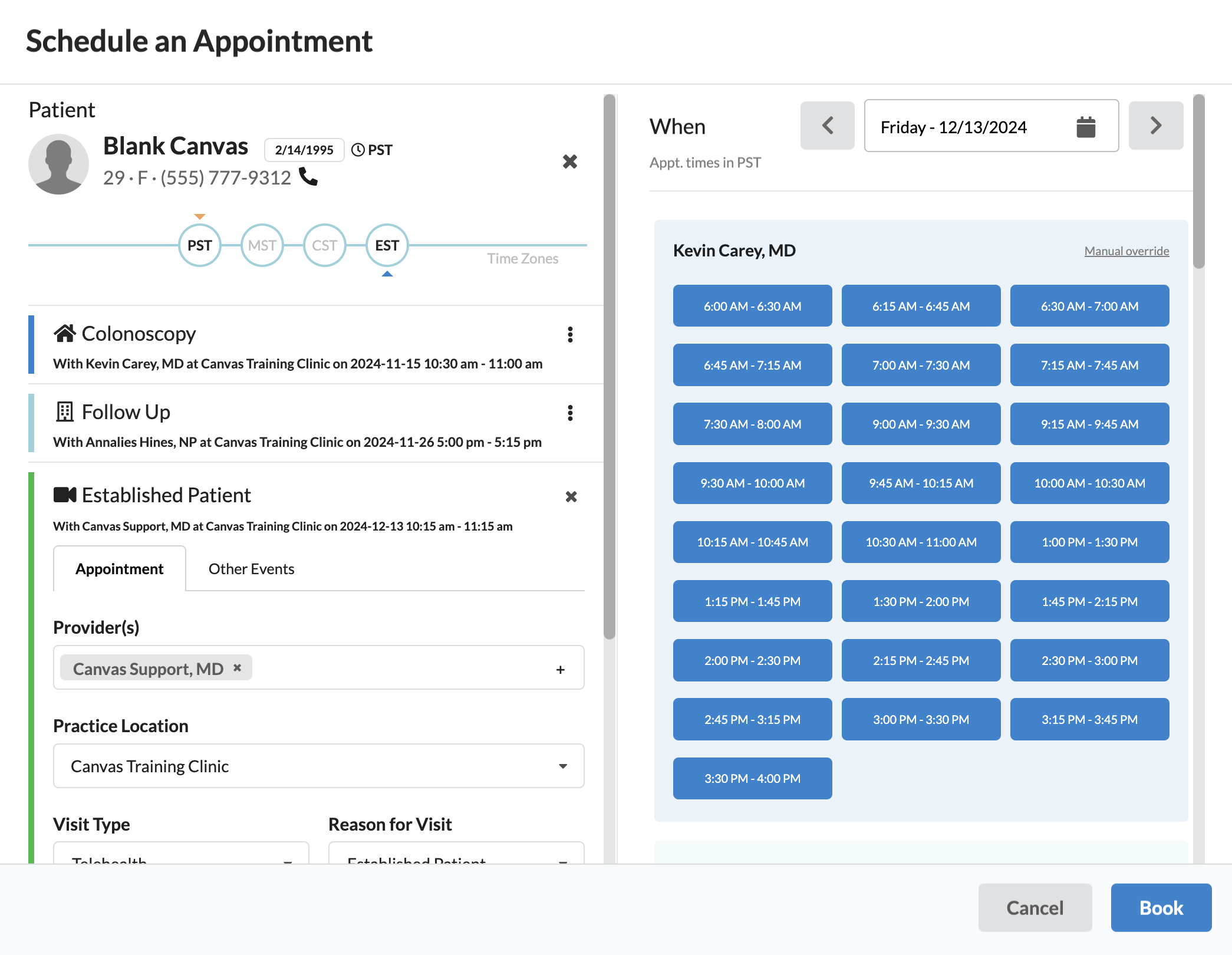
Complete appointment details on the left side of the scheduling modal
Patient: The name of the patient scheduled for the appointment.
From the schedule view, the patient can be searched by:
Name
Date of birth
Phone number (numbers only)
Email address
If the patient's name disappears after selecting their name, the patient is inactive
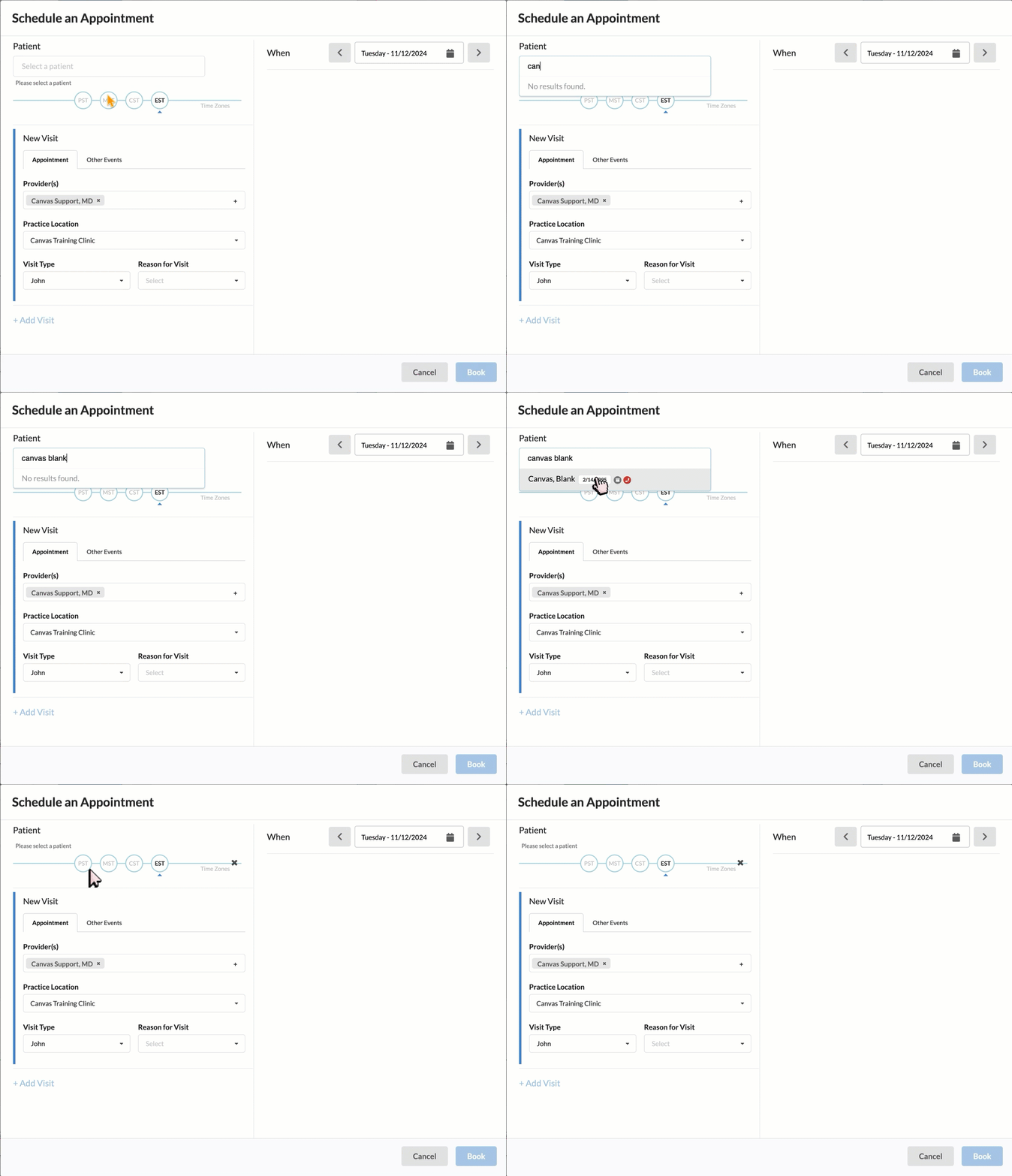
From the patient's chart, the patient's name will auto populate and cannot be modified
Provider(s): Provider(s) that will be overseeing the visit. Up to 3 providers can be selected.
If a provider is booking the appointment, their name will be auto-filled.
If a non-clinical staff member is scheduling the appointment via the calendar button, the field will be blank for flexibility.
If appointment is being scheduled from click and drag, the provider will automatically populate based on the provider selected. This can be manually changed from the dropdown if needed.
If no provider is selected, all providers with open availability for that day will be displayed.
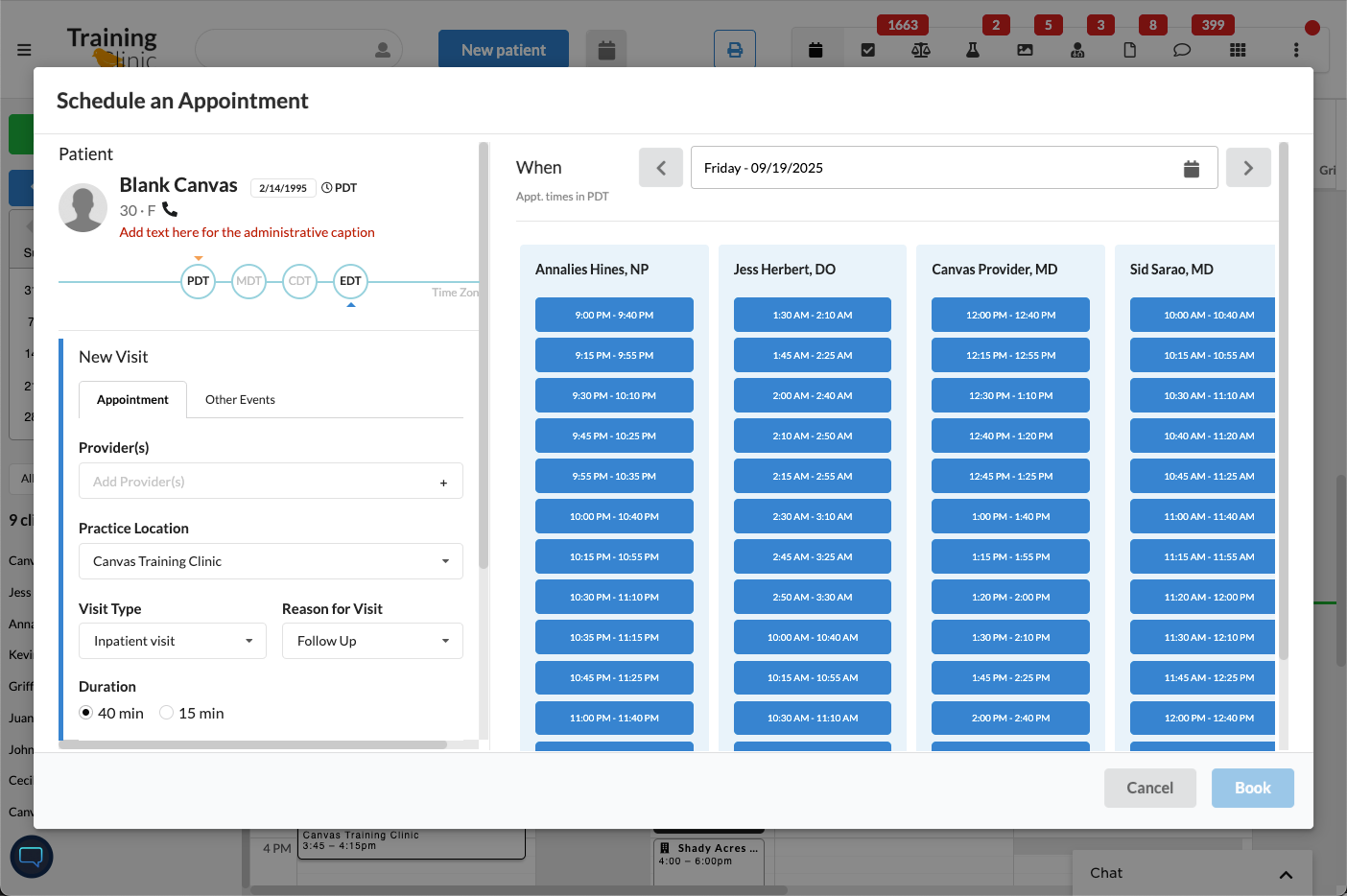
Practice Location: Select the correct location for the appointment
From the schedule view:
If a provider is booking, their primary practice location will auto-populate as the location
If a non-clinical staff member is booking the appointment, locations will auto-populate to the filtered location
If the scheduled view is filtered to All Locations the practice location field will be empty and require a selection
From the patient's chart
The provider location will be blank regardless of who's scheduling and will require a selection
Visit Type: Make appropriate visit selection from the dropdown.
Review Creating Note Types and Other Events to learn more about creating visit types
Reason for Visit: Depending on the chosen configuration, choose from a structured reason for visit dropdown list or add unstructured free text for flexibility, ensuring tailored and precise visit notes.
If Structured Reason for Visit is enabled, Duration, Comments and Labels fields will not be visible until the reason for visit is selected.
Duration: Set the appointment duration to automatically adjust available time slots.
Comments: An optional free text field to add any additional notes for the appointment
Labels: Apply any relevant labels to categorize the appointment, aiding in organization and prioritization.
No more then 3 labels can be assigned.
Labels will display on the appointment card and on the printed schedule.
Select the date and time of the appointment on the right side of the modal
The date can be selected by one of the following:
Typing a date into the field
Using the arrows next to the date to move to a future or previous date
Click the calendar icon to see a monthly overview.
The colored dots under the dates mean the provider has availability on that date
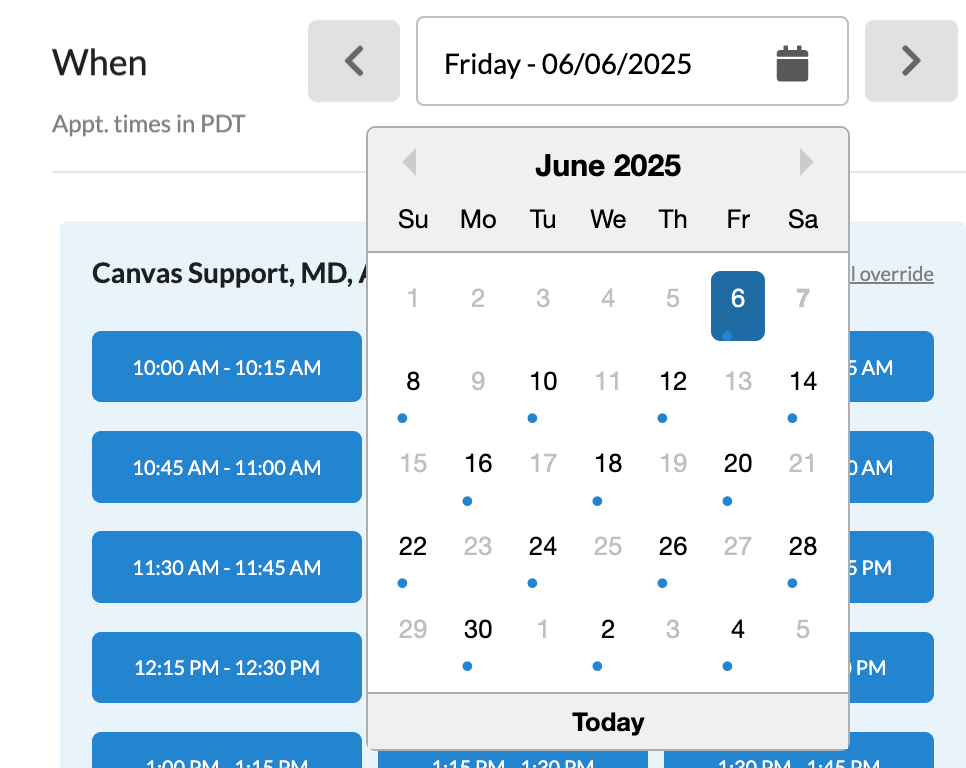
The time is selected by clicking the button for the appropriate timeslot.
If the patient does not have a preferred timezone defined in their profile, the appointment times will display based on the timezone of the user's device.
If the patient does have a preferred timezone, the times will display based on the timezone selected in their patient profile.
On the left, the patient's timezone will be indicated by the orange down arrow and the user's timezone will be indicated by the blue up arrow
On the right, the patient timezone will defined under the When heading

Finalize the appointment by clicking Book in the bottom right.
Additional Functionality for Telehealth Visits
Scheduling Telehealth appointments follows the same workflows as in-person visits, with these key differences:
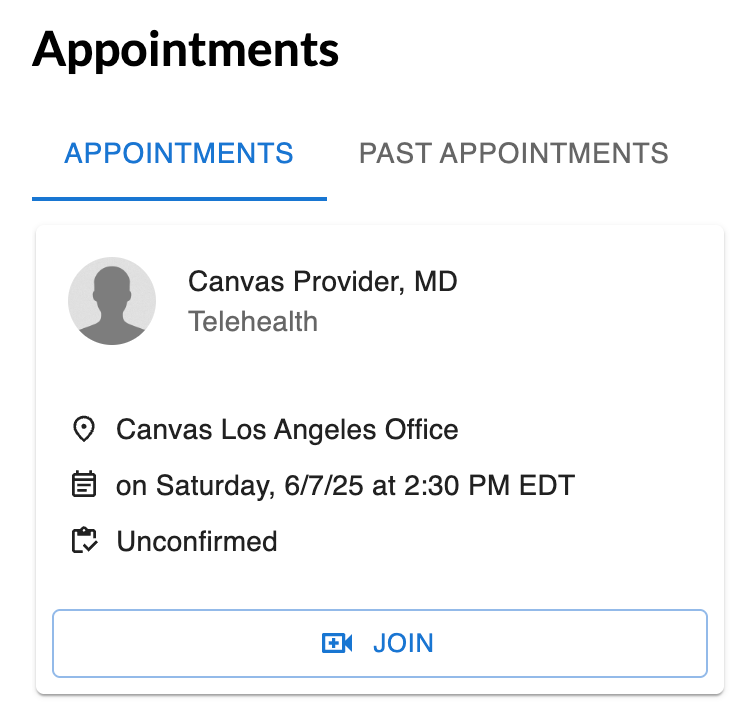
Automated Communication: Patients with verified contact information receive automated reminders and a link to their Virtual Exam Room.
If a patient loses the link or the appointment is scheduled less than 45 minutes before the allotted time, the message can be pushed to the patient again by clicking the triple dot in the header of the telehealth visit in the patient's chart and selecting
Resend telehealth instructionsfrom the dropdown.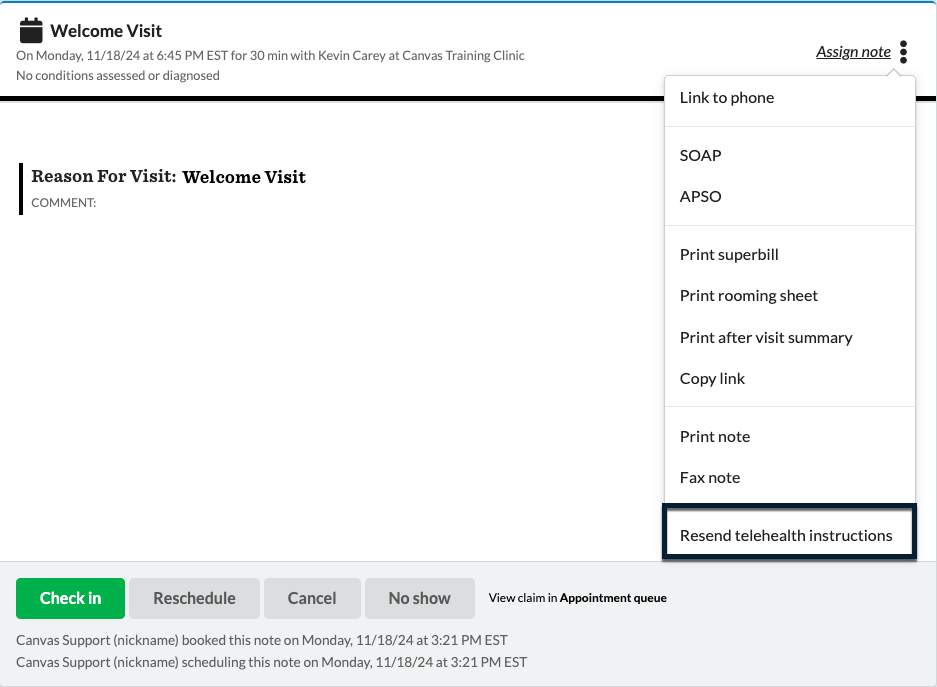
Persistent Provider Links: Each provider’s Virtual Exam Room link remains the same across appointments, streamlining patient access. Meeting room links are added in the provider's staff profile.
Unique telehealth links can be created via API in using the Appointment Create endpoint.
Direct access to the Virtual Exam Room: Once the appointment is checked in, a blue video button will display in the header of the appointment. Clicking the button will open the virtual exam room for the provider.

No App Required: Patients can join Telehealth visits using the shared link without accessing a specific app.
If the practice utilizes the patient portal, the patient can join the visit from the portal as well.
Manual Override for Scheduling Outside of Availability
When appointments must be scheduled outside of the available slots, Canvas offers a Manual Override feature
This feature in only available when ALLOW_DOUBLE_BOOKING is enabled under Constance: Config
From the scheduling modal, click Manual Override at the top right of the timeslot box to open the override scheduling features
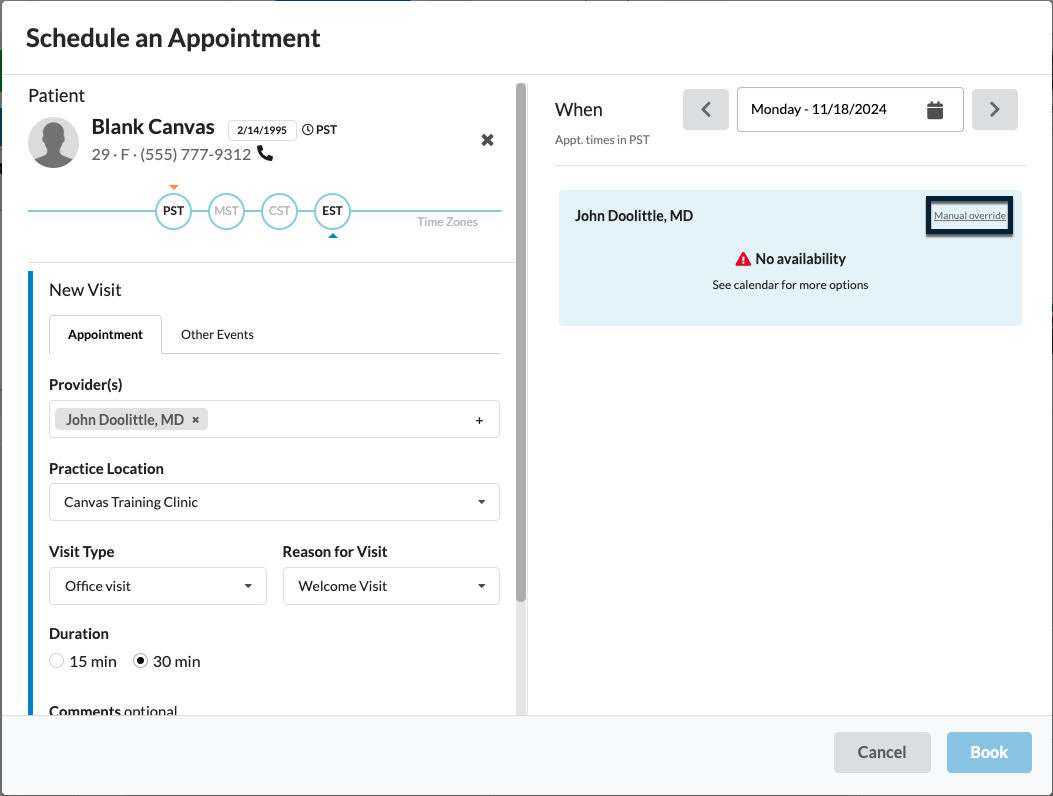
On the left side, following the traditional scheduling process. Review scheduling process above, if needed.
On the right side, select the date and time of the overridden appointment
Appointment times will show in 15 minute durations but times can be changed using free text in the Time field.

Scheduling Other Events
Canvas enables scheduling non-patient events, such as meetings, travel time, and administrative tasks, directly within the scheduling modal, accessible from the patient chart or home scheduling view.
Scheduling an Event
Open the scheduling modal either using click and drag on the schedule view or clicking the calendar icon on the schedule view or within a patient chart.
Click the Other Events tab in the modal
Complete event information on the left of the modal
Patient: Connect the event to a patient. This is an optional field.
Patient linked events will only show on the provider's schedule to block their availability. Events will not be present in the patient chart
Provider(s): Providers associated with the event. Up to 3 providers can be selected.
Practice Location: Location the event will be taking place
Event Type: Generic Event is available by default, but custom events can be created by a Canvas admin
Custom Title (Optional): Include extra details such as a phone number or business name for quick reference.
Duration: Set the duration to display available booking slots.
Select the date and time of the event on the right side of the modal
Canvas does not support recurring events. However, recurring admin blocks can be added in the Google Calendar.
The date can be selected by one of the following:
Typing a date into the field
Using the arrows next to the date to move to a future or previous date
Click the calendar icon to see a monthly overview.
The colored dots under the dates mean the provider has availability on that date
The time is selected by clicking the button for the appropriate timeslot.
If the event is connected to a patient and the patient does have a preferred timezone, the times will display based on the timezone selected in their patient profile.
On the left, the patient's timezone will be indicated by the orange down arrow and the user's timezone will be indicated by the blue up arrow
On the right, the patient timezone will defined under the When heading
Finalize the event by clicking Book in the bottom right.
Adding Additional Visits
The + Add Visit feature allows users to book up to five separate visits or events in one workflow. This includes both patient-specific appointments and non-patient events, providing flexibility for diverse scheduling needs.
These visits are not recurring; each entry represents a standalone visit.
Scheduling Sequential Appointments
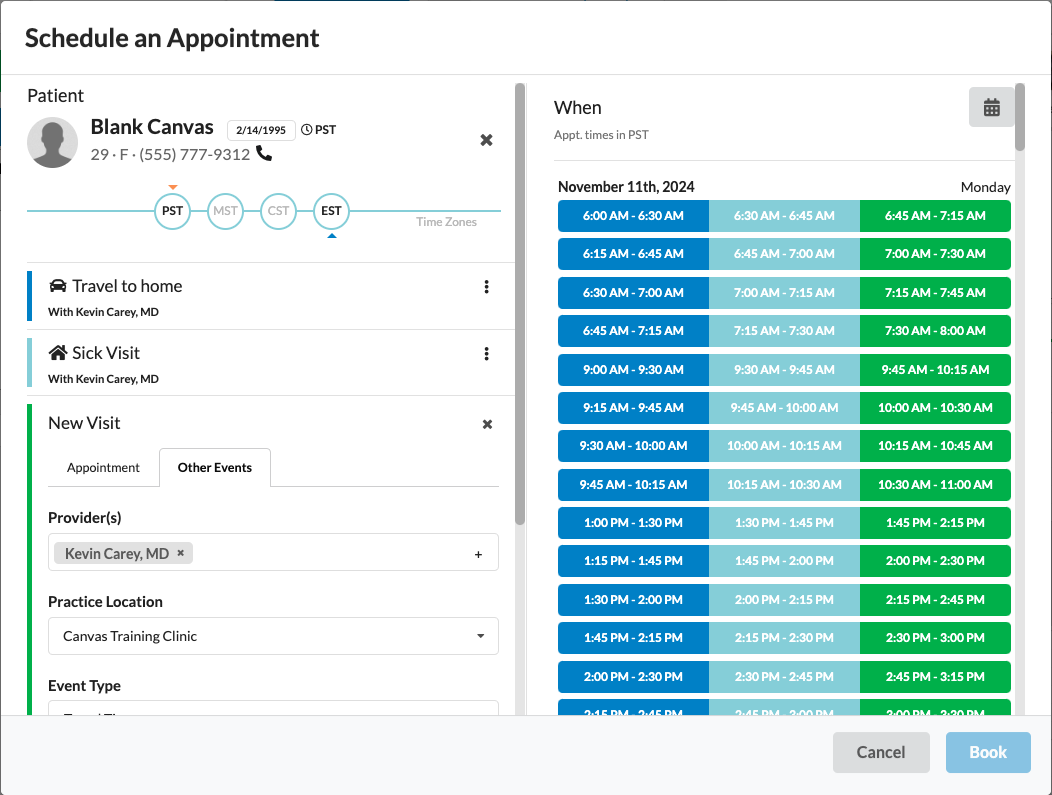
Schedule multiple connected visits and/or events, like travel to a patient’s home, the home visit itself, and return travel time. Up to 5 sequential visits can be booked at a time.
Once the context of the first appointment or event is complete, click +Add Visit followed by Sequential Visit to open another set of appointment details.
Select if the visit will be an appointment or event and complete the fields as normal
Only the patient's visit will show in their chart. The patient linked events will only show on the provider's schedule to block their availability.
Continue to +Add Visit until all sequential visits are created.
On the right, the availability will display matching the order, duration and color of the appointment and events on the left for easy booking.
Select the date and time of the appointment
Change the date by clicking the calendar icon
The colored dots indicate the providers have availability on that day for sequential appointments
Select the time by clicking the appropriate sequence of visits
Finalize the sequenced visits by clicking Book
Scheduling Additional Visits
Additional visits are highly flexible, allowing scheduling across an extended time frame with varying durations and times. Manual overrides are available to adapt to specific requirements. Schedule up to 5 appointments and/or events at a time.
Once the context of the first appointment or event is complete, click +Add Visit followed by Additional Visits to create another set of appointment details.
Select if the visit will be an appointment or event and complete the fields as normal
Only the patient's visit will show in their chart. The patient linked events will only show on the provider's schedule to block their availability.
Continue to +Add Visit until all additional visits are created.
On the right, the availability will display matching the order, duration and color of the provider and visit on the left for easy booking.
Select the date and time for each appointment. Unlike sequential visits, these visits are all independent and can be scheduled across various days and times for each provider. After each appointment selection, the details will display under the corresponding visit on the left side.
Change the date by clicking the calendar icon
The colored dots indicate the provider(s) have availability on that day
Select the time by clicking the button under the appropriate provider.
Finalize the sequenced visits by clicking Book
Appointment Cards
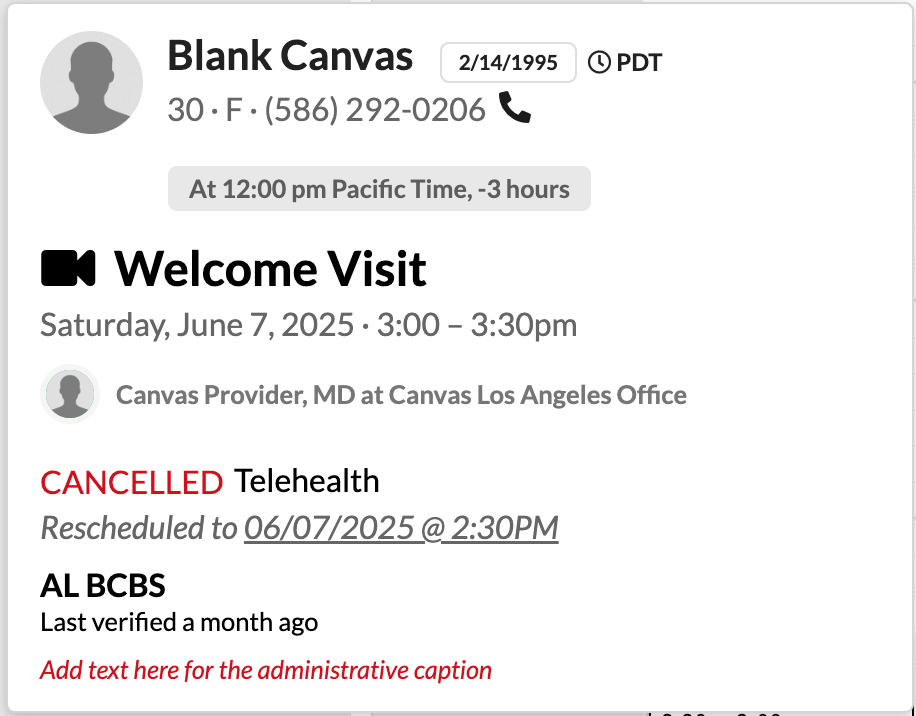
The appointment cards shown on the Schedule View provide a snapshot of the visit details including reason for visit and appointment status. They also allow quick access to the patient's profile and appointment note. Appointments can also be no-showed, rescheduled or cancelled from the card.
Changing Appointment Status
Click on the appointment in the schedule view to open the appointment card
Click the status to open the dropdown
Choose updated status:
Unconfirmed: No confirmation attempts have been made.
Attempted: A reminder was sent or a confirmation attempt was made.
If Canvas' appointment reminders are enabled, this status updates automatically when a reminder is sent. Refer to Appointment Reminders for details on setting up reminders.
Confirmed: Appointment was confirmed, either manually or automatically.
This status updates automatically if the patient confirms via Canvas' appointment reminder.
Arrived: The patient has arrived for the appointment.
Roomed: The patient is in the room and waiting for the provider.
Exited: Marks the appointment as completed
No Showed: The patient misses the appointment without providing prior notice.
Canvas admins can define the status to auto-assign once in appointment is checked in. Refer to Setup and Configurations below for further details.
Updating an Appointment
To reschedule, no show or cancel
Click the appointment to open the appointment card
Click the triple dot on the right of the card
Select one of the following:
Reschedule: Schedule modal will open allowing users to change the date and/or time of the appointment
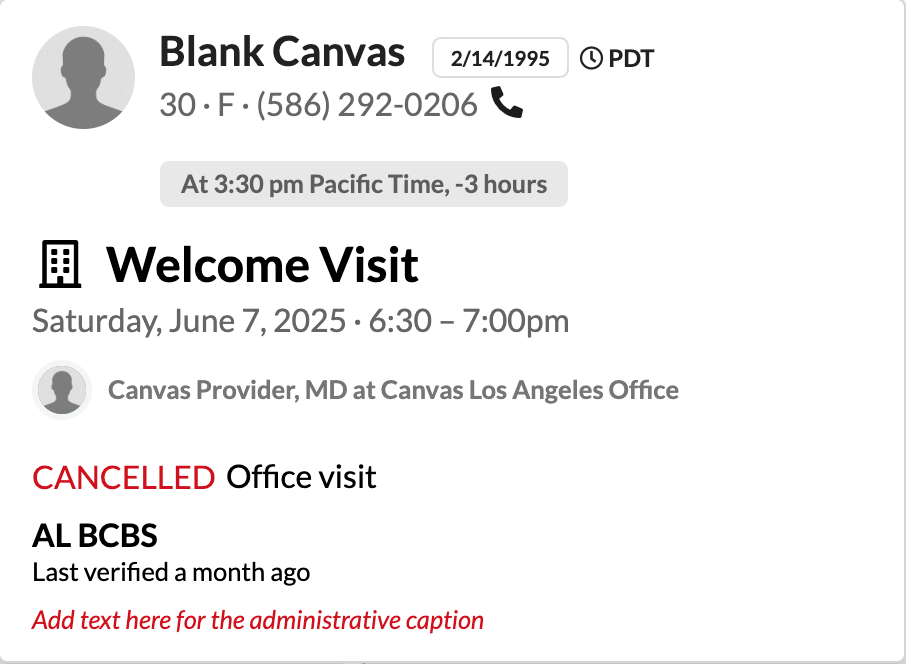
The appointment card of a rescheduled appointment will display Cancelled in red and include the new appointment. Clicking the appointment date will take the user to the appointment note in the patient chart.
No Show: Marks the appointment as no show
A confirmation will pop up to confirm the patient did not show for their appointment
Click Mark as No Show to confirm or press Cancel to close.
The associated note will have
NO-SHOWCPT code will be added to the billing footer and will lock.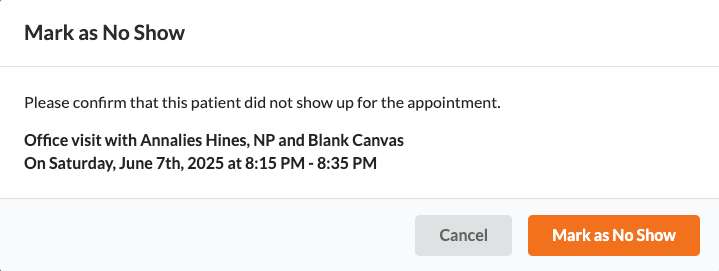
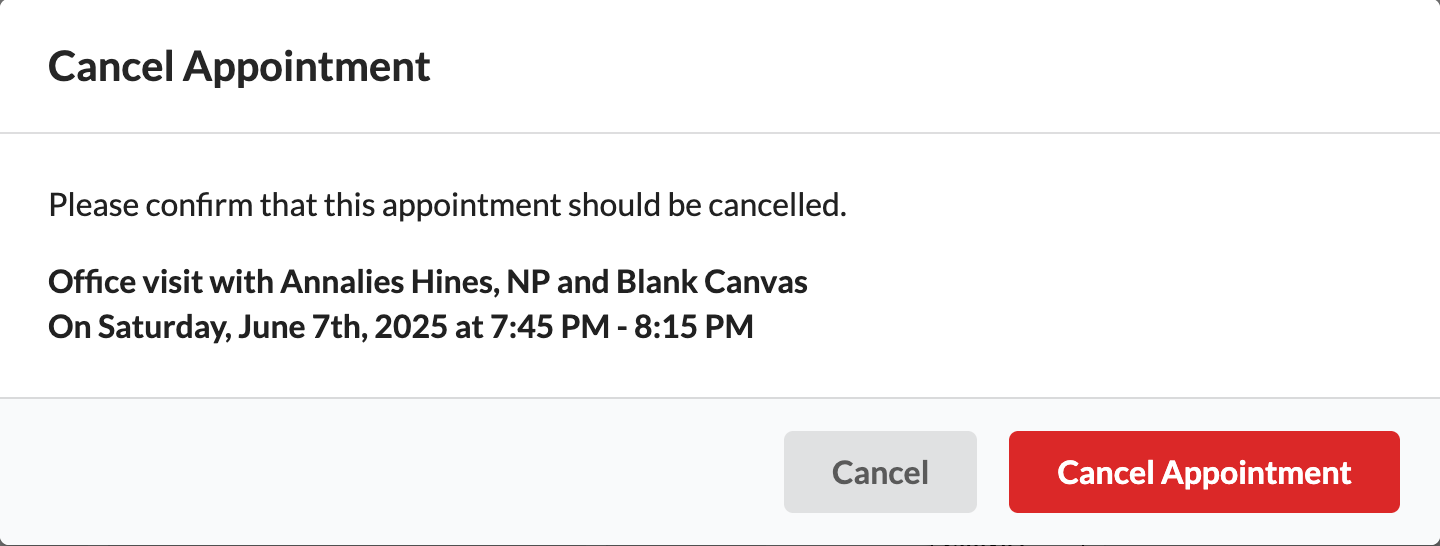
Cancel: Cancels the patient visit
A confirmation will pop up to confirm the appointment should be cancelled
Click Cancel Appointment to confirm cancellation or click Cancel to close.
Clicking the cancelled appointment on the schedule view opens its appointment card, which shows the status as Cancelled.
Appointment Labels
Appointment labels can be set when the appointment is created, but they can also be added and updated from the appointment card after the appointment is made.
Viewing Appointment Labels
Click the appointment on the schedule view to open the appointment card
When the card is open, the user will see one of the following
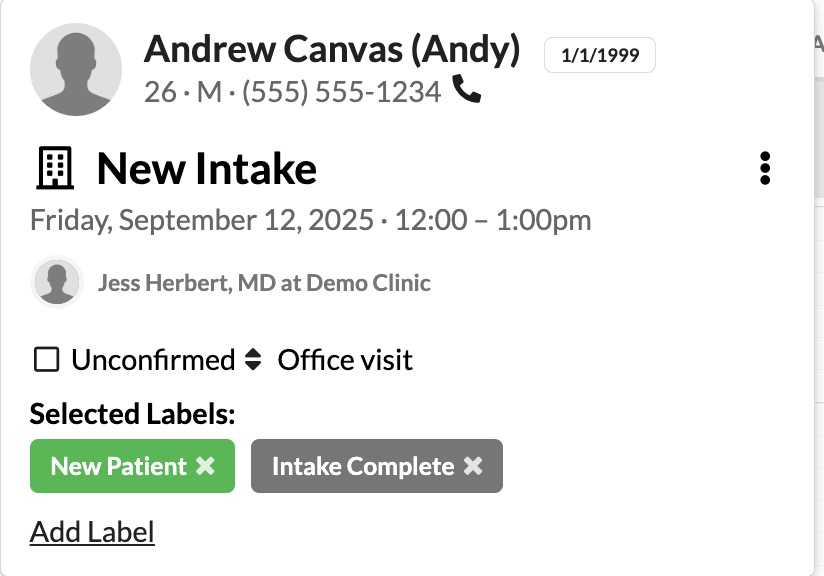
If 3 labels have already been assigned to the appointment, the labels will be listed along with an alert: Limit reached: Only 3 appointment labels allowed
If less than 3 labels have already been assigned to the appointment, there will be a link to Add Label and select appointment labels from the dropdown.
Adding Appointment Labels
Click the appointment on the schedule view to open the appointment card
Click No labels or Add more labels to open the dropdown
Select up to 3 labels to tie to the appointment
Removing Appointment Labels
Click the appointment on the schedule view to open the appointment card
Click the X on the label to remove from the appointment card
Direct Links
The appointment card has permalinks that will take the user to the associated patient's profile or appointment note
Patient Profile
Click the appointment on the schedule view to open the appointment card
Click the patient name on the appointment card
Patient profile will open for the associated patient
Appointment Note
Click the appointment on the schedule view to open the appointment card
Click the Reason for Visit on the appointment card
A new tab will open that will take the user to the associated appointment note for the patient
Managing Appointments in Patient Chart
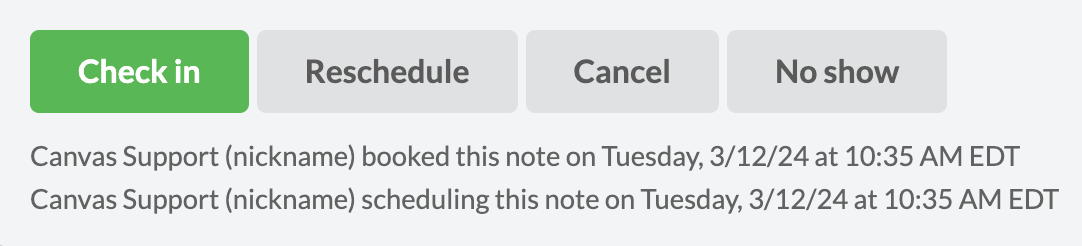
The options to check-in, reschedule, cancel, and mark an appointment as a no-show are all available in the footer of the patient's Appointment Note.
Accessing the Appointment Note
The appointment note can be accessed through either of these methods:
Use Patient Search to locate the chart and select the appointment note.
In Schedule View, click the Reason for Visit on the patient's appointment card.
Once in the Appointment Note, you can efficiently manage appointment status changes as needed.
Appointment Note Header
Appointment notes are indicated by a calendar icon with the note type icon inside.
The icon on the note will match the icon on the appointment card on the schedule view as well

Check-In Appointment
Go to patient chart
Open a appointment note
Select Check-In in the note footer to mark the patient as arrived and update their status.
Once a telehealth appointment is checked in, the blue video button will appear in the note heading. Providers will click the button to begin the telehealth appointment with their patient.

Rescheduling Appointment
Go to patient chart
Open appointment note
Click Reschedule in the note footer to open the scheduling modal
Make changes for rescheduled appointment
Click Book
Cancel Appointment
Go to patient chart
Open appointment note
Click Cancel in the note footer
This will remove the appointment from the schedule, but a gray bar will remain at the location with the option to Restore the note.

Restore Cancelled Appointment
Go to patient chart
Find the cancelled appointment note (refer to image above)
Click Restore
The note will return as the original appointment note.
The appointment will also be brought back to the schedule view.
Recall Cancelled and Rescheduled Appointment in the Schedule View
Canvas offers the ability to review cancelled or rescheduled appointments on the schedule view
Go to the schedule view
Click the filter and sort button on the left panel above the provider list

Check the box for Show Cancelled and Rescheduled Appointments
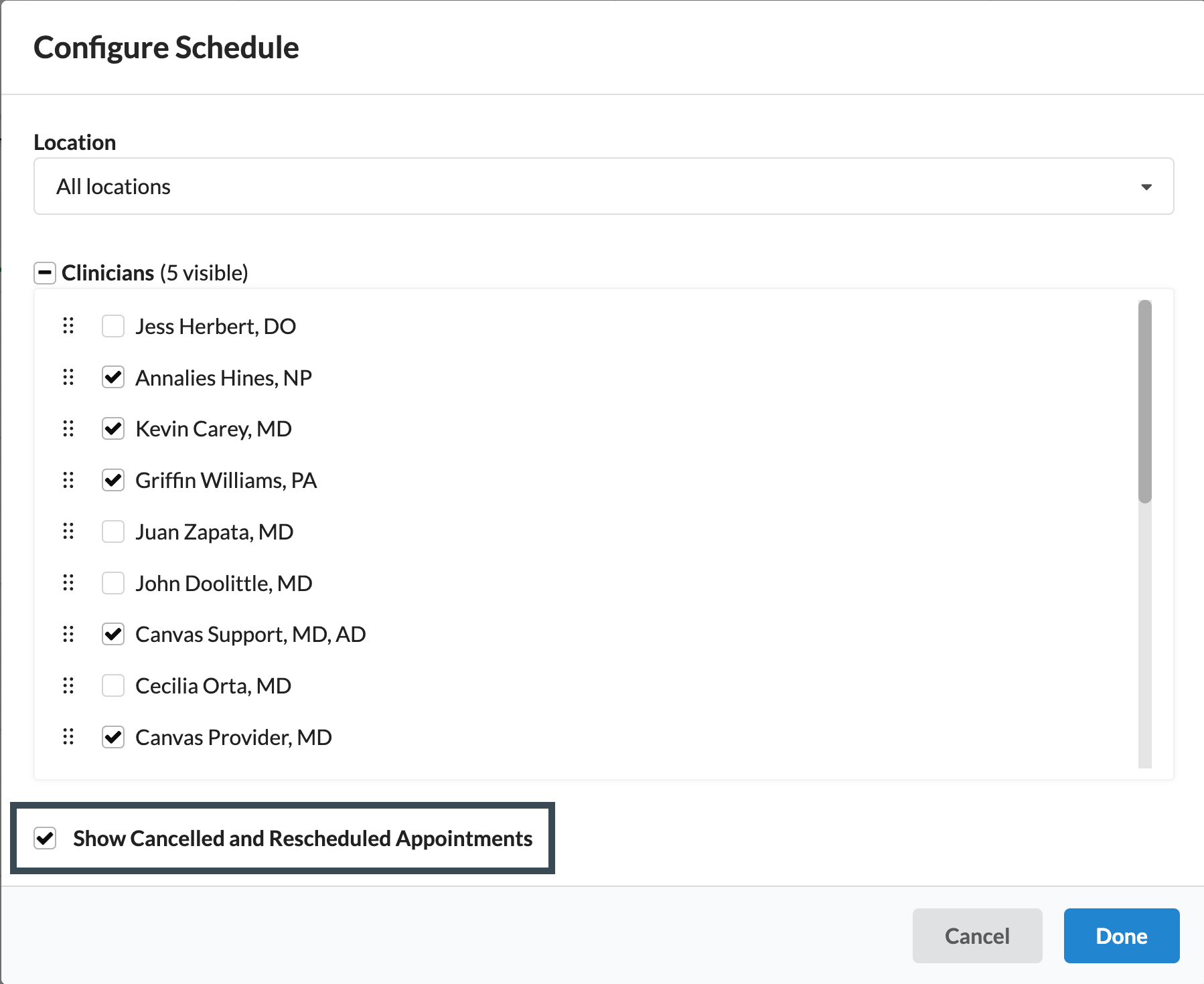
Cancelled and rescheduled appointments will display on the schedule view in gray with a strikethrough
No-Show Appointment
Navigate to patient chart
Open appointment note
Click No Show
The status on the schedule view will update to no show.
The note will remain in the timeline, but a
(No show)tag will be added to the note header.A
NO-SHOWCPT code will drop to the billing footer to apply any no show fees to the claim, if applicable.

Revert an Appointment
If an appointment is mistakenly checked in or marked as a no-show, you can revert its status to the previous state.
Navigate to the footer of the note that needs to be reverted.
Click Revert next to the checked-in or no-showed entry. This action will update the note's status back to an appointment.
After reverting, the Lock/Sign button will disappear, and the schedule buttons (check-in, reschedule, no-show, cancel) will reappear.
Choose the appropriate action and complete the process.

If a note is signed/locked after it is checked in, it can no longer be reverted
Scheduling a Follow Up Appointment
Follow up appointments are triggered by adding the Follow Up command to a chart note.
Add a Follow Up command to a chart note
Complete fields of the command
Header: When the patient needs to return for the follow up appointment. (ex: 2 weeks, 1 month, 6/13/2025)
Visit Type: A dropdown of all visit types for the practice
Reason for Visit: This will be free text if the practice is using the unstructured reason for visit or it will have a dropdown to select from if the practice utilizing structured reason for visit.
Scheduling Comments: Any free text comments

Click Record
A numbered badge will appear on the scheduling icon in the patient chart.
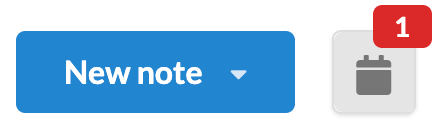
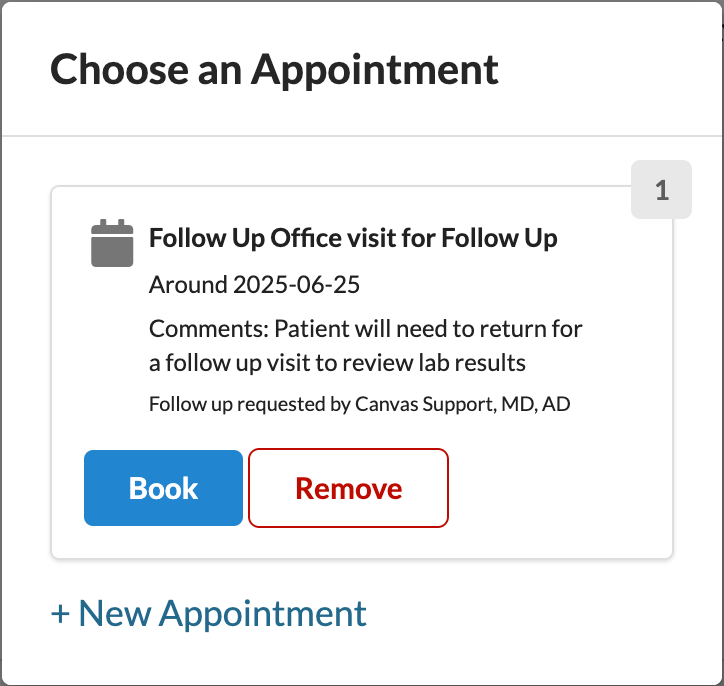
Click the calendar icon to view follow-up appointments in the Choose an Appointment modal which include:
Details: Pulled from the follow up command. Includes date the follow up should be around and comments
Book: Opens modal with pre-filled info.
Remove: Deletes request.
Exit: Closes the notification.
New Appointment: Schedule outside of follow-up.
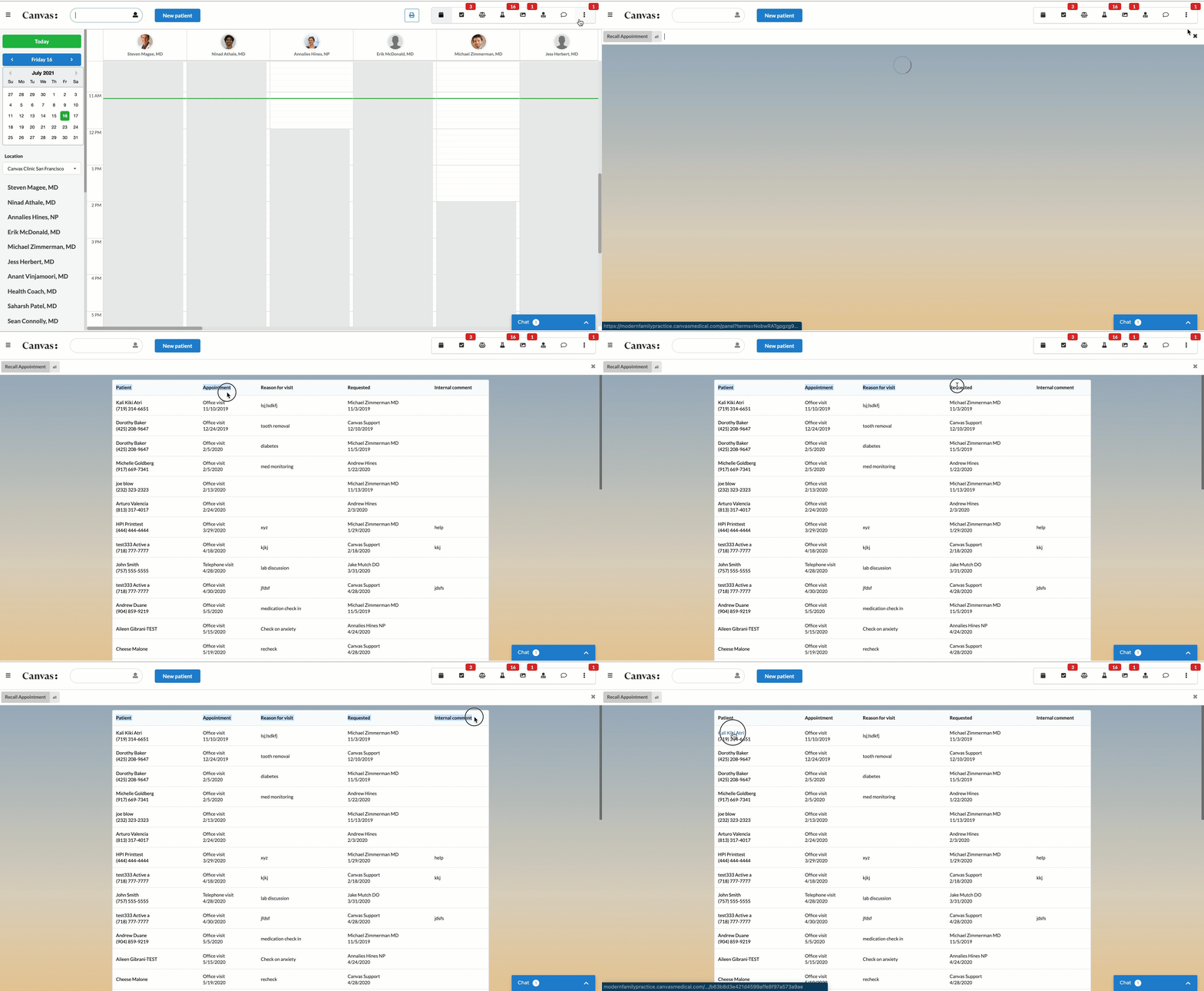
To view all follow-ups:
Go to the Recall Appointments section under the triple-dot menu on the Schedule View.
All follow-up requests, across all patients, can also be reviewed in the Recall Appointments section on the schedule view under the triple dot of the user panel.
Setup and Configurations
Appointment Status Once Checked In
Administrative users can set the default appointment status update that appears on the schedule view when an appointment is checked in.
Go to Settings under the triple line menu
Select Constance: Config
Find the
APPOINTMENT_STATUS_ONCE_CHECKED_INSelect the status from the dropdown
None: No status change occurs at check-in.
Confirmed
Arrived
Roomed
Exited
Click Save to apply changes.
Only one status can be chosen for the automatic update at check-in; any additional status changes will need to be updated manually.
Disable Double Booking
By default, Canvas allows double booking, but it can be disabled.
Go to Settings under the triple line menu
Click Constance: Config
Find the setting
ALLOW_DOUBLE_BOOKINGUncheck the value box to disable and save changes. If assistance is needed, contact Canvas Support.

Show Future Appointments in the Patient Timeline
Go to Settings under the triple line menu
Click Constance: Config
Locate the
SHOW_FUTURE_APPOINTMENTS_DAYSunder the Note Header and Appointment Configuration headingUpdate the field with the adequate number of days you'd like to see for future appointments in the patient timeline. The default is 14 days.
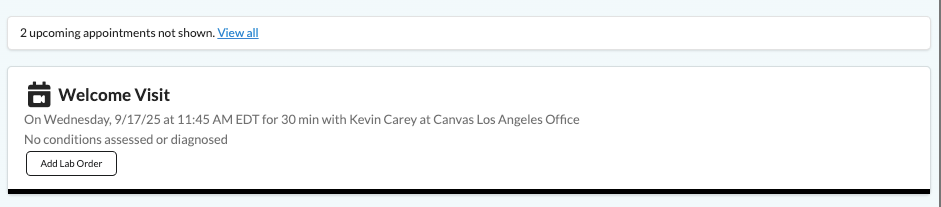
Appointments beyond the 14 days will be collapsed. Click View All to see all future appointments in the patient timeline.